How to Track the Current Progress of a Flow in PowerApps
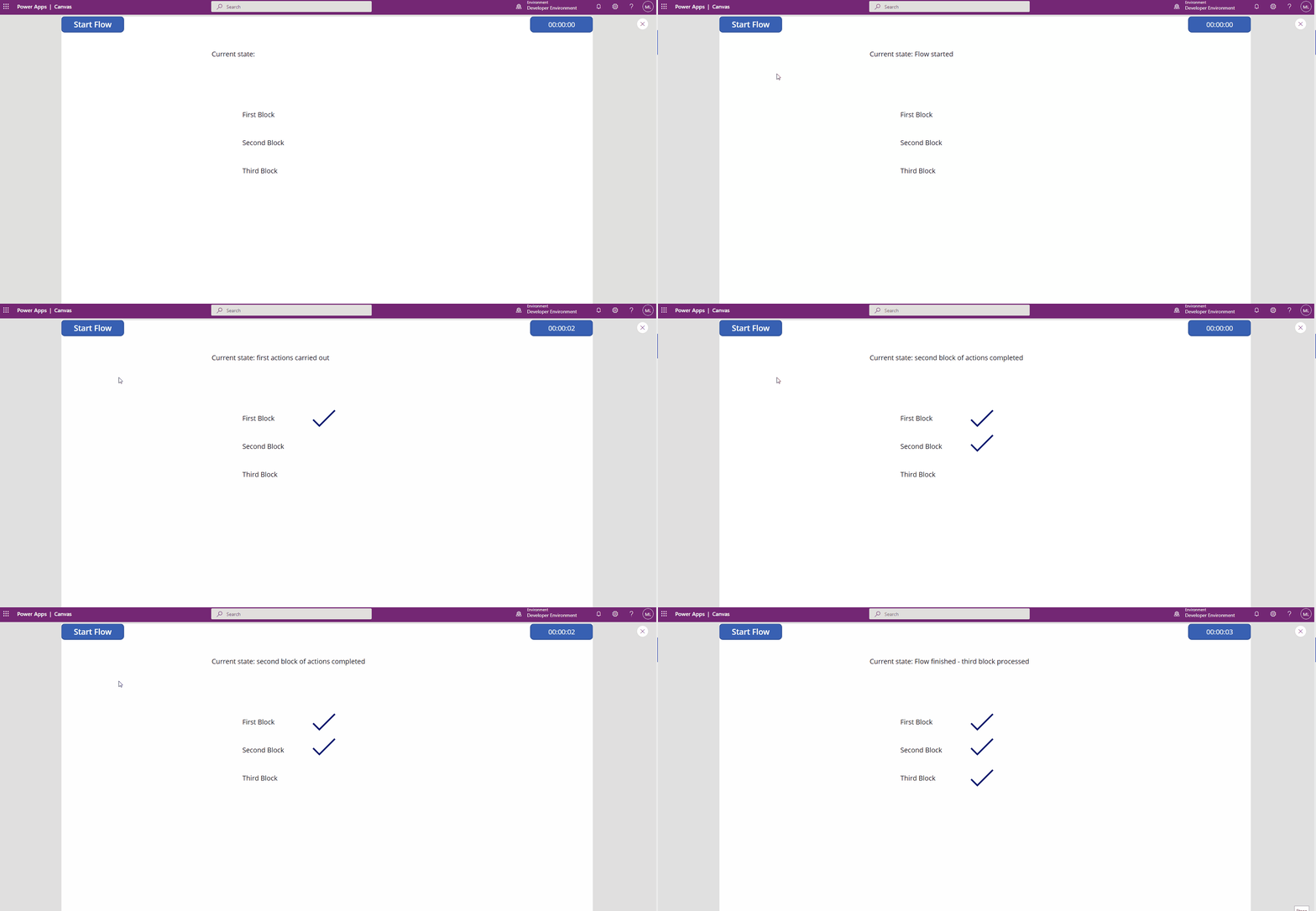
In some scenarios, you or your users would like to see how far a Cloud Flow process (Power Automate) has progressed after starting it via PowerApps.
Unfortunately, it’s not possible to use “Respond to PowerApps” multiple times to show status updates in the PowerApp during flow execution.
💡 The Solution: StateLog Table with Timer
For this challenge, we can easily create a StateLog table and check it regularly via a timer control. The key is to send updates to the StateLog entry after reaching important milestones in the flow.
sequenceDiagram
    participant App as Power App
    participant Flow as Power Automate
    participant Log as StateLog (SharePoint)
    App->>Flow: Run(GUID)
    Flow->>Log: Create item (GUID, StateCode 0, "Flow started")
    Flow->>Log: Update item at each milestone
    loop Every 3s (Timer)
        App->>Log: Refresh + LookUp(GUID)
        Log-->>App: Current StateCode / Title
    end
    Flow->>Log: Update item (StateCode 3, "Complete")
    App->>Log: LookUp(GUID)
    Log-->>App: StateCode 3
    App->>App: Show "Complete", stop timer
Download the complete solution here - ready to use at your location.
🛠️ What You Need for Implementation
- Flow Trigger → Button in your app
- Timer Control → To refresh the data periodically
- Status Display → Text labels and icons
- StateLog Table → SharePoint list for state tracking
📊 Setting Up the StateLog Data Source
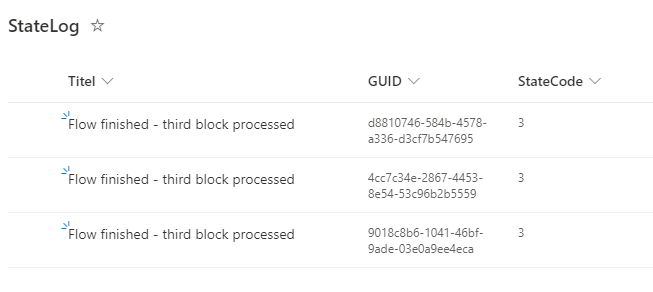
Build a data source with three columns:
- Title (default column) - for status descriptions
- GUID (text column) - for filtering by unique flow instance
- StateCode (number column) - for programmatic status handling
⚡ Configuring the Power Automate Flow
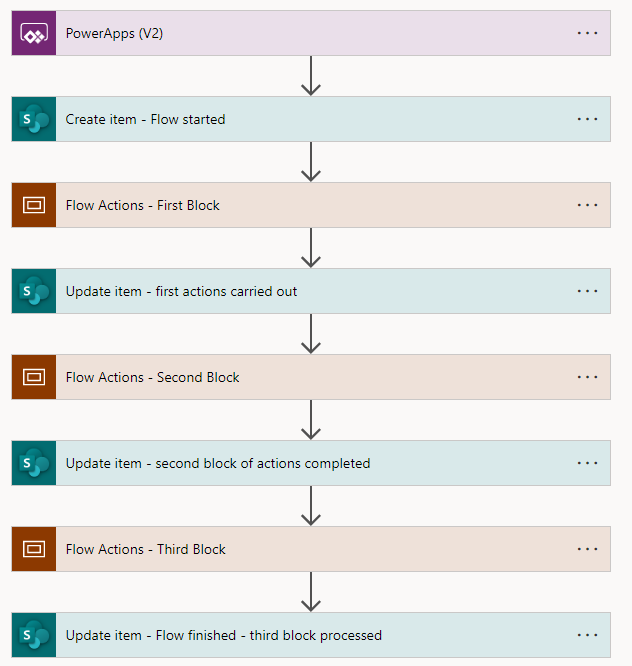
Create a flow with this structure:
- PowerApps trigger - receives GUID from the app
- Create Item - immediately creates StateLog entry with:
- GUID (from PowerApps)
- Initial status (StateCode 0)
- Title: “Flow started”
- Scope blocks - your actual business logic
- Update Item - after each milestone, update the status
The scopes named “Flow Actions” are symbolic - use any actions you need. After important milestones, simply update the status (or create additional entries for detailed logging).
📱 PowerApps Implementation
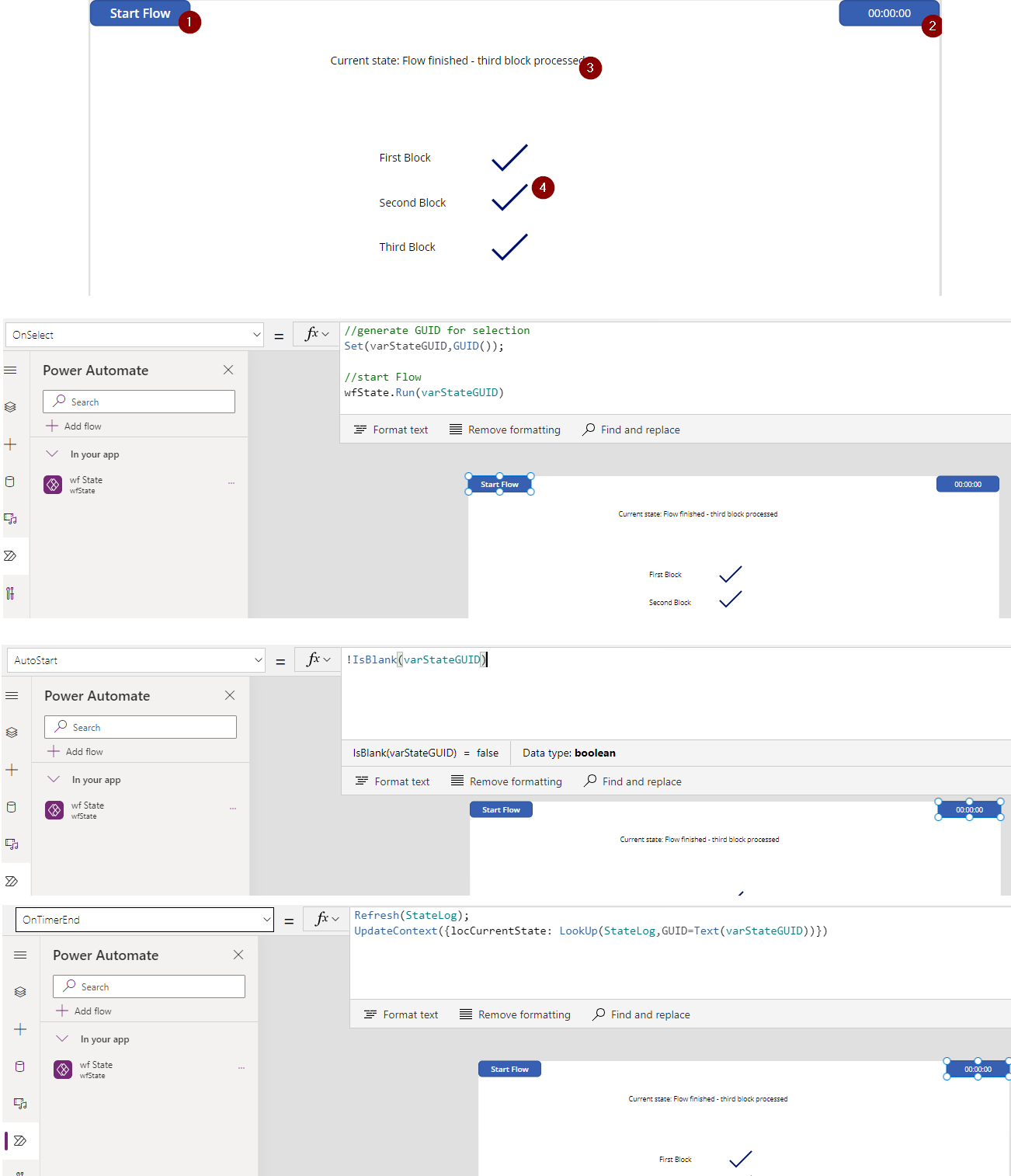
1. Flow Trigger Button
On the button’s OnSelect property:
// Generate GUID for tracking
Set(varStateGUID, GUID());

// Start Flow with GUID
wfState.Run(varStateGUID)
2. Timer Control Configuration
Timer Settings:
- Duration: 3000 (3 seconds)
- AutoStart:
!IsBlank(varStateGUID) - Repeat:
locCurrentState.StateCode <> 3
OnTimerEnd:
Refresh(StateLog);
UpdateContext({
    locCurrentState: LookUp(
        StateLog,
        GUID = Text(varStateGUID)
    )
})
3. Status Display
Show the current status using:
locCurrentState.Title
You can also display different icons based on StateCode:
Switch(
    locCurrentState.StateCode,
    0, "⏳ Starting...",
    1, "🔄 Processing...",
    2, "⚙️ Finalizing...",
    3, "✅ Complete!"
)
💾 Complete Flow Code
Here’s the complete flow definition you can import:
1
2
3
4
5
6
7
8
9
10
11
12
13
14
15
16
17
18
19
20
21
22
23
24
25
26
27
28
29
30
31
32
33
34
35
36
37
38
39
40
41
42
43
44
45
46
47
48
49
50
51
52
53
{
  "id":"5d6770c8-725f-42a0-86a9-a13cc239d868",
  "brandColor":"#8C3900",
  "connectionReferences":
  {
    "shared_sharepointonline":
    {
      "connection":
      {
        "id":"/providers/Microsoft.PowerApps/apis/shared_sharepointonline/connections/shared-sharepointonl-2e2e173e-f314-4d56-afe3-20f134d359a6"
      }
    }
  },
  "connectorDisplayName":"Control",
  "icon":"data:image/svg+xml;base64,PHN2ZyB3aWR0aD0iMzIiIGhlaWdodD0iMzIiIHZlcnNpb249IjEuMSIgdmlld0JveD0iMCAwIDMyIDMyIiB4bWxucz0iaHR0cDovL3d3dy53My5vcmcvMjAwMC9zdmciPg0KIDxwYXRoIGQ9Im0wIDBoMzJ2MzJoLTMyeiIgZmlsbD0iIzhDMzkwMCIvPg0KIDxwYXRoIGQ9Im04IDEwaDE2djEyaC0xNnptMTUgMTF2LTEwaC0xNHYxMHptLTItOHY2aC0xMHYtNnptLTEgNXYtNGgtOHY0eiIgZmlsbD0iI2ZmZiIvPg0KPC9zdmc+DQo=",
  "isTrigger":false,
  "operationName":"LogState",
  "operationDefinition":
  {
    "type":"Scope",
    "actions":
    {
      "Create_item_-_Flow_started":
      {
        "type":"OpenApiConnection",
        "inputs":
        {
          "host":
          {
            "connectionName":"shared_sharepointonline",
            "operationId":"PostItem",
            "apiId":"/providers/Microsoft.PowerApps/apis/shared_sharepointonline"
          },
          "parameters":
          {
            "dataset":"https://lehmannws.sharepoint.com/sites/powerplatformtip.com",
            "table":"5fe8a63f-d26b-419e-a693-6687f7275ebf",
            "item/Title":"Flow started",
            "item/GUID0":"@triggerBody()['text']",
            "item/StateCode":0
          },
          "authentication":"@parameters('$authentication')"
        },
        "runAfter":{},
        "metadata":
        {
          "operationMetadataId":"158862e4-3942-4c31-bcfb-023af6fa6179"
        }
      }
      // Additional flow actions...
    }
  }
}
🎯 Key Takeaways
- Real-time tracking: Monitor flow progress without blocking the UI
- GUID-based: Each flow instance is uniquely trackable
- Flexible updates: Update status at any milestone in your flow
- User feedback: Provide clear progress indication to users
- Scalable: Works with any complexity of flow logic
💡 Alternative Approaches
Instead of updating the same StateLog entry, you could:
- Create new entries for each milestone (provides detailed history)
- Use different StateCode values for more granular status tracking
- Add timestamps to track duration of each phase
- Include error handling with specific error state codes
🔄 Enhanced Timer Logic
For better performance, you might want to:
- Increase timer duration for longer flows (reduce SharePoint calls)
- Stop timer automatically when flow completes
- Add retry logic for failed flow instances
- Cache results to reduce unnecessary data calls
This solution provides a robust way to track Power Automate flow progress in real-time, giving your users visibility into long-running processes and improving the overall user experience.
🔗 Related Tips
🔸 #PowerPlatformTip 147: ‘Dummy Patch for Complex Flows’ - refresh just the affected record once your flow finishes, instead of polling a whole gallery.
🔸 #PowerPlatformTip 51: ‘Which Flow Calls Which Flow’ - trace flow-to-flow triggers when the process you’re tracking spans multiple flows.
This article was originally published on Marcel Lehmann’s blog and has been migrated to PowerPlatformTip for better accessibility and searchability.
This tip is by Marcel Lehmann, Microsoft MVP (Business Applications) and founder of the Power Platform Academy – live Power Platform workshops, free or CHF 49. Join the workshop waitlist to get notified about new dates. For companies that want this implemented for them, see KMUpower – Power Platform consulting & automation for SMEs (DACH).