#PowerPlatformTip 94: 'Extract Text from DOCX'
Extract text from Word DOCX files without tools or premium connectors: treat the DOCX as a ZIP in Power Automate, extract the archive and parse document.xml.
TL;DR: Extract text from a DOCX in Power Automate by treating it as a ZIP archive, extracting it, and parsing
word/document.xml, no third-party tools.
💡 Challenge
Extracting text from a Word document (DOCX file) using Power Automate can be challenging, especially when avoiding third-party tools.
✅ Solution
Leverage Power Automate to extract text directly from a DOCX file, understanding that it’s essentially a ZIP archive containing various XML files.
🚫 How to Extract Text from a DOCX Without Tools
You do not need any third-party tools, paid connectors (like Encodian or Plumsail) or desktop software to get the text out of a Word file. Every DOCX is a ZIP archive, and Power Automate’s standard OneDrive/SharePoint actions can open it:
- Extract archive to folder – run this standard action directly on the
.docxfile. - Get file content using path – read
word/document.xmlfrom the extracted folder. - Strip the XML tags – use “Html to text” or a
Composeexpression to keep only the plain text.
That’s the entire method – 100 % native actions, works with a standard license.
🔧 How It’s Done
Here’s how to do it:
-
Recognize that a DOCX file is a ZIP archive.
🔸 Rename the.docxextension to.zipto inspect its structure.🔸 Identify the
document.xmlfile inside thewordfolder. -
Use Power Automate to extract the archive.
🔸 Use the “Extract archive to folder” action on the DOCX file stored in OneDrive or SharePoint.🔸 Store the extracted files in a temporary folder.
-
Read and parse the
document.xmlfile.
🔸 Use “Get file content using path” to retrievedocument.xml.🔸 Use a “Compose” or “Parse XML” action to extract the text nodes.
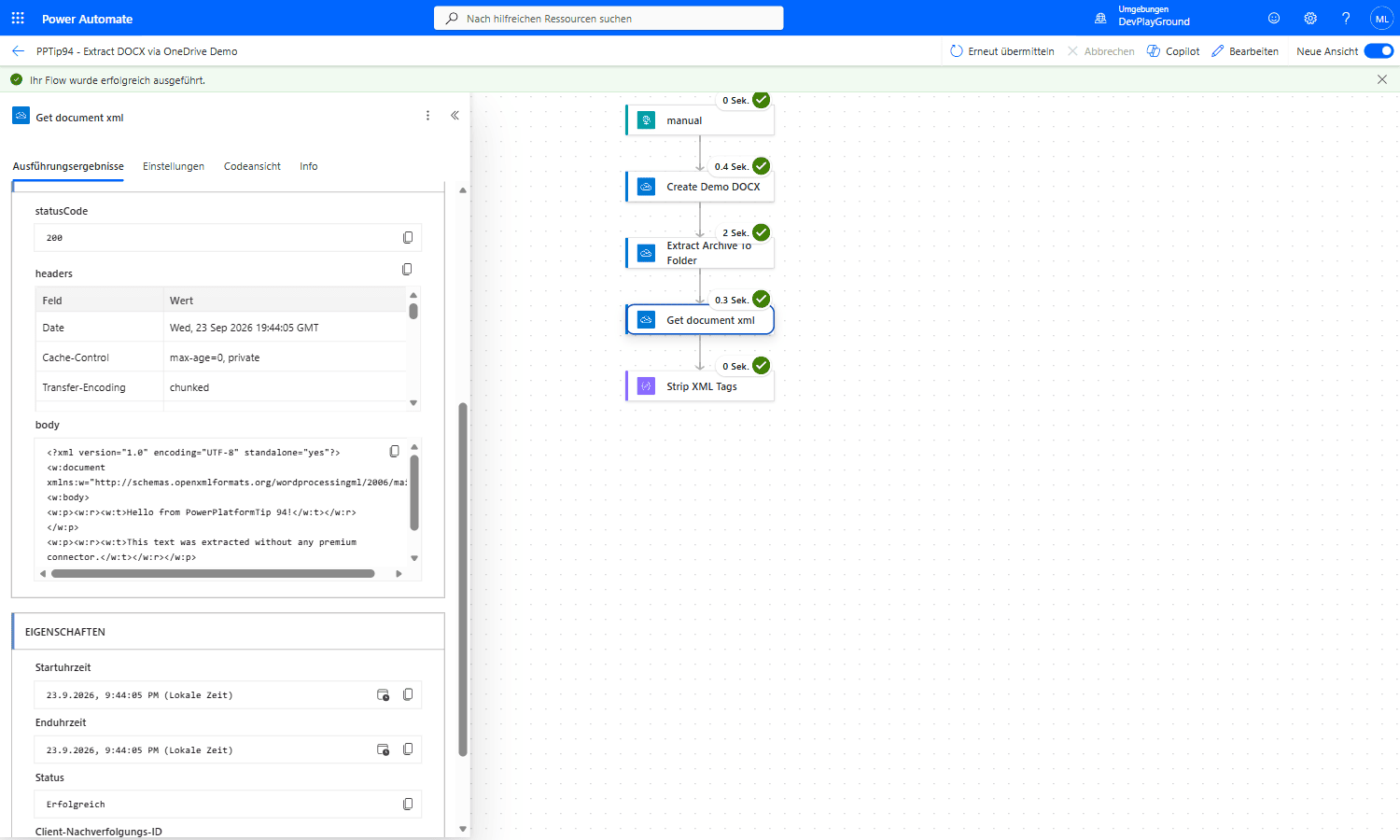 Real flow run, OneDrive for Business: Extract archive to folder unpacks the DOCX, then Get file content using path reads
 /PPTip94-Extracted/word/document.xml straight out of it, exactly the raw XML with <w:t> text nodes the method is built to parse.
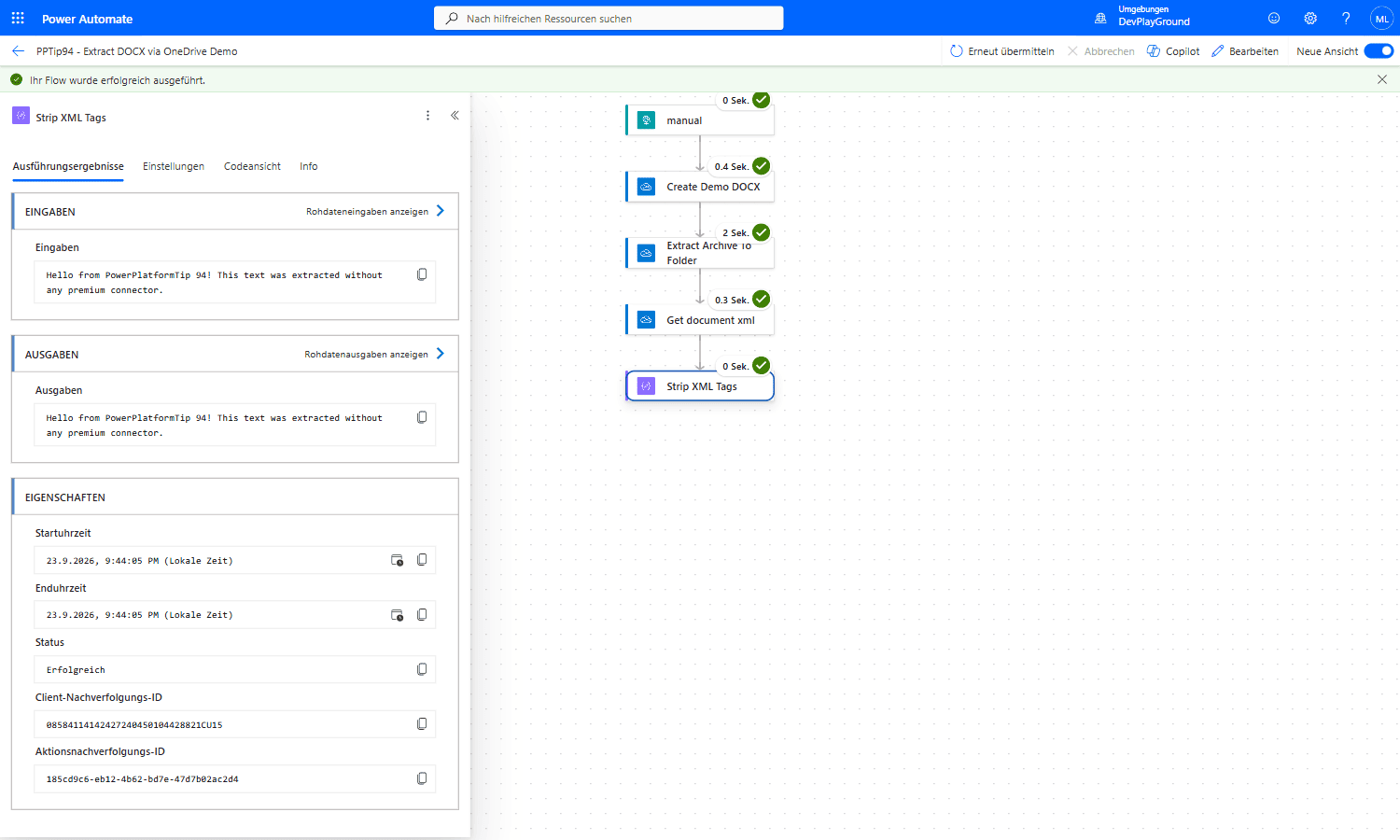 Real flow run:
 join(xpath(xml(body('Get_document_xml')), '//*[local-name()="t"]/text()'), ' ') turns that XML into clean plain text, Hello from PowerPlatformTip 94! This text was extracted without any premium connector., no third-party tool, no SharePoint site setup needed, just the standard OneDrive for Business connector.
🎉 Result
A streamlined method to extract text from Word documents using standard Power Automate features, keeping the process simple and entirely within the platform.
🌟 Key Advantages
🔸 No need for third-party tools.
🔸 Utilizes native Power Automate actions.
🔸 Directly parses XML for accurate text extraction.
🎥 Video Tutorial
🛠️ FAQ
1. How can I extract text from a DOCX without tools?
A DOCX is a ZIP archive. Use “Extract archive to folder” on the file, read word/document.xml with “Get file content using path” and strip the XML tags – no third-party tools, no premium connectors.
2. Do I need premium connectors to extract the DOCX archive?
No, the archive extraction actions are available with standard OneDrive or SharePoint connectors.
3. How can I automate this for multiple files?
Use an “Apply to each” loop over the list of DOCX files, then repeat the extraction steps for each file.
4. How do I strip XML tags to get only plain text?
After parsing the XML, use the “Html to text” action or string expressions in “Compose” to remove any residual markup. The most robust option, verified in a real flow: xpath(xml(body), '//*[local-name()="t"]/text()') pulls every <w:t> text node directly, then join(..., ' ') turns the resulting array into one clean string, no manual tag-stripping regex needed.
🔗 Related Tips
- #PowerPlatformTip 92: Free PDF Tools in Power Automate, more no-cost document processing.
- #PowerPlatformTip 121: Filtering SharePoint File Fields with OData, locate the DOCX files to process.
- #PowerPlatformTip 106: Word Quick Parts, the reverse direction: generate a Word document from a template before extracting text back out of it.
This tip is by Marcel Lehmann, Microsoft MVP (Business Applications) and founder of the Power Platform Academy – live Power Platform workshops, free or CHF 49. Join the workshop waitlist to get notified about new dates. For companies that want this implemented for them, see KMUpower – Power Platform consulting & automation for SMEs (DACH).