#PowerPlatformTip 121: 'Filtering SharePoint File Fields with OData'
Filter SharePoint files in Power Automate by name, path, or folder using FileLeafRef, FileRef & FileDirRef in one OData query. No loops, no premium connector.
TL;DR: Filter SharePoint files in Power Automate with the FileLeafRef, FileRef and FileDirRef fields via simple OData queries.
💡 Challenge
Filtering SharePoint documents in Power Automate gets tricky when all you have is a file name or folder path. The right filter fields aren’t obvious, so many makers end up fetching every file and filtering inside a loop, slow and inefficient.
✅ Solution
Use SharePoint’s built-in file-reference fields, FileLeafRef, FileRef and FileDirRef, directly in your OData Filter Query to return exactly the files you need, server-side.
🔧 How It’s Done
Add one of these fields to the Filter Query of your “Get files (properties only)” action:
🔸 FileLeafRef, filter by file name (without the path), e.g. FileLeafRef eq 'Invoice.pdf'.
🔸 FileRef, filter by the full path to a file.
🔸 FileDirRef, filter by files within a specific folder.
This pairs well with efficient query design, see #PowerPlatformTip 95, ‘Optimized SharePoint Queries’.
📦 Exclude or Include Files by Extension
A very common requirement: return all files except a certain type. The reliable way is the File Type column (internal name File_x0020_Type, holds the extension without the dot) combined with FSObjType eq 0, because folders have an empty file type and would otherwise slip through ne:
1
FSObjType eq 0 and File_x0020_Type ne 'zip'
On a 204-item test library (135 files, 69 folders, 4 ZIPs) this returned exactly 131 rows. Without FSObjType eq 0 the folders come back too: File_x0020_Type ne 'pdf' alone returned 184 rows, the 69 folders included.
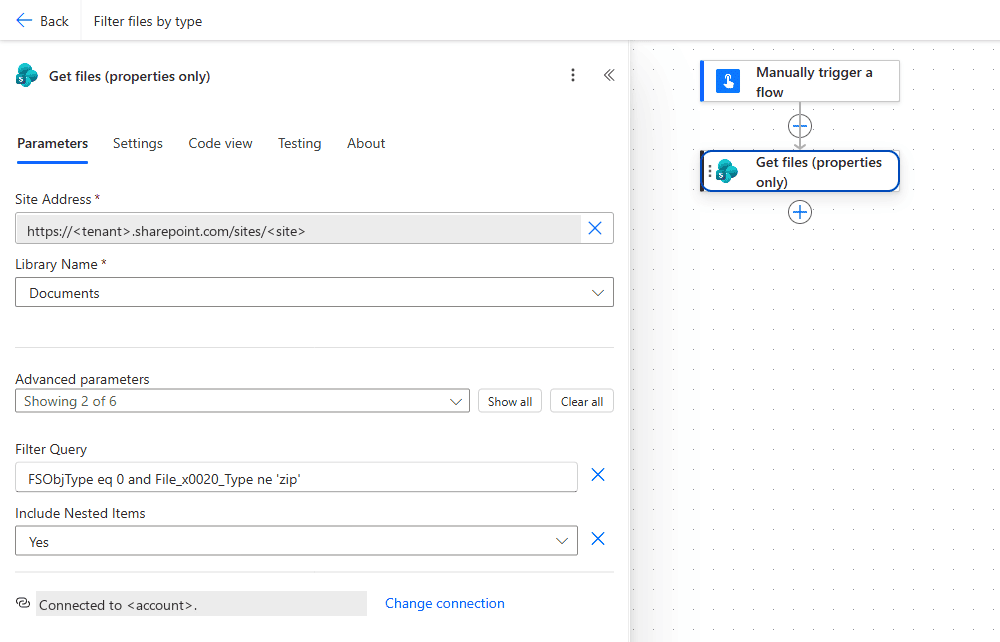{: .align-center} _The filter sits in the Filter Query field of the “Get files (properties only)” action. Include Nested Items is set to Yes so files in sub-folders are covered too.
Only one type, two ways that return the same 20 PDFs:
1
2
File_x0020_Type eq 'pdf'
substringof('.pdf', FileLeafRef)
Both patterns combine with other conditions:
1
FSObjType eq 0 and File_x0020_Type ne 'zip' and startswith(FileDirRef, '/sites/PlayGround/Freigegebene Dokumente/General')
What the connector rejects (each tested on the same library):
🔸 substringof('.zip', FileLeafRef) eq false and substringof('.pdf', FileLeafRef) eq true: The query is not valid. SharePoint REST returns the same error, so this is not a connector limitation. Use substringof() without eq true, and File_x0020_Type ne for the negative case.
🔸 not substringof('.zip', FileLeafRef): Fetching items failed. Possible invalid string in filter query.
🔸 endswith(FileLeafRef, '.pdf'): The function operator 'endswith' is not supported or its usage is invalid.
Note: substringof('.zip', FileLeafRef) matches anywhere in the file name – a file called archive.zip.backup.docx would also match. File_x0020_Type only looks at the real extension.
📁 Folders, Paths, Dates and People
All counts below come from one library with 204 items (135 files, 69 folders).
🔸 Folders out, files only: FSObjType eq 0 returned 135, FSObjType eq 1 the 69 folders. Internal names are case-sensitive: fsobjtype eq 0 fails with Column 'fsobjtype' does not exist. It may have been deleted by another user.
🔸 FileDirRef uses the library’s URL name, not its display name. The library shows as “Documents”, but the path is /sites/PlayGround/Freigegebene Dokumente because the site was created in German. Copy the path from {FullPath} or the browser URL instead of typing Shared Documents.
🔸 Root level only: FileDirRef eq '/sites/PlayGround/Freigegebene Dokumente' returned the 20 items sitting directly in the library root, folders included.
🔸 One folder with everything below it: startswith(FileDirRef, '/sites/PlayGround/Freigegebene Dokumente/General') returned 42 items across all sub-folders. FileRef eq '/sites/PlayGround/Freigegebene Dokumente/General' returned exactly 1 row, the folder itself.
🔸 Name prefix: startswith(FileLeafRef, 'Scan') returned 2.
🔸 Dates need quotes: Created ge '2026-01-01T00:00:00Z' returned 88, Created ge datetime'2026-01-01T00:00:00Z' the same 88. Without quotes the action fails: The expression "Created ge 2026-01-01T00:00:00Z" is not valid. Creating query failed.
🔸 People columns need a sub-property: Author/EMail eq 'user@contoso.com' and Author/Title eq 'Marcel Lehmann' both returned 143. Author eq 'Marcel Lehmann' returned 0 rows and no error, so a wrong person filter looks like an empty library.
🔸 The first 100 only: without Pagination the action returned 100 rows for every filter that matched more. Set a Top Count (150 gave 150, 6000 gave all 204) or turn on Pagination, see #PowerPlatformTip 97.
🎉 Result
Your workflows become more robust and easier to maintain. Server-side filtering cuts the time spent on manual adjustments and minimizes the potential for errors.
🌟 Key Advantages
🔸 Improved efficiency: faster development through server-side filtering.
🔸 Better consistency: a standardized approach across all projects.
🔸 Enhanced reliability: reduced risk of failure during execution.
🎥 Video Tutorial
🛠️ FAQ
1. How do I exclude ZIP files (or any extension) with an OData filter? Use FSObjType eq 0 and File_x0020_Type ne 'zip' in the Filter Query. substringof('.zip', FileLeafRef) eq false, not substringof(...) and endswith() all fail with a 400 error. To include only one type use File_x0020_Type eq 'zip' or substringof('.zip', FileLeafRef).
2. How do I apply these OData filters in Power Automate? In the “Get files (properties only)” action, enter your OData filter expression into the Filter Query field to limit results based on FileLeafRef, FileRef, or FileDirRef.
3. Can I combine multiple OData filter conditions? Yes. Use logical operators like and or or in your filter query, for example: FileLeafRef eq 'document.pdf' and startswith(FileDirRef, '/sites/demo/Shared Documents').
4. Are these fields supported in SharePoint on-premises? OData filtering with FileLeafRef, FileRef, and FileDirRef works in SharePoint Online and on-premises (2013+). Ensure your environment and connector version support OData queries.
5. What does FileLeafRef mean? It’s the file name itself, for example, ‘Invoice.pdf’.
6. What does FileRef mean? It’s the full path of a file, including folders, for example, ‘/sites/demo/Shared Documents/Invoice.pdf’.
7. What does FileDirRef mean? It refers to a folder path only, for example, ‘/sites/demo/Shared Documents/’.
8. How do I exclude folders from Get files (properties only)? Add FSObjType eq 0 to the Filter Query; FSObjType eq 1 returns only folders. Write the column exactly like that, fsobjtype fails with Column 'fsobjtype' does not exist.
9. Can I use endswith to filter by file extension? No. endswith(FileLeafRef, '.pdf') fails with The function operator 'endswith' is not supported or its usage is invalid. Use File_x0020_Type eq 'pdf' or substringof('.pdf', FileLeafRef).
10. How do I filter files by Created date, author or folder? Created ge '2026-01-01T00:00:00Z' (the quotes are required), Author/EMail eq 'user@domain' or Author/Title eq 'Display Name', and startswith(FileDirRef, '/sites/site/LibraryUrlName/Folder') for a folder including its sub-folders. FileDirRef eq '/sites/site/LibraryUrlName' returns the root level only.
🔗 Related Tips
- #PowerPlatformTip 95: Optimized SharePoint Queries, design efficient, delegable OData queries.
- #PowerPlatformTip 153: Rename a SharePoint File with Power Automate, work with FileLeafRef to rename files in place.
This tip is by Marcel Lehmann, Microsoft MVP (Business Applications) and founder of the Power Platform Academy – live Power Platform workshops, free or CHF 49. Join the workshop waitlist to get notified about new dates. For companies that want this implemented for them, see KMUpower – Power Platform consulting & automation for SMEs (DACH).