#PowerPlatformTip 83: 'Organize Power Automate Chat Messages'
TL;DR: Instead of sending every notification to the one Flow bot chat, create a group chat per topic and post into it with Post message in a chat or channel → Post as: Flow bot → Post in: Group chat. Each topic gets its own thread, and you can mute, pin or leave it like any other chat.
💡 Challenge
Managing Power Automate notifications in Microsoft Teams gets cluttered when they all land in the same chat with the Flow bot. A single thread mixing approval requests, error alerts and daily summaries from a dozen unrelated flows is hard to triage, and important messages get buried under routine ones within minutes.
✅ Solution
Create topic-specific group chats in Teams, for example Invoices, Flow errors or Daily reports, and let the Flow bot post to the matching chat. Every flow knows its topic, so the notifications sort themselves.
🔧 How It’s Done
- Create the group chat. In Teams, start a new chat with at least two other people, because a group chat needs at least three participants. You can remove the extra participants later. Alternatively, create it from a flow with the Teams action Create a chat (up to 20 users, no guest users).
- Name the chat after the topic or workflow, for example Flow errors - Finance.
- Post to it from the flow. Add the Teams action Post message in a chat or channel and set:
- Post as: Flow bot
- Post in: Group chat
- Group chat: pick the topic chat from the list
- Message: your text, with dynamic content
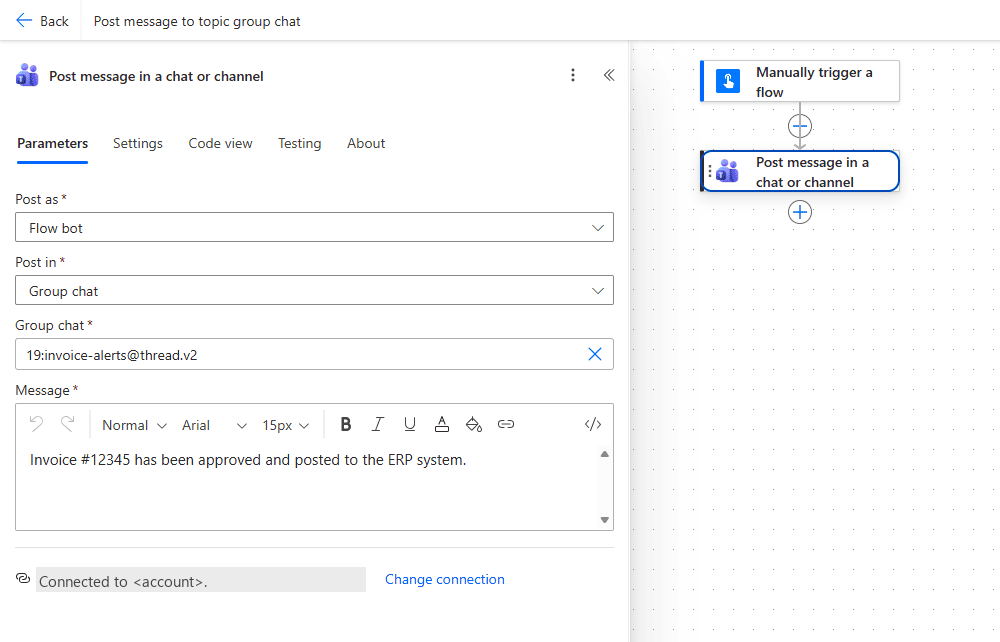 The Post message in a chat or channel action: Post as Flow bot, Post in Group chat, then pick the topic chat in the Group chat field (or paste its conversation ID) and write the Message.
📌 Additional Tips:
🔸 Plain message vs. Adaptive Card: Post message in a chat or channel is enough for a simple alert. If the recipient has to decide something (approve, acknowledge, pick an option) without leaving Teams, use the action Post adaptive card and wait for a response. It posts the card to the chat and pauses the flow until someone responds, then the flow continues with the answer.
🔸 Workflows app must be allowed: the Flow bot actions require the Workflows app (formerly Power Automate) to be available and set to Allow in the Teams admin center.
🔸 Throttling: Flow bot operations count against a limit of 25 non-GET requests per connection per 300 seconds. A flow that posts to many chats in a loop hits this quickly; add a delay or combine messages.
🔸 Message size: a posted message can be about 28 KB, including all HTML. Longer messages fail with Request Entity too large.
🎉 Result
You have a dedicated group chat in Teams for each topic, and only the messages of that topic land there. It’s easier to find, mute, pin or hand over a topic, because it’s a normal Teams chat.
🌟 Key Advantages
🔸 Enhanced Organization: Your Teams chats will be more organized, making it easier to find messages related to specific topics.
🔸 Efficient Tracking: With messages sorted by topic, you can quickly locate and act upon them, saving you time and effort.
🔸 Shared visibility: everyone in the topic chat sees the same alerts, so the team knows who already reacted.
🔸 Actionable, not just informational: with Post adaptive card and wait for a response a notification becomes a step the flow can branch on.
⚠️ Good to Know
🔸 Guests and external users: the Create a chat action doesn’t support guest users, and the trigger When someone responds to an adaptive card doesn’t work for guest or external users. Plan topic chats with internal members.
🔸 Government clouds: the Flow bot isn’t supported in GCC, GCC High and DoD tenants. Post as User there.
🎥 Video Tutorial
🛠️ FAQ
1. How do I find the chat ID for a Teams group chat?
Usually you don’t need it: the Group chat field lists your recent chats. If you need the ID as a value, use the Teams action List chats, which returns the recent chats you’re part of, including their IDs and topics.
2. Can I send messages to a single person instead of a group chat?
Yes. Set Post in to Chat with Flow bot and enter the recipient. The message appears in that person’s chat with the Flow bot. A group chat is only needed when several people should see the same alerts.
3. How can I remove participants after creating the group chat?
In Teams, open the chat’s participant list, select the user and choose Remove from chat. From a flow, the Teams action Remove a member from a chat does the same. Only group chats support removing members.
🔗 Related Tips
🔸 How to Send a 1:1 Message via Power Automate in Teams - send as yourself instead of the Flow Bot, for a more personal notification.
🔸 #PowerPlatformTip 162: ‘Create a Private Teams Channel from a Flow’ - a channel-based alternative to a topic-specific group chat.
This tip is by Marcel Lehmann, Microsoft MVP (Business Applications) and founder of the Power Platform Academy – live Power Platform workshops, free or CHF 49. Join the workshop waitlist to get notified about new dates. For companies that want this implemented for them, see KMUpower – Power Platform consulting & automation for SMEs (DACH).