How to Restore and Create a Backup from a Flow
 Photo by Sergei Starostin on Pexels.com
TL;DR: Solution-aware flows have a built-in Version history (restore any version as a new draft). Deleted flows can be restored by an admin within 21 days. For a backup you control yourself, export the solution with the Dataverse action ExportSolution (premium) or save a single flow’s definition with Get Flow from the Power Automate Management connector (standard), and restore it with ImportSolution or Update Flow.
The most frequently asked question I receive is “How to restore (and create) a backup from a flow to restore earlier versions?” My inspiration for the self-made backups was Audrie Gordon and Pieter Veenstra.
💡 Challenge
A flow that worked yesterday breaks after an edit, or somebody deletes it. You need a way back, and which one works depends on two things: is the flow in a solution, and does the flow still exist?
✅ Solution
Four options, from built in to self-made:
🔸 Version history for solution-aware flows: built in, free, restores an earlier version of an existing flow.
🔸 Restore a deleted flow within 21 days: built in, for solution and non-solution flows, needs an admin.
🔸 Solution backup to OneDrive: a flow exports a solution as a ZIP file and can import it again. Covers apps, flows and tables in that solution.
🔸 Single-flow backup to OneDrive: a flow saves the definition of one flow as JSON and can write it back into that flow.
🔧 How It’s Done
1. Version history (solution-aware flows).
🔸 Open the flow in the designer and select Version history. Versions are grouped by day and marked as Latest version, Published or Past published.
🔸 Select a previous version, then Restore, and confirm. The old version is now the latest draft. Publish it to make it active.
🔸 Draft versions expire after six months, published versions after 12 months. Non-solution flows don’t have this version history, which is one more reason to build flows in solutions. More in How to Restore an Earlier Version of Your Flow.
2. Restore a deleted flow (within 21 days).
🔸 Build a button flow with the Power Automate Management action Restore Deleted Flow as Admin, or use PowerShell:
1
2
Get-AdminFlow -EnvironmentName <environment-id> -IncludeDeleted $true
Restore-AdminFlow -EnvironmentName <environment-id> -FlowName <flow-id>
🔸 The restored flow is turned off. Turn it on again by hand. After 21 days a deleted flow is gone for good.
3. Solution backup to OneDrive.
The idea: put the flows you want to protect into a “backup” solution. One flow can be part of several solutions at the same time, and it’s always the same flow, so a change or a restore affects it everywhere.
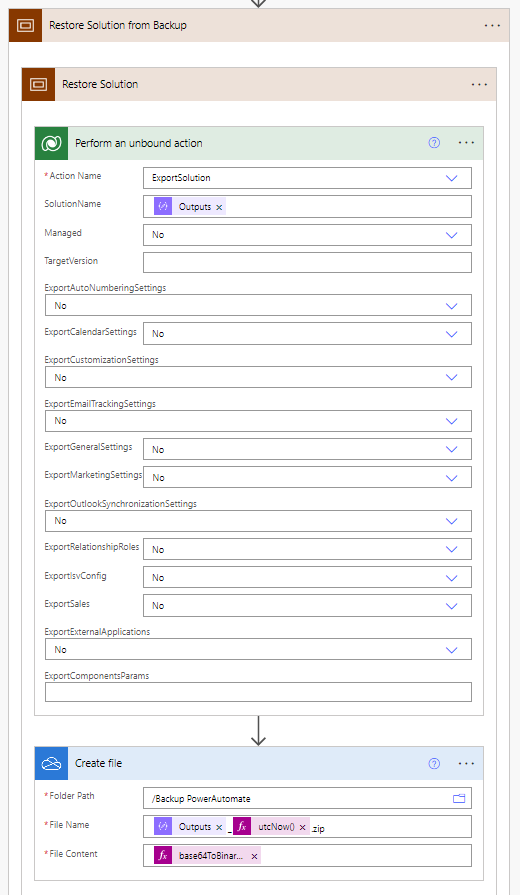 Backup: Perform an unbound action with ExportSolution, then Create file in OneDrive for Business with a timestamp in the file name.
🔸 Perform an unbound action (Dataverse) → Action Name ExportSolution, SolutionName = the unique name of the solution (no spaces), Managed = No.
🔸 Create file (OneDrive for Business) → File Name @{outputs('Internal_Name_Solution')}_@{utcNow('yyyyMMdd-HHmmss')}.zip (a Compose action with the solution’s unique name), File Content:
1
base64ToBinary(outputs('Perform_an_unbound_action')?['body/ExportSolutionFile'])
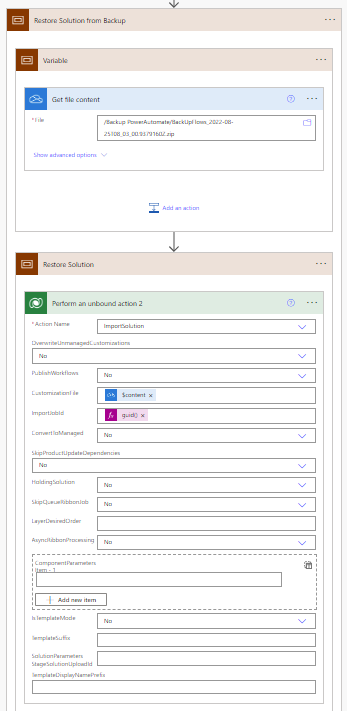 Restore: Get file content of the backup ZIP, then Perform an unbound action with ImportSolution.
🔸 Get file content (OneDrive for Business) on the backup ZIP.
🔸 Perform an unbound action → Action Name ImportSolution, CustomizationFile = body('Get_file_content')?['$content'], ImportJobId = guid(). Set OverwriteUnmanagedCustomizations and PublishWorkflows to the behaviour you want (overwrite existing unmanaged changes, turn on the imported flows).
4. Single-flow backup to OneDrive.
I prefer this one during development: as a child flow or copied to the end of a flow, it saves the definition after every successful run, so I always have the last working version.
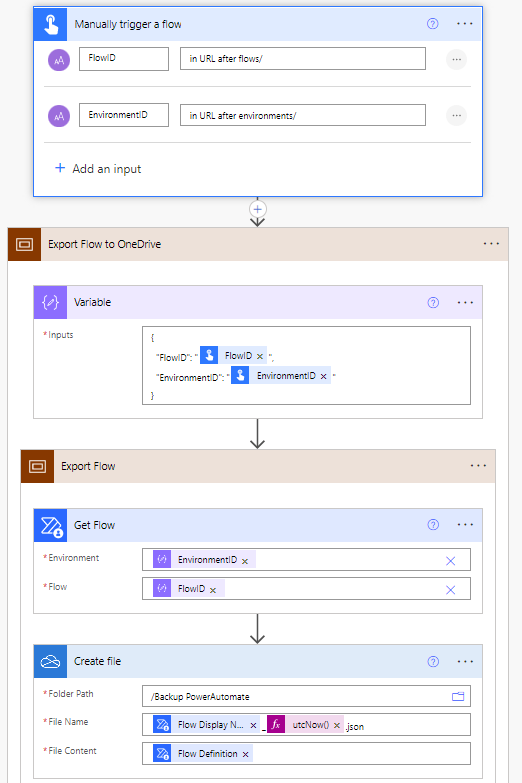 Backup: Get Flow (Power Automate Management) with environment and flow ID from the flow’s URL, then Create file with the Flow Definition as content.
🔸 Take the IDs from the flow’s URL: the environment ID follows environments/, the flow ID follows flows/.
🔸 Get Flow → Environment and Flow, then Create file → File Name @{outputs('Get_Flow')?['body/properties/displayName']}_@{utcNow('yyyyMMdd-HHmmss')}.json, File Content = Flow Definition.
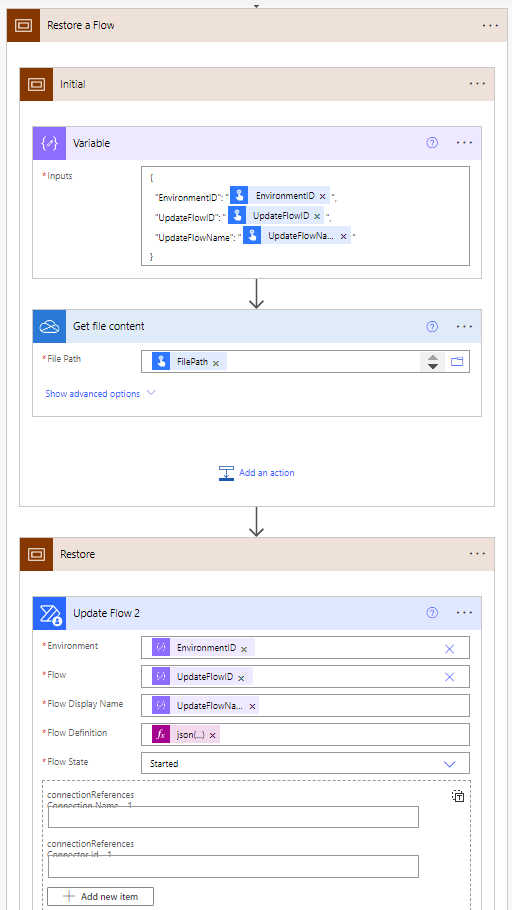 Restore: Get file content of the JSON backup, then Update Flow with display name, definition, state and the connection references.
🔸 Get file content on the JSON file, then Update Flow → Flow Definition = json(base64ToString(base64(outputs('Get_file_content')?['body']))), Flow State = Started.
🔸 Fill in the connectionReferences (connection name and connector ID) for every connector the flow uses. The definition file doesn’t carry the connections, so the restore needs them again.
🔸 Update Flow overwrites an existing flow. To bring back a deleted flow, use step 2 or Create Flow with the same definition.
🎉 Result
You know which way back fits which situation: version history for a bad edit in a solution flow, the 21-day restore for a deleted flow, and your own ZIP or JSON backups for everything older or for non-solution flows. Test a restore once in a development environment, before you need it.
🌟 Key Advantages
🔸 Built in first: version history and the deleted-flow restore cost nothing and need no setup.
🔸 Your own retention: backups in OneDrive or SharePoint stay as long as you keep them, independent of the 21-day and 12-month limits.
🔸 Whole solution or one flow: export a complete solution or only the one flow you’re working on.
🔸 Timestamped files: utcNow('yyyyMMdd-HHmmss') in the file name keeps every version side by side. Use a format string, because the default utcNow() output contains colons, which OneDrive and SharePoint don’t allow in file names.
⚠️ Good to Know
🔸 Licensing: the solution backup uses the Dataverse connector, which is premium. The single-flow backup uses the Power Automate Management connector, which is standard. OneDrive for Business is standard.
🔸 Permissions: exporting and importing solutions needs the matching Dataverse privileges (for example System Customizer). Get Flow and Update Flow need access to the flow, and the restore of deleted flows needs an admin.
🔸 Secure the backups: the files contain your complete flow logic. Store them in a location with restricted access.
🛠️ FAQ
1. Is there a native way to restore an earlier version of a Power Automate flow?
Yes, for solution-aware cloud flows. Open the flow in the designer, select Version history, pick a previous version and select Restore. It becomes the latest draft. Draft versions expire after six months, published versions after 12 months. Non-solution flows don’t have this version history.
2. Can I get a deleted flow back?
Yes, within 21 days of deletion, for solution and non-solution flows. An admin uses the Power Automate Management action Restore Deleted Flow as Admin or the PowerShell cmdlet Restore-AdminFlow. The restored flow is turned off and must be turned on again. After 21 days it can’t be recovered, not even by Microsoft Support.
3. Which connectors does a self-made backup need?
The solution backup uses the Dataverse action Perform an unbound action (ExportSolution / ImportSolution), and the Dataverse connector is premium. The single-flow backup uses the Power Automate Management connector (Get Flow / Update Flow), which is a standard connector.
🔗 Related Tips
🔸 How to Restore an Earlier Version of Your Flow - the built-in version history from option 1.
🔸 #PowerPlatformTip 8: ‘Automate Backups & Restores for Flows, Apps & Solutions’ - the same export and import idea for flows, apps and solutions.
🔸 #PowerPlatformTip 20: ‘Change Flow Owner’ - another solution-based flow-management task that avoids export/import.
This tip is by Marcel Lehmann, Microsoft MVP (Business Applications) and founder of the Power Platform Academy – live Power Platform workshops, free or CHF 49. Join the workshop waitlist to get notified about new dates. For companies that want this implemented for them, see KMUpower – Power Platform consulting & automation for SMEs (DACH).