Merge Images in PowerApps Without Flow or Code Components
TL;DR: Import the free SVG Merge Module from GitHub, drop its component into your canvas app, and let users draw, add arrows and text on top of a photo. The component returns the merged result as SVG, as a base64 data URI and as a file for the Attachments control. No flow, no connector, no code component.
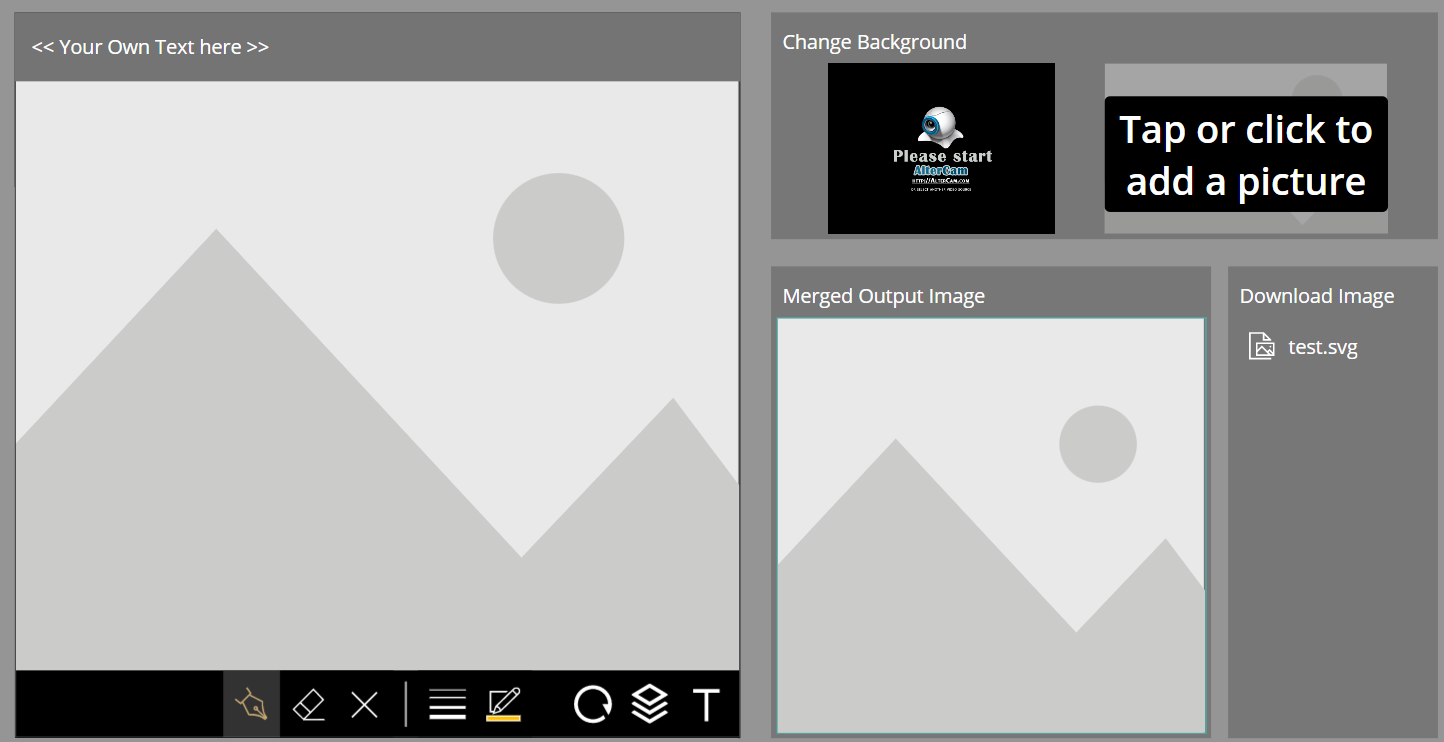
This is a canvas component for Power Apps built by my brother Martin Lehmann. It lets users mark up an existing image and save the result as one new image, all inside the app.
💡 Challenge
Field and inspection apps often need “take a photo, draw on it, save it”. Power Apps has a Pen input control and an Image control, but no built-in way to combine a photo and a drawing into one image file. The usual workarounds are a Power Automate flow with an image service, a premium connector or a custom PCF code component.
✅ Solution
The SVG Merge Module builds the merged image as SVG with Power Fx formulas. The background photo, the pen strokes, arrows and text become layers in one SVG document. Because SVG is text, the component can output it directly as a data URI that any Image control can show, and as a file record for the Attachments control.
🔧 How It’s Done
1. Import the example app.
🔸 Download SVGMergeModulExample.zip from the GitHub repository.
🔸 In make.powerapps.com go to Apps > Import canvas app, select the ZIP, select Upload, give the app a name and finish the import.
2. Reuse the component in your app.
🔸 Open the example app and copy or import the image generator component into your own app.
🔸 Set the main inputs: Image Background (the photo, for example from a Camera or Add picture control), Image Name, Output Image Size (default 640x640), plus optional settings such as Text Colors, Offset Pen and Rotate Background.
3. Use the outputs.
🔸 SVG Raw holds the SVG code as text.
🔸 FileContent holds the SVG as a base64 data URI. Set an Image control’s Image property to it to show the merged result.
🔸 The generated output record contains FileName, FileSize, FileContent, RawContent and File. Pass File to controls such as the Attachments control to save the image with a list item.
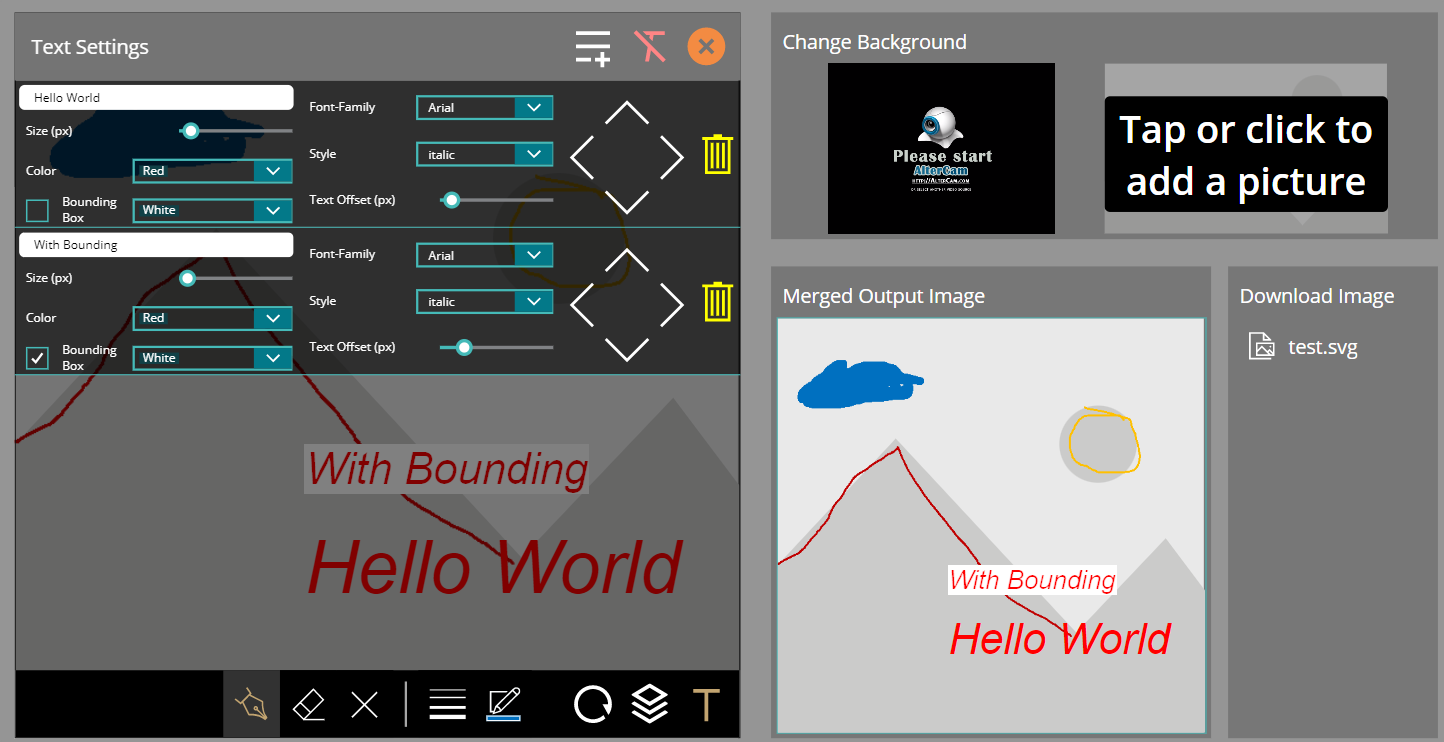 A photo before and after annotation with the component.
🎉 Result
Users mark up a photo with pen strokes, arrows and text and save one merged image, without leaving the app and without any flow or connector.
🌟 Key Advantages
🔸 No connector: the component itself calls no connector, so there is no premium licensing impact.
🔸 No code component: plain Power Fx, so no PCF solution has to be enabled or maintained.
🔸 Layer control: element order, pen colour and size, text with or without background box, rotation of background and layers.
🔸 Free and open: source and example app on GitHub.
⚠️ Good to Know
🔸 The output is SVG. Image controls in Power Apps display it directly. If a target system expects JPG or PNG, check the component’s SVG-to-JPG option in the repository.
🔸 Behavior return type error: if the component reports a behavior return type check issue, the repository’s FAQ describes the fix: wrap the affected action in IfError or adjust the related retired setting under Settings > Updates > Retired.
🔸 Provided as is: the code comes without warranty, test it with your own images and devices before rollout.
🛠️ FAQ
1. Does the component need Power Automate or a premium licence?
No. It runs entirely in the canvas app and does not call any connector. Where you save the result (SharePoint, Dataverse) follows that data source’s normal licensing.
2. How do I store the merged image in SharePoint?
Pass the component’s File output to an Attachments control on a SharePoint form and submit the form. The FileName output gives you a matching file name.
3. Can I use a camera photo as the background?
Yes. Set Image Background to the image from a Camera control or an Add picture control, then let the user draw on top.
🔗 Related Tips
🔸 #PowerPlatformTip 86: ‘Free Power Apps Icons’ - more free, SVG-based assets to layer onto your merged images.
🔸 #PowerPlatformTip 72: ‘PowerApps with Google Maps API’ - another no-flow way to embed rich visual content in a canvas app.
This tip is by Marcel Lehmann, Microsoft MVP (Business Applications) and founder of the Power Platform Academy – live Power Platform workshops, free or CHF 49. Join the workshop waitlist to get notified about new dates. For companies that want this implemented for them, see KMUpower – Power Platform consulting & automation for SMEs (DACH).