#PowerPlatformTip 133: 'SharePoint Updates with Power Automate, No Required Fields Needed'
Update only specific SharePoint fields in Power Automate: pass a JSON object to the 'Update item' action, skip required fields, format Choice columns correctly and avoid trigger loops.
TL;DR: Pass a JSON object to the
itemparameter of ‘Update item’ (via a variable orjson()expression) and only those fields change, required fields stay untouched. Choice columns need{"Value": "..."}, and a trigger on the same list needs a condition to avoid a loop.
💡 Challenge
‘Update item’ lists every required column of the list. If you only want to change one field, you must fill the others too, or fall back to an HTTP request. The flow editor even refuses to save when a required field such as Title is missing.
✅ Solution
Build the fields as a JSON object and hand the whole object to the item parameter of ‘Update item’. Because the value is an expression, the editor does not check required fields, and SharePoint only receives the fields you send.
🔧 How It’s Done
1. Prepare the JSON object
🔸 Add “Initialize variable” (name UpdateData, type Object) or a “Compose” action with only the fields to change:
1
2
3
4
{
  "Status": { "Value": "Completed" },
  "Processed": true
}
🔸 Use the internal column name as key. Text, Yes/No and number columns take plain values. Choice columns take an object with Value.
2. Hand the object to ‘Update item’
🔸 In the ‘Update item’ action, set the Site Address, List Name (type the list name, no string() needed) and Id.
🔸 Set the action’s item parameter to the object. In the action’s JSON definition it looks like this:
1
2
3
4
5
6
"parameters": {
  "dataset": "https://contoso.sharepoint.com/sites/Team",
  "table": "Tasks",
  "id": "@triggerOutputs()?['body/ID']",
  "item": "@variables('UpdateData')"
}
🔸 With a Compose action use "item": "@outputs('UpdateData')". To build the object inline use "item": "@json('{\"Processed\":true}')".
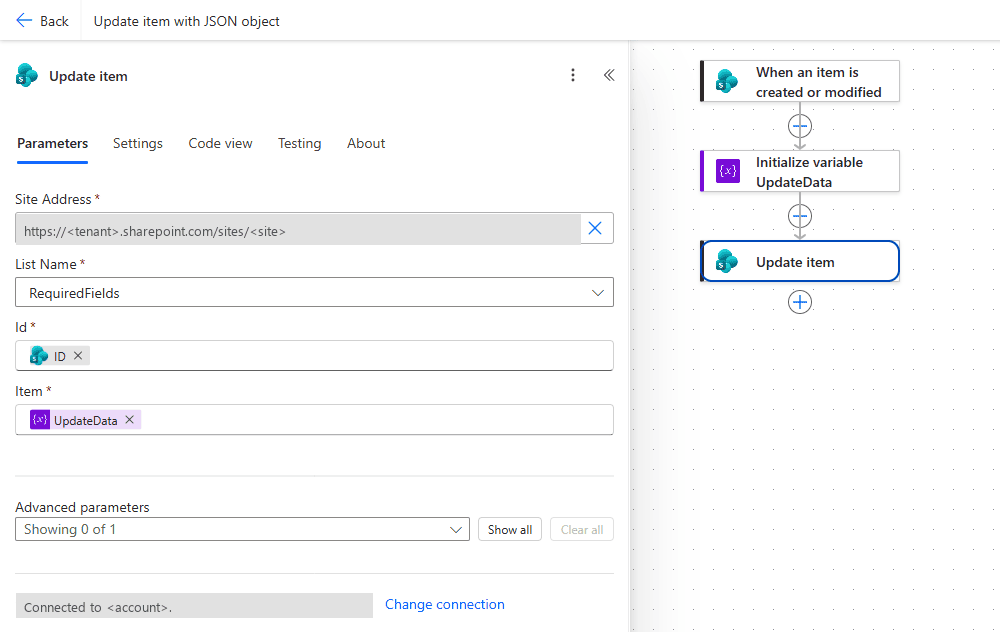 ‘Update item’ in the designer: the whole Item parameter is the
 UpdateData object variable. No column fields are listed, so no required field blocks saving.
3. Protect against a trigger loop
🔸 If the flow starts with “When an item is created or modified” and updates the same list, every update starts the flow again. In a test the flow kept running about every 30 seconds until the flow was turned off.
🔸 Add a Yes/No column (e.g. Processed, default No), set it to true in your JSON, and add a trigger condition under the trigger’s Settings:
1
@equals(triggerBody()?['Processed'], false)
![Power Automate designer: Settings tab of the When an item is created or modified trigger with the trigger condition equals(triggerBody()?['Processed'], false)](/assets/images/posts/2025/01/tip133-trigger-condition-processed.png) The trigger condition sits in the Settings tab of the trigger under Trigger conditions. The flow only starts while
The trigger condition sits in the Settings tab of the trigger under Trigger conditions. The flow only starts while Processed is still false.
🔸 With this condition the flow ran exactly once per item.
🔸 The condition also ignores later edits by users, because Processed stays true. If an item should run through the flow again, set Processed back to No.
📋 JSON Format per Column Type
Each format was sent through the item parameter of ‘Update item’ against a test list with one column of every type, and the stored value was read back.
| Column type | JSON in the item object | Observed |
|---|---|---|
| Text | "Cost_x0020_Center": "CC1" | Written. Use the internal name: a display name “Cost Center” becomes Cost_x0020_Center. |
| Number | "Amount": 7 | Written. |
| Yes/No | "Done": true | Written. |
| Choice | "Status": { "Value": "Done" } | Written. A plain "Status": "Open" succeeds but clears the column. |
| Multi-choice | "Tags": [ { "Value": "Alpha" }, { "Value": "Beta" } ] | Written. The array replaces the selection: sending [ { "Value": "Gamma" } ] afterwards left only Gamma. |
| Person | "Owner": { "Claims": "i:0#.f\|membership\|user@domain.com" } | Written. A plain "Owner": "user@domain.com" fails: User value is invalid. |
| Lookup | "Ref": { "Id": 1 } | Written, the lookup shows the target item’s title. A plain "Ref": 1 fails: Could not parse lookup value. |
| Date only | "Due": "2026-11-30" | Written. "Due": "2026-12-24T00:00:00Z" works as well and stores 2026-12-24. |
| Hyperlink | "Link": "https://www.kmupower.com" | Written as the URL. The object { "Url": "...", "Description": "..." } succeeds but leaves the column empty. "https://www.kmupower.com, KMUpower" stores the whole string as URL and as description, so no separate description is possible here. |
| Clear a value | "Due": null, "Owner": null | Both columns were empty afterwards. |
🔸 ‘Create item’ takes the same object. Creating with only {"Title": "..."} returned 201 and the item although the list has a required text column Reviewer: SharePoint does not enforce required columns through the API, only the designer does.
🎉 Result
Only the fields in your JSON change. In the test, Owner (a required column) and all other columns kept their values, while Status became Completed and Processed became true. ‘Update item’ needs no HTTP request and no required-field mapping.
🌟 Key Advantages
🔸 No need to fill required fields you do not want to touch
🔸 One JSON object, built dynamically, covers any number of fields
🔸 A trigger condition stops the self-trigger loop
🎥 Video Tutorial
🛠️ FAQ
1. Can I update multiple fields simultaneously? Yes. Add several key-value pairs to the JSON object; all of them are written in one ‘Update item’ call.
2. What happens to required fields that are not in the JSON? They keep their current value. In the test, a required Owner column was unchanged after updates that only contained Status or Title.
3. Why is my Choice column empty after the update? You passed a plain string such as "Status": "Completed". The action still succeeds, but the Choice column is cleared. Use "Status": { "Value": "Completed" }.
4. Why does the flow save with the object but not with typed fields? Typed fields in the action are validated: a missing required field such as Title blocks saving. A variable or expression is only resolved at runtime, so no required-field check applies.
5. How do I stop the flow from triggering itself? Add a Yes/No flag column, set it in the same JSON, and use a trigger condition like @equals(triggerBody()?['Processed'], false).
6. How do I set a person, lookup or multi-choice column in the JSON? Person: { "Claims": "i:0#.f|membership|user@domain.com" }. Lookup: { "Id": 12 }. Multi-choice: an array of { "Value": "..." } objects, which replaces the current selection. A plain e-mail string fails with User value is invalid., a plain lookup number with Could not parse lookup value.
7. How do I clear a column? Send null as the value, for example "Due": null. The column was empty after the update in the test.
8. Does ‘Create item’ with a JSON object skip required fields too? Yes. An object with only Title created the item (201) in a list with a required text column. Required columns are enforced by forms and the designer, not by the API.
🔗 Related Tips
- #PowerPlatformTip 153: Rename a SharePoint File with Power Automate, targeted field updates via REST.
- #PowerPlatformTip 154: Preserve Author, Editor & Dates on Copied SharePoint Files, write specific metadata fields with MERGE.
This tip is by Marcel Lehmann, Microsoft MVP (Business Applications) and founder of the Power Platform Academy – live Power Platform workshops, free or CHF 49. Join the workshop waitlist to get notified about new dates. For companies that want this implemented for them, see KMUpower – Power Platform consulting & automation for SMEs (DACH).