#PowerPlatformTip 160: 'Set SharePoint Item Permissions with Power Automate'
TL;DR: Call
breakroleinheritanceon the item, thenaddroleassignment(principalid, roledefid)via Send an HTTP request to SharePoint to grant exactly the access you want - all in the flow.
SharePoint items inherit their permissions from the list by default. When a process needs to lock an item down to just the requester and an approver, you can do the whole thing in Power Automate: stop the inheritance, then bind the right people to the right permission level. No manual sharing, no premium connector.
💡 Challenge
A request item should only be visible to the submitter and the approver, not the whole team. Doing this by hand doesn’t scale, and the standard SharePoint actions don’t expose permission management. You need item-level (fine-grained) permissions applied automatically as part of the flow.
✅ Solution
SharePoint sites, lists and items are SecurableObjects. To give an item unique permissions you first break role inheritance, then add role assignments that bind a principal (user or group) to a role definition (permission level like Read, Contribute, Edit). Both operations are available through Send an HTTP request to SharePoint, which handles auth for you.
🔧 How It’s Done
1. Get the principal ID (the site user or group ID) for the person you want to grant access to.
🔸 Send an HTTP request to SharePoint → Method POST, Uri:
1
_api/web/ensureuser
Header Accept: application/json;odata=nometadata, Body:
1
{ "logonName": "i:0#.f|membership|jane.doe@contoso.com" }
🔸 Read the returned Id (e.g. body('Ensure_User')?['Id']).
2. Get the role definition ID for the permission level you want (Read, Contribute, Edit, Full Control).
🔸 Method GET, Uri:
1
_api/web/roledefinitions/getbyname('Read')?$select=Id
🔸 Keep the returned Id.
3. Break role inheritance on the item so it stops inheriting from the list.
🔸 Method POST, Uri:
1
_api/web/lists/getbytitle('Requests')/items(ID)/breakroleinheritance(copyRoleAssignments=false,clearSubscopes=true)
🔸 copyRoleAssignments=false starts with a clean slate (no one but admins keeps access). Use true if you want to keep the current assignments and only add to them.
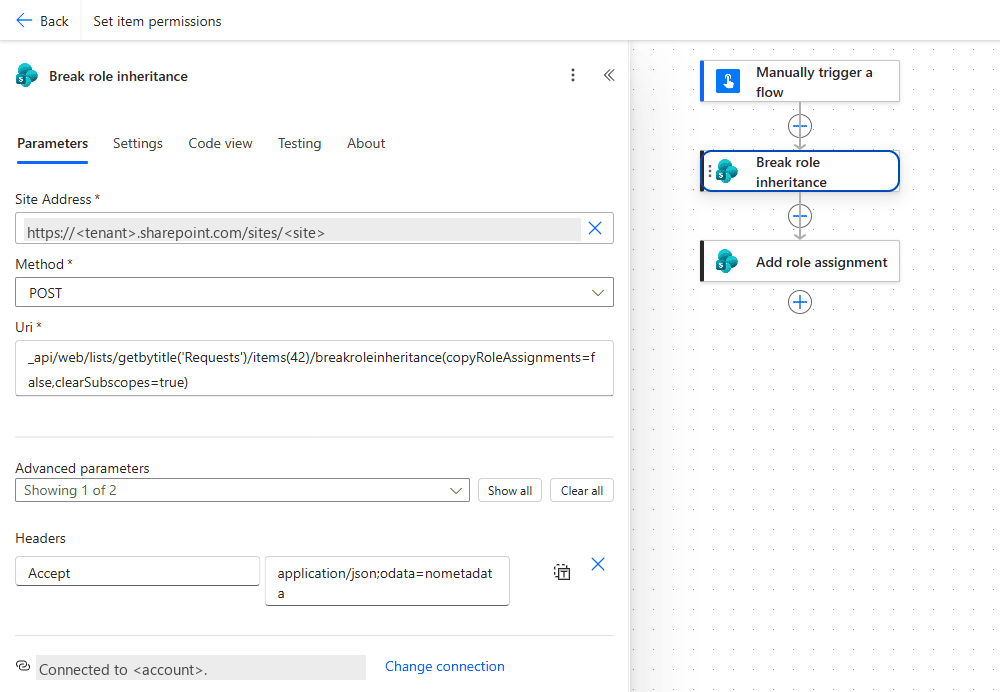 Step 3 as a Send an HTTP request to SharePoint action: Method POST, the Uri calling
 breakroleinheritance(copyRoleAssignments=false,clearSubscopes=true) on the item and the Accept header. The next action in the flow is the addroleassignment call from step 4.
4. Grant the permission by adding a role assignment.
🔸 Method POST, Uri:
1
_api/web/lists/getbytitle('Requests')/items(ID)/roleassignments/addroleassignment(principalid=<PrincipalId>,roledefid=<RoleDefId>)
🔸 Repeat step 4 for each user or group you want to add (e.g. the approver).
5. (Optional) Remove access the same way with:
1
_api/web/lists/getbytitle('Requests')/items(ID)/roleassignments/removeroleassignment(principalid=<PrincipalId>)
🎉 Result
The item now has unique, precisely scoped permissions applied automatically by the flow, submitter and approver only, everyone else loses access. Fully repeatable, no manual sharing.
🌟 Key Advantages
🔸 Standard action only: Send an HTTP request to SharePoint, no premium connector.
🔸 Precise & automated: exact permission levels per user/group, applied consistently on every run.
🔸 Flexible: grant with addroleassignment, revoke with removeroleassignment, or re-inherit with resetroleinheritance.
🛠️ FAQ
1. Why do I have to break inheritance first?
SharePoint has no partial inheritance - permissions are either inherited or unique. breakroleinheritance switches the item to unique so your role assignments actually stick.
2. Which role definition IDs are common?
Rather than hardcoding IDs (they can vary), query roledefinitions/getbyname('Read'|'Contribute'|'Edit'|'Full Control'). If you do hardcode: Read 1073741826, Contribute 1073741827, Edit 1073741830, Full Control 1073741829.
3. I get a 403 / “Insufficient privileges” on breakroleinheritance.
The account behind the SharePoint connection needs Full Control / Manage Permissions on the site. GET calls can succeed while permission changes fail - add the connection account as a site owner (or grant app-only Full Control if running as an app).
4. How do I undo unique permissions later?
Call _api/web/lists/getbytitle('Requests')/items(ID)/resetroleinheritance to make the item inherit from the list again.
🔗 Related Tips
- #PowerPlatformTip 137: SharePoint Lists Folder Permissions, the no-flow alternative using folder-level permissions.
- #PowerPlatformTip 74: Elevated Permissions, run the flow under a service account so it has rights to change permissions.
- #PowerPlatformTip 110: Protect SharePoint Data, a custom permission level to force access through Power Apps.
This tip is by Marcel Lehmann, Microsoft MVP (Business Applications) and founder of the Power Platform Academy – live Power Platform workshops, free or CHF 49. Join the workshop waitlist to get notified about new dates. For companies that want this implemented for them, see KMUpower – Power Platform consulting & automation for SMEs (DACH).