#PowerPlatformTip 178: '26 Everyday xpath() Recipes That Kill Apply to each in Power Automate'
TL;DR: Convert any JSON array to XML with
xml(json(...)), then run onexpath()expression to count, sum, average, filter, pluck or rank data. It replaces wholeApply to each+Filter Array+Increment variableblocks with a single action. Recipe 26 turns CSV text into XML with one Select, so the header row becomes the JSON keys and the same XPath queries work on the file.
Most flows lean on Apply to each for jobs that never needed a loop: counting matches, adding up a column, grabbing one field from one record, or filtering a few rows. Each loop iteration is an action run, and nested loops make your run history long and your runs slower.
Power Automate ships the xpath() function, which uses the .NET XPath library (System.Xml.XPath, XPath 1.0) and supports only the expressions that library supports. Feed it XML and an XPath expression and it returns the matching nodes or a computed value in one action. Below are 26 everyday recipes you can paste straight into the expression editor.
💡 Challenge
Simple data questions turn into oversized flows: an Apply to each with an Increment variable to count, another loop to total an amount, a Filter Array plus First() to read one field. Each pattern adds actions and run time, for logic that is really a one-liner.
✅ Solution
xpath() navigates an XML document and can select nodes and compute values (count(), sum(), string(), contains(), …) in a single expression. Since your data is usually JSON, first turn it into XML with the built-in xml() and json() functions, then query it. No loops, no extra variables, no premium connector.
🔧 How It’s Done
Step 0 – Turn your JSON array into XML (do this once)
xml() needs a JSON object with exactly one root property, which can’t be an array. So wrap your array under a root and an item name. Put this in a Compose action (call it To_XML):
1
xml(json(concat('{"root":{"item":', string(outputs('Get_items')?['body/value']), '}}')))
Every array element becomes one <item> element, every property one child element. Feed it clean data: a Select action before To_XML that keeps only the columns you need, with simple names, avoids SharePoint system properties such as @odata.etag or {Identifier} ending up in the XML.
That produces XML like:
1
2
3
4
5
<root>
  <item><ID>1</ID><Customer>Gala Ltd</Customer><Country>CH</Country><Status>Open</Status><Amount>1200</Amount><Email>a@gala.ch</Email><First>Ann</First><Last>Meier</Last></item>
  <item><ID>2</ID><Customer>Rio SA</Customer><Country>BR</Country><Status>Paid</Status><Amount>430</Amount><Email>b@rio.br</Email></item>
  ...
</root>
Every recipe below is used as xpath(outputs('To_XML'), '<expression>'). Only the <expression> changes.
The 26 recipes
| # | Everyday task | XPath expression | What it saves |
|---|---|---|---|
| 1 | Count all records | count(/root/item) | Apply to each + Increment variable |
| 2 | Count matching records | count(/root/item[Status="Open"]) | Loop + condition + counter |
| 3 | Sum a column | sum(/root/item/Amount) | Loop + add() on a variable |
| 4 | Conditional sum (e.g. per country) | sum(/root/item[Country="CH"]/Amount) | Filter Array + loop + sum |
| 5 | Average of a column | sum(/root/item/Amount) div count(/root/item) | Two loops (sum + count) |
| 6 | All values of one field as an array | /root/item/Email/text() | Select action |
| 7 | First record’s field | string(/root/item[1]/Customer) | first() + property access |
| 8 | Last record’s field | string(/root/item[last()]/Customer) | last() + length() math |
| 9 | Nth record’s field | string(/root/item[3]/Customer) | Index gymnastics |
| 10 | One field from a keyed record | string(/root/item[ID="42"]/Email) | Filter Array + First()?['Email'] |
| 11 | Filter rows by exact value | /root/item[Status="Open"] | Filter Array |
| 12 | Numeric threshold filter | /root/item[number(Amount)>1000] | Filter Array (advanced mode) |
| 13 | Two conditions (AND) | /root/item[Status="Open" and number(Amount)>500] | Nested Filter Array |
| 14 | Two conditions (OR) | /root/item[Status="Open" or Status="Pending"] | Two Filter Array + union() |
| 15 | “Contains” text filter | /root/item[contains(Customer,"Ltd")] | Filter Array with contains() |
| 16 | “Starts with” filter | /root/item[starts-with(Email,"a")] | Filter Array with startsWith() |
| 17 | Existence check (boolean) | boolean(/root/item[Email="a@gala.ch"]) | Loop + found-flag variable |
| 18 | Max value’s record (no max() in XPath 1.0) | /root/item[not(Amount < ../item/Amount)]/Customer | Sort + first() |
| 19 | Min value’s record | /root/item[not(Amount > ../item/Amount)]/Customer | Sort + first() |
| 20 | Count rows that have a field | count(/root/item[Email]) | Loop + empty check |
| 21 | Split an email domain | substring-after(string(/root/item[1]/Email),"@") | split() + index |
| 22 | Join first + last into full name | concat(string(/root/item[1]/First)," ",string(/root/item[1]/Last)) | concat() on two lookups |
| 23 | Trim / normalize whitespace | normalize-space(string(/root/item[1]/Customer)) | trim() chains |
| 24 | Skip header / first row | /root/item[position()>1] | skip() on an array |
| 25 | Namespaced XML (SOAP, RSS, SharePoint), applied to real XML, not to xml(json()) output | /*[local-name()="Envelope"]/*[local-name()="Body"] | Fighting xmlns prefixes |
| 26 | CSV text to JSON, keys from the header row, applied to XML built from the CSV (see below) | /root/row, then json(xml(item()))?['row'] per node | A Select map with one hand-typed key per column |
Tip: in XPath 1.0 the relational operators
<,>,<=,>=always compare numerically. With=it depends on the other side:Amount=1000(a number) compares numerically,Status="Open"(a string) compares text. Wrapping a field innumber(...)(recipes 12, 13) makes the intent explicit. The max/min recipes (18, 19) rely on the node-set comparisonAmount < ../item/Amount, which is true if any other item has a larger value. For text values wrap instring(...)so you get a clean value instead of an XML node.
Recipe 22 uses the First and Last fields of the first record in the sample above. For recipe 25, take XML that really carries a namespace, for example a SOAP response from an HTTP action:
1
2
3
<soap:Envelope xmlns:soap="http://schemas.xmlsoap.org/soap/envelope/">
  <soap:Body><Result>OK</Result></soap:Body>
</soap:Envelope>
xpath(xml(body('HTTP')), 'string(/*[local-name()="Envelope"]/*[local-name()="Body"]/*[local-name()="Result"])') returns OK. A plain /Envelope/Body finds nothing, because the elements live in the soap namespace.
Recipe 26 – CSV to JSON with keys from the header row
Step 0 works for JSON. For a CSV file, build the XML yourself: every header name becomes an element name, every line a <row>. Then json(xml()) returns a JSON array whose keys come from the file, and the count, sum and filter recipes above run on the CSV with /root/row instead of /root/item.
Example CSV in a Compose CSV_File (in a real flow: the output of Get file content):
1
2
3
4
5
Order ID,Customer,City,Amount
1001,Müller & Söhne AG,Zurich,250.50
1002,Alpha GmbH,Bern,120
1003,Beta <Test> AG,Zurich,99.90
1004,Gamma SA,Geneva,40
1. Lines, data rows and header
🔸 Compose Lines (handles CR+LF and LF):
1
split(replace(outputs('CSV_File'), decodeUriComponent('%0D'), ''), decodeUriComponent('%0A'))
🔸 Filter array DataRows, From skip(outputs('Lines'), 1), condition in advanced mode @not(empty(trim(item()))).
🔸 Compose Header, spaces replaced by underscores, because Order ID is not a valid XML element name:
1
split(replace(first(outputs('Lines')), ' ', '_'), ',')
2. One Select builds every cell
🔸 Select Cells, From range(0, mul(length(body('DataRows')), length(outputs('Header')))). Each number is one cell: div(item(), columns) is the row, mod(item(), columns) the column. Map in text mode:
1
2
3
4
5
6
7
8
9
concat(
if(equals(mod(item(), length(outputs('Header'))), 0), '<row>', ''),
'<', outputs('Header')[mod(item(), length(outputs('Header')))], '>',
replace(replace(replace(
split(body('DataRows')[div(item(), length(outputs('Header')))], ',')[mod(item(), length(outputs('Header')))],
'&', '&'), '<', '<'), '>', '>'),
'</', outputs('Header')[mod(item(), length(outputs('Header')))], '>',
if(equals(mod(item(), length(outputs('Header'))), sub(length(outputs('Header')), 1)), '</row>', '')
)
The first cell of a row opens <row>, the last one closes it. The three replace() calls escape & first, then < and >.
3. Join the cells into one XML text
🔸 Compose XmlText:
1
concat('<root>', join(body('Cells'), ''), '</root>')
Real flow run: <root><row><Order_ID>1001</Order_ID><Customer>Müller & Söhne AG</Customer><City>Zurich</City><Amount>250.50</Amount></row>...</root>
4. JSON with keys from the header
🔸 Select Rows, From xpath(xml(outputs('XmlText')), '/root/row'), map in text mode json(xml(item()))?['row']. Real flow run, body('Rows'):
1
2
3
4
5
6
[
  {"Order_ID":"1001","Customer":"Müller & Söhne AG","City":"Zurich","Amount":"250.50"},
  {"Order_ID":"1002","Customer":"Alpha GmbH","City":"Bern","Amount":"120"},
  {"Order_ID":"1003","Customer":"Beta <Test> AG","City":"Zurich","Amount":"99.90"},
  {"Order_ID":"1004","Customer":"Gamma SA","City":"Geneva","Amount":"40"}
]
5. Query the file with XPath
| Question | Expression | Real run |
|---|---|---|
| How many rows? | xpath(xml(outputs('XmlText')), 'count(/root/row)') | 4 |
| Total amount? | xpath(xml(outputs('XmlText')), 'sum(/root/row/Amount)') | 510.4 |
| Customers in Zurich? | xpath(xml(outputs('XmlText')), '/root/row[City=''Zurich'']/Customer/text()') | ["Müller & Söhne AG","Beta <Test> AG"] |
| Rows with Amount > 100, as JSON | Select From xpath(xml(outputs('XmlText')), '/root/row[Amount > 100]'), map json(xml(item()))?['row'] | rows 1001 and 1002 |
| Column picked by name at runtime | xpath(xml(outputs('XmlText')), 'sum(/root/row/*[local-name()=''Amount''])') | 510.4 |
Single quotes inside the XPath are doubled (''Zurich''), because the whole XPath is a string in the expression. Add a column to the CSV and both the JSON and the queries pick it up without a change to the flow.
Three worked examples
A) Count open orders – 1 action instead of a loop
1
xpath(outputs('To_XML'), 'count(/root/item[Status="Open"])')
Returns an integer, e.g. 7. No Apply to each, no counter variable.
B) Total revenue for Switzerland only
1
xpath(outputs('To_XML'), 'sum(/root/item[Country="CH"]/Amount)')
Filters and sums in one pass, replacing a Filter Array + loop + running total.
C) Find the customer with the highest amount (the max() trick)
XPath 1.0 has no max(), so select the item that nothing exceeds:
1
xpath(outputs('To_XML'), '/root/item[not(Amount < ../item/Amount)]/Customer/text()')
Returns the top customer(s) without sorting the array first. With the sample data this is the record with the highest Amount; if two records share the top value, you get both.
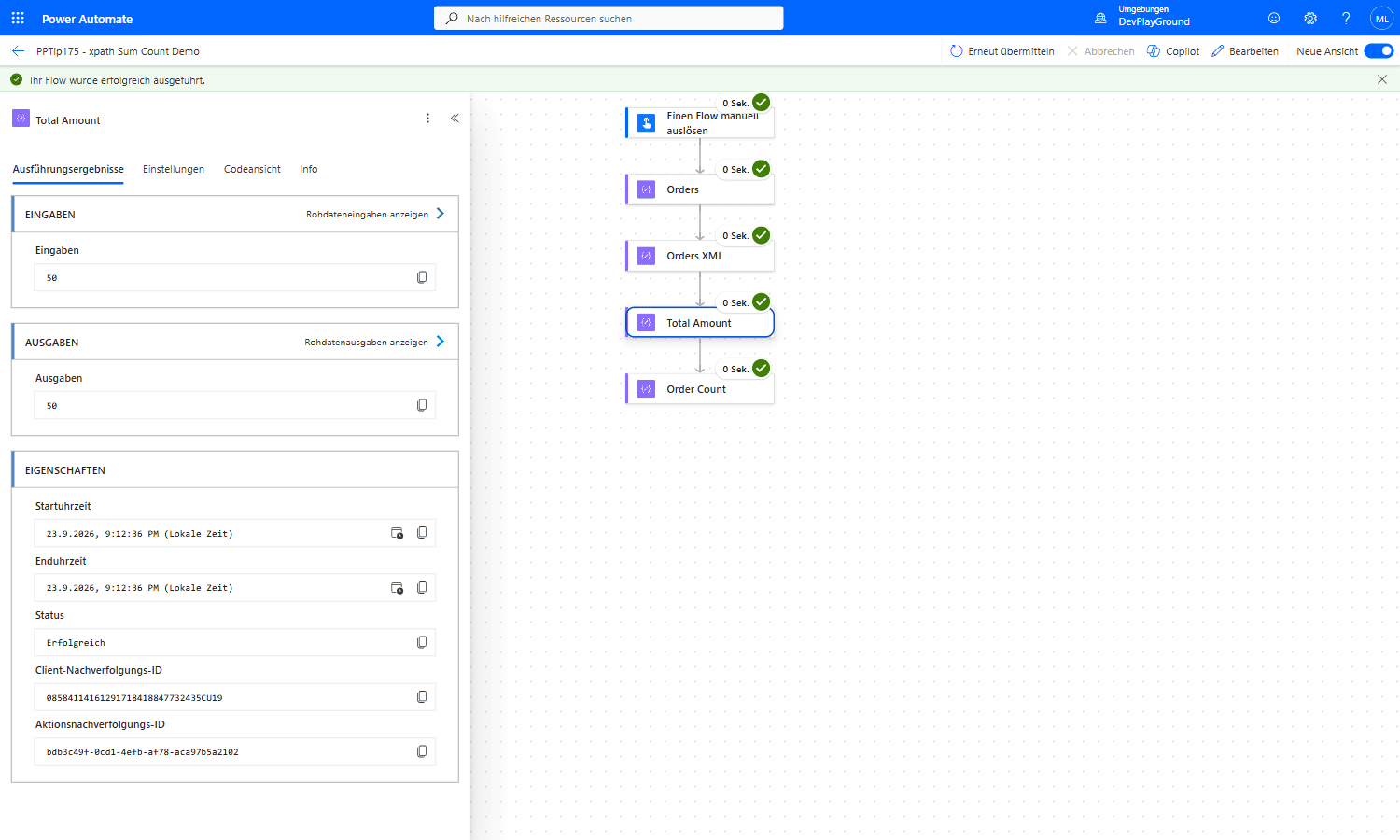 Separate demo with a different JSON shape (
orders/order/amount instead of root/item/Amount). Real flow run: 3 orders (CHF 10 + 25 + 15) go through xml(json(concat('{"orders":{"order":', string(outputs('Orders')), '}}'))), then xpath(outputs('Orders_XML'), 'sum(//order/amount)') returns exactly 50, no loop, one action.
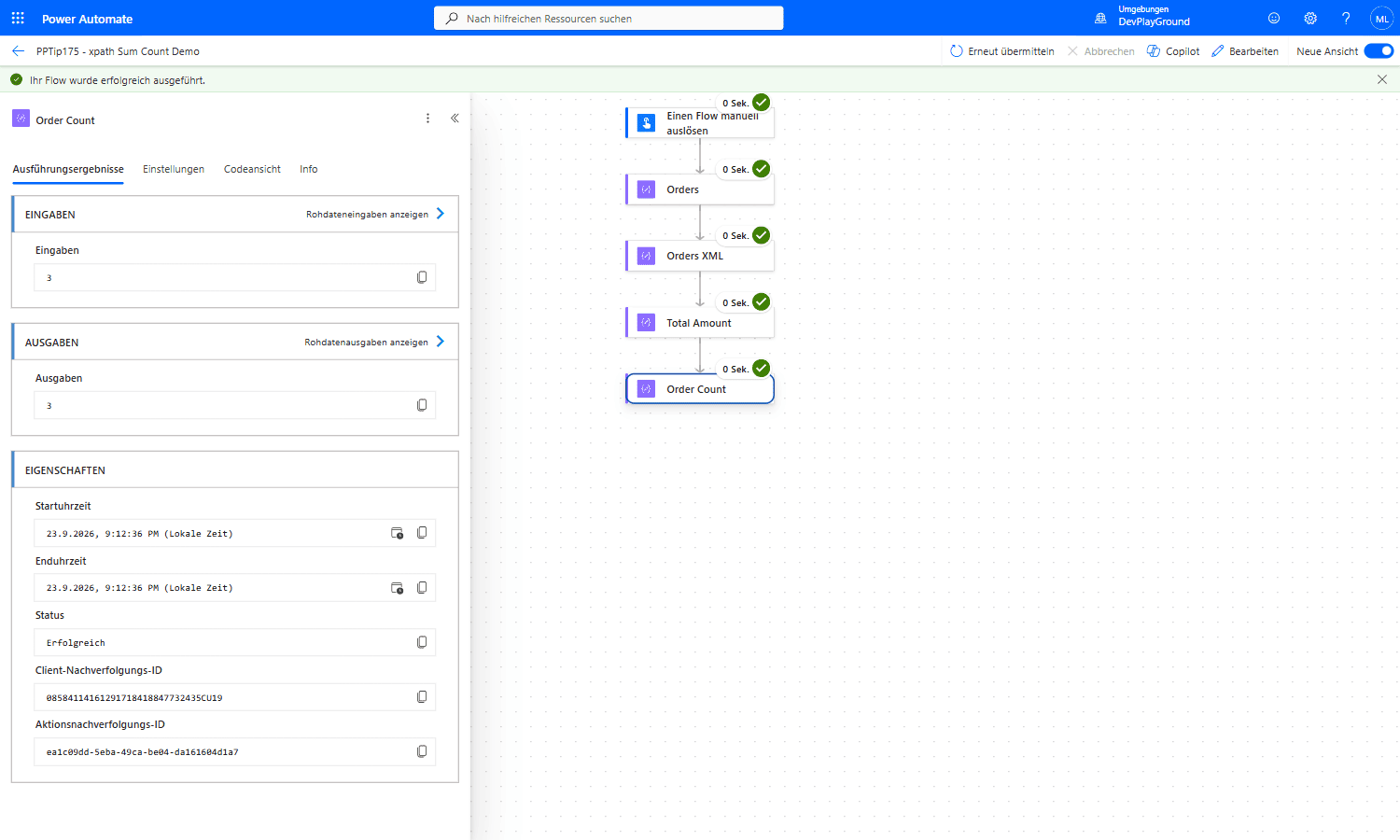 Real flow run, same XML:
xpath(outputs('Orders_XML'), 'count(//order)') returns 3 right after the sum, recipes 1 and 3 chained on the identical converted document.
⚠️ Good to Know
🔸 What comes back: a function such as count(), sum() or string() returns a plain value. A path such as /root/item[Status="Open"] returns XML nodes, not JSON objects. That is perfect for counting, totals and single values. If the next step needs the filtered rows as JSON records, a Filter array action is still the better tool.
🔸 Empty source: with an empty array there are no <item> elements, count() returns 0 and sum() returns 0, so guard divisions such as recipe 5.
🔸 CSV (recipe 26): header names must be valid XML names. <Order ID> fails with ”’>’ is an unexpected token”, <1st> with “Name cannot begin with the ‘1’ character”. Replace spaces and characters such as (, / or #, and prefix headers that start with a digit. Umlauts are fine: <Größe> becomes the key Größe.
🔸 CSV: escape & first. An unescaped & fails with “An error occurred while parsing EntityName”. Replace &, then < and >.
🔸 CSV: one row = object, not array. The short route json(xml(outputs('XmlText')))?['root']?['row'] returns a single object when the CSV has only one data row. The xpath(..., '/root/row') route from step 4 returns an array for one row as well.
🔸 CSV: everything is text. json(xml()) returns "250.50", not 250.5, and a json:Type attribute is ignored. Convert with float() or int(), or calculate inside XPath, where sum() and Amount > 100 treat the text as numbers.
🔸 CSV: 100,000 cells. range() accepts at most 100,000 items, so rows × columns must stay at or below 100,000 for the Cells Select.
🔸 CSV: no quoting. split() does not know CSV quoting. Commas or line breaks inside a value break the columns.
🔸 Fixed, typed columns? Use Tip 125. When the columns never change, or another system depends on exact property names and number types, the Select with hand-typed keys from #PowerPlatformTip 125 is the better choice, and its Office Script handles quoted CSV.
🎉 Result
A handful of everyday reporting and lookup patterns collapse from multi-action, sometimes nested, loops into a single xpath() expression. Flows get shorter, use fewer actions and are easier to read, all with standard actions only.
🌟 Key Advantages
🔸 No loops: count, sum, filter and rank run in one action instead of Apply to each.
🔸 Standard, non-premium: xpath(), xml() and json() are built-in expression functions.
🔸 Compute and select: the same call can return a value (count, sum) or a node set (filtered rows).
🔸 Fewer action runs: less run-history noise and fewer actions to maintain.
🛠️ FAQ
1. Why do I have to wrap my array in {"root":{"item": ... }}?
xml() converts a JSON object with exactly one root property, not a bare array. Wrapping under root/item gives every element a predictable node name (/root/item) to query.
2. My comparison returns the wrong rows. Why?
Check what you compare against. Amount>1000 and Amount=1000 compare numerically, but Amount="1000" compares text, so it misses a value stored as 1000.0. Use a number on the right side or number(Amount). For string results, wrap the selection in string(...) so you get the value, not an XML node.
3. xml() fails or the XML looks odd. What’s wrong?
Usually the property names. Every JSON property becomes an XML element, so names with spaces, braces or a leading digit cause trouble, and properties starting with @ (such as @odata.etag) turn into attributes. Put a Select action in front that keeps only the needed columns under simple names.
4. Is there a max(), min() or distinct-values() function?
No, xpath() uses XPath 1.0, which has no max(), min() or distinct-values(). Use the not(... > ...) / not(... < ...) trick (recipes 18–19) for max/min, and average via sum() div count() (recipe 5).
5. Do I need to escape the double quotes in my expression?
In the expression editor, no, quotes work as shown. In code view (raw JSON definition) escape inner double quotes with a backslash, e.g. /root/item[Status=\"Open\"].
🔗 Related Tips
- #PowerPlatformTip 3: Advanced Filtering Array, when a real
Filter Arrayfits better than XPath. - #PowerPlatformTip 125: Convert CSV to JSON, the Select variant with fixed keys and typed values, plus the Office Script for quoted CSV.
- #PowerPlatformTip 158: Return Flow Data to Power Apps with ParseJSON, the JSON-side companion for reshaping data.
- Extract HTML Table from Email in Power Automate: Advanced XML Processing, XPath applied to real HTML email tables.
This tip is by Marcel Lehmann, Microsoft MVP (Business Applications) and founder of the Power Platform Academy, which runs free live workshops (in German). See the next free workshop dates (in German). For companies that want this implemented for them, see KMUpower: Power Platform consulting & automation for SMEs (DACH).