#PowerPlatformTip 3: 'Advanced Filtering Array'
TL;DR: Turn on Advanced Mode in the Filter Array action to write custom expressions and handle complex filtering in a single step.
💡 Challenge
At first glance, the ‘Filter Array’ action in Power Automate seems limited to basic filtering, making complex scenarios difficult to address. Users often find themselves chaining multiple actions or writing lengthy workarounds to achieve precise results.
✅ Solution
Enable the Advanced Mode in ‘Filter Array’ and craft custom expressions to perform sophisticated, precise filtering within a single action, simplifying your flow and reducing steps.
🔧 How It’s Done
1. Activate Advanced Mode
🔸 Open the ‘Filter Array’ action in your flow.
🔸 Toggle on Advanced Mode to reveal the expression editor.
2. Enter Custom Logic
🔸 Use the expression editor to write bespoke filtering criteria (e.g., equals, contains, nested conditions).
🔸 Reference dynamic content and functions to match complex requirements.
3. Execute Flow
🔸 Save and run your flow.
🔸 Observe how ‘Filter Array’ applies your custom logic to return only the desired items.
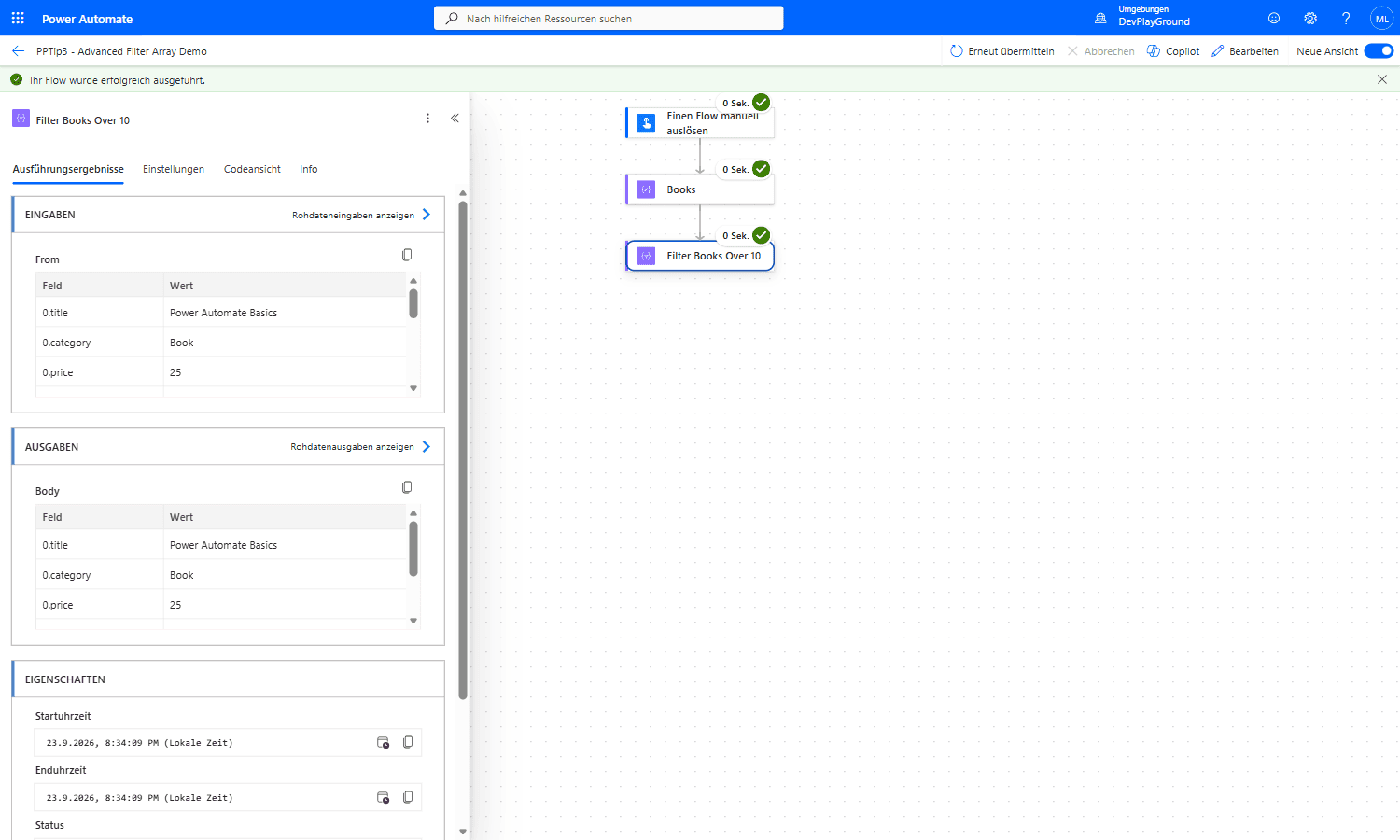 Real flow run: 4 items (3 books, 1 mug) go in, the custom
 @and(equals(item()?['category'], 'Book'), greater(item()?['price'], 10)) expression returns only the 2 books priced over CHF 10.
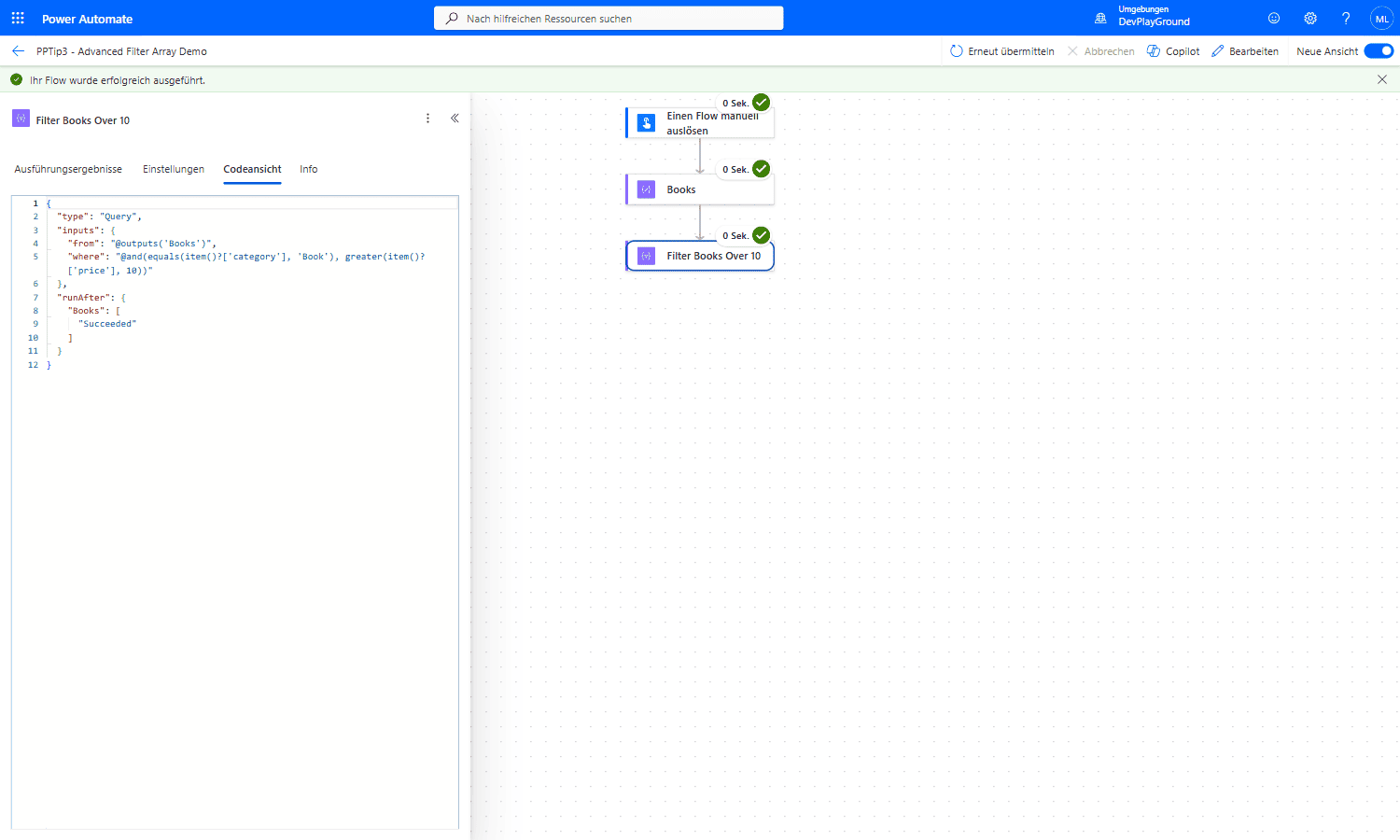 Real flow run: Code View shows the actual
 "where": "@and(equals(item()?['category'], 'Book'), greater(item()?['price'], 10))" expression behind the Advanced Mode UI.
🎉 Result
Harnessing Advanced Mode transforms ‘Filter Array’ into a powerful tool capable of handling intricate filtering tasks, reducing action count, improving performance, and increasing accuracy.
🌟 Key Advantages
🔸 Enhanced Flexibility: design any logical condition without UI limitations.
🔸 Greater Efficiency: combine multiple filters into one action for faster runs.
🔸 Exact Customization: tailor filters to specific data structures and scenarios.
🛠️ FAQ
1. What expressions can I use in Advanced Mode?
You can use standard Power Automate expressions like equals(), contains(), and(), or(), and many others to create complex filtering logic.
2. Can I reference dynamic content in Advanced Mode expressions?
Yes, you can reference any dynamic content from previous actions using the expression editor in Advanced Mode.
3. Is Advanced Mode more difficult to troubleshoot?
While it requires more technical knowledge, the expression editor provides helpful IntelliSense and error messages to assist with debugging.
🔗 Related Tips
🔸 #PowerPlatformTip 7: ‘Union and FilterArray’ - combine union() with FilterArray for deduplication before you filter.
🔸 #PowerPlatformTip 24: ‘Merge Arrays or Tables’ - copy-paste expressions for merging arrays before Advanced Mode filtering.
This tip is by Marcel Lehmann, Microsoft MVP (Business Applications) and founder of the Power Platform Academy – live Power Platform workshops, free or CHF 49. Join the workshop waitlist to get notified about new dates. For companies that want this implemented for them, see KMUpower – Power Platform consulting & automation for SMEs (DACH).