#PowerPlatformTip 125: 'Convert CSV to JSON'
TL;DR: Split the CSV text into lines, drop the header with
skip(), remove empty lines, and let a Select action map each line to an object: keyname, valuesplit(item(), ',')[0]. The Select output is already a JSON array. Standard actions only, no premium connector.
💡 Challenge
A CSV file arrives as one long text: a header row and data rows, separated by line breaks. You need it as a JSON array of objects, one per row, so you can loop over it, write it to a list or pass it to an API. There is no “CSV to JSON” action in the standard connectors.
✅ Solution
Build it from expressions: split() cuts the text into lines and each line into values, skip() removes the header, and Select turns every line into an object with named properties. The result of Select is a JSON array you can use directly.
🔧 How It’s Done
The example CSV has the header name,age and the rows Alice,30 and Bob,25. It sits in a Compose action named CSV_File (in a real flow: the output of Get file content).
1. Split the CSV into lines.
🔸 Compose Lines:
1
split(replace(outputs('CSV_File'), decodeUriComponent('%0D'), ''), decodeUriComponent('%0A'))
🔸 Files from Windows and Excel end each line with CR+LF, files from other systems with LF only. Removing every CR (%0D) first and then splitting on LF (%0A) handles both and leaves no invisible \r at the end of the last value.
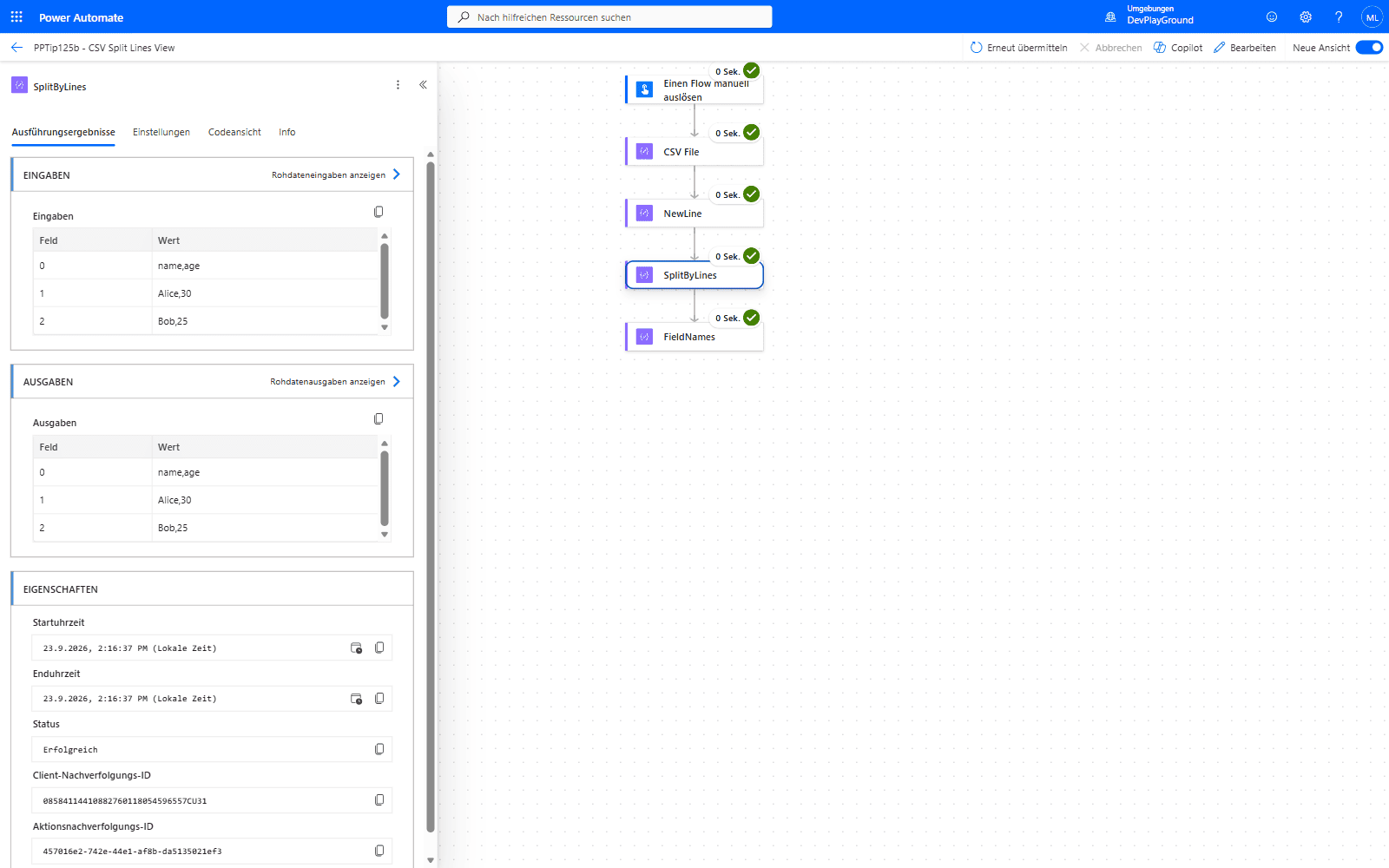 Real flow run:
 name,age / Alice,30 / Bob,25 goes in as one string, comes out as 3 separate array entries - the header row and the two data rows.
2. Drop the header and empty lines.
🔸 Filter array named DataRows, From:
1
skip(outputs('Lines'), 1)
🔸 Condition in advanced mode: @not(empty(trim(item()))). This removes the empty entry a trailing line break at the end of the file produces.
3. Map each line to an object.
🔸 Select, From body('DataRows'), map in key/value mode:
| Key | Value |
|---|---|
name | split(item(), ',')[0] |
age | int(split(item(), ',')[1]) |
🔸 One row per column. Use int() or float() for numeric columns, otherwise every value stays a string.
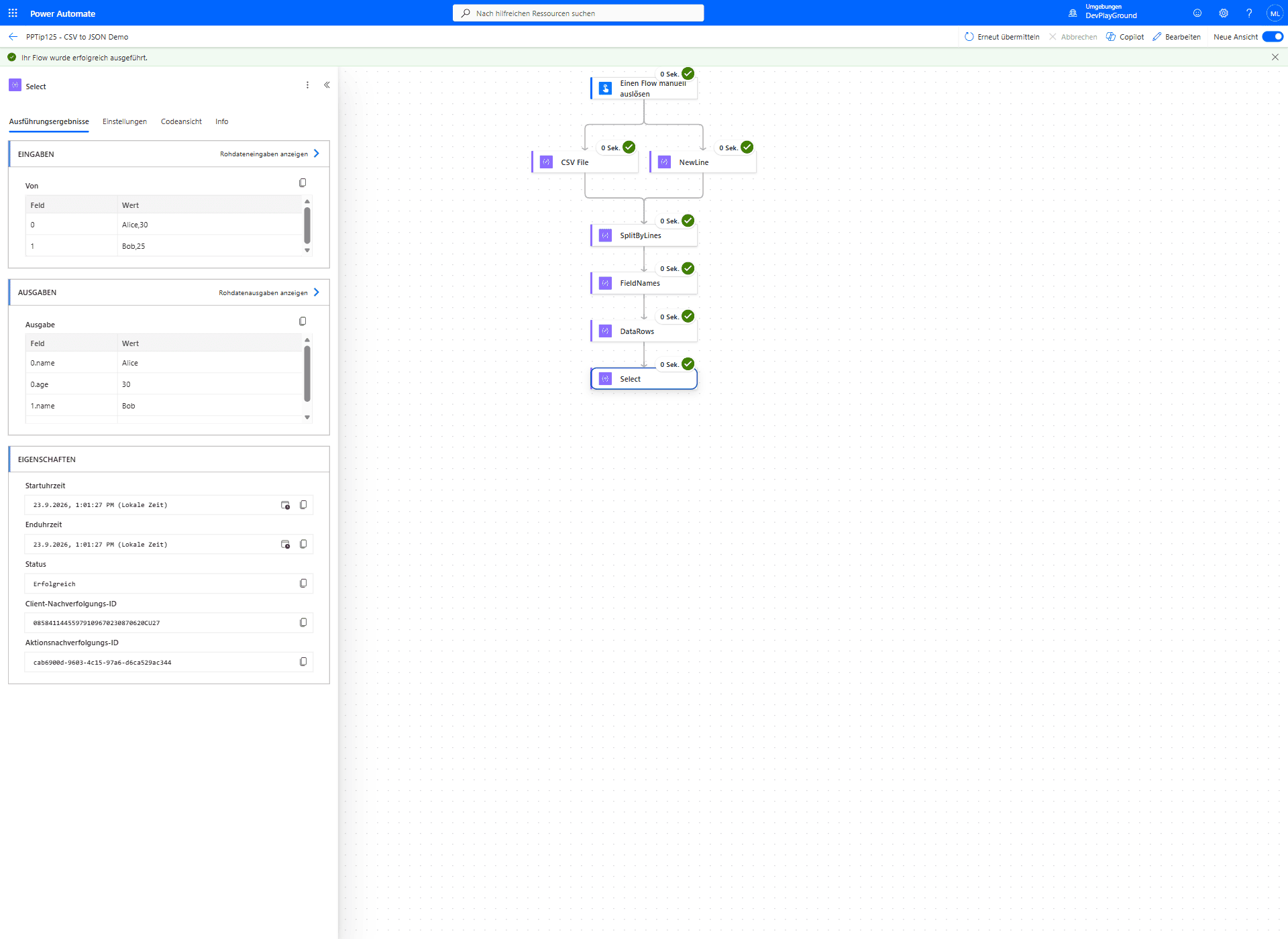 Real flow run on
 name,age / Alice,30 / Bob,25: the Select output already carries proper name/age keys per row.
4. Use the result.
🔸 body('Select') is the JSON array [{"name":"Alice","age":30},{"name":"Bob","age":25}]. Loop over it, or add a Parse JSON with a schema generated from this output if you want the properties as dynamic content.
🎉 Result
The CSV text becomes a clean JSON array with typed values, built with Compose, Filter array and Select only.
🌟 Key Advantages
🔸 Uses only standard Power Automate actions.
🔸 Handles CR+LF and LF line endings and a trailing empty line.
🔸 One Select replaces an Apply to each with Append to array variable, so it also runs fast on larger files.
⚠️ Good to Know
🔸 Quoted values: split() does not know CSV quoting. A value like "Zurich, Switzerland" contains the delimiter and is cut into two columns. This recipe fits files without delimiters inside values. For files with quoted fields, parse the file with an Office Script (Tip 157) or ask the sender for a different delimiter such as ; or a tab.
🔸 Quotes around every value: if all values are quoted but none contains the delimiter, remove the quotes first, for example replace(item(), '"', '') inside the Select values.
🔸 Text mode in Select: if you switch the Select map to text mode and build the object as text, for example {"name":"..."}, every element is a string, not an object, and later actions that expect objects break without a clear error. Wrap the text in json(...) so Select returns real objects (Tip 71 shows the same trap).
🛠️ FAQ
1. Do I need premium connectors to convert CSV to JSON?
No. Compose, Filter array and Select are built-in actions, and Get file content from SharePoint or OneDrive for Business is standard.
2. How can I handle CSV files with a different delimiter?
Change the delimiter in the Select values, for example split(item(), ';') for semicolon-separated files. Excel exports in many European locales use ;.
3. What if the columns change from file to file?
The keys in the Select map are fixed. For a fixed column set that is what you want. If the header changes, read it with split(first(outputs('Lines')), ',') and check it with a Condition before the Select, so a changed file stops the flow instead of filling the wrong properties.
🔗 Related Tips
- #PowerPlatformTip 124: Recognize Plain Text File Formats, read CSV and other text files without Base64 decoding.
- #PowerPlatformTip 104: Efficient JSON Handling, work with the resulting JSON efficiently.
- #PowerPlatformTip 71: Array to Object, turn arrays into objects with Select and
json().
This tip is by Marcel Lehmann, Microsoft MVP (Business Applications) and founder of the Power Platform Academy – live Power Platform workshops, free or CHF 49. Join the workshop waitlist to get notified about new dates. For companies that want this implemented for them, see KMUpower – Power Platform consulting & automation for SMEs (DACH).