#PowerPlatformTip 104: 'Efficient JSON Handling'
TL;DR: Define JSON schemas with types, required fields, constraints and format validation in Power Automate to keep your data clean and your flows reliable. When an external API sometimes returns
null, make the type a list like["string", "null"]so Parse JSON validates instead of failing.
Quick answer: Parse JSON fails with
Invalid type. Expected String but got Null.? Change that property to"type": ["string", "null"]. Tested:{"id": 1, "email": null}fails against"email": {"type": "string"}and parses against"email": {"type": ["string", "null"]}, withnull.
💡 Challenge
Managing JSON structures in Power Automate feels daunting without a solid grasp of how JSON objects, arrays and schemas fit together, and weak validation lets bad data slip into your flows. Worse, a schema that is too strict is just as fragile: the moment an external API returns null for a field you declared as "string", the Parse JSON action throws a validation error and the whole run fails.
✅ Solution
Learn the building blocks of JSON and JSON Schema, then use them in your Parse JSON steps to validate structure, types and constraints so your flows process data predictably - and add deliberate null tolerance so unreliable data sources can’t break the run.
🔧 How It’s Done
1. Basic structure
Use objects {} for key-value pairs and arrays [] for ordered lists.
1
2
3
4
{
  "name": "John Doe",
  "age": 30
}
1
["Apple", "Banana", "Cherry"]
2. Type restrictions
Give each field a type so data is interpreted correctly. A type can also be a list (e.g. allow null).
1
2
3
4
5
6
7
8
9
{
  "type": "object",
  "properties": {
    "name": { "type": "string" },
    "age": { "type": "number" },
    "verified": { "type": "boolean" },
    "nickname": { "type": ["string", "null"] }
  }
}
3. Detailed specifications
Define properties for objects and items for arrays.
1
2
3
4
5
6
7
"properties": {
  "name": { "type": "string" },
  "hobbies": {
    "type": "array",
    "items": { "type": "string" }
  }
}
4. Required fields
Use required to mark essential fields.
1
2
3
4
5
6
7
8
{
  "type": "object",
  "properties": {
    "name": { "type": "string" },
    "age": { "type": "number" }
  },
  "required": ["name"]
}
5. Constraints
Limit string lengths or numeric ranges.
1
2
"name": { "type": "string", "minLength": 2, "maxLength": 100 },
"age": { "type": "number", "minimum": 0, "maximum": 120 }
6. Format validation
Use format to validate values like email addresses or dates.
1
2
"email": { "type": "string", "format": "email" },
"birthday": { "type": "string", "format": "date" }
7. Add extra information
Add title and description to document each field.
1
2
3
4
5
6
7
8
9
10
"name": {
  "type": "string",
  "title": "User's Name",
  "description": "The full name of the user"
},
"age": {
  "type": "number",
  "title": "User's Age",
  "description": "The age of the user in years"
}
8. Tolerate null from unreliable APIs
The most common reason a flow breaks at the Parse JSON action is a field that is declared as a single type but occasionally arrives as null. When you generate a schema from a sample payload, Power Automate infers "type": "string" (or "number", "integer") from that one example - so the very first response where the field is empty fails validation with an error like “Invalid type. Expected String but got Null.”
The fix is to widen the type into an array that also allows null:
1
2
3
4
5
6
"properties": {
  "dueDate":   { "type": ["string", "null"] },
  "amount":    { "type": ["number", "null"] },
  "quantity":  { "type": ["integer", "null"] },
  "isActive":  { "type": ["boolean", "null"] }
}
Now the action validates successfully whether the source sends a value or null, and downstream steps simply receive an empty value instead of crashing the run.
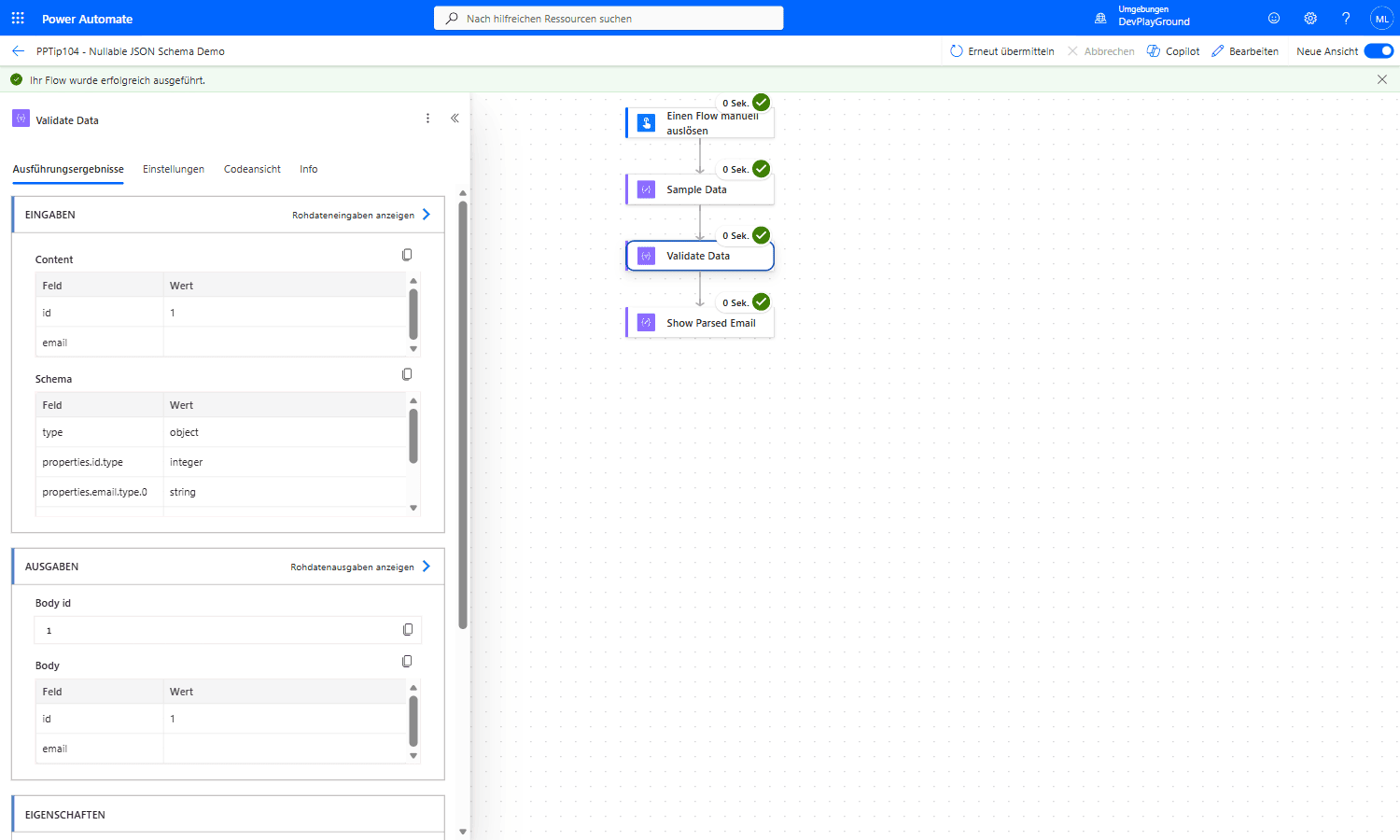 Real flow run: input
 {"id": 1, "email": null} against a schema with "email": {"type": ["string", "null"]} and "required": ["id", "email"] parses successfully, Status Erfolgreich, email comes through as empty instead of throwing “Expected String but got Null”.
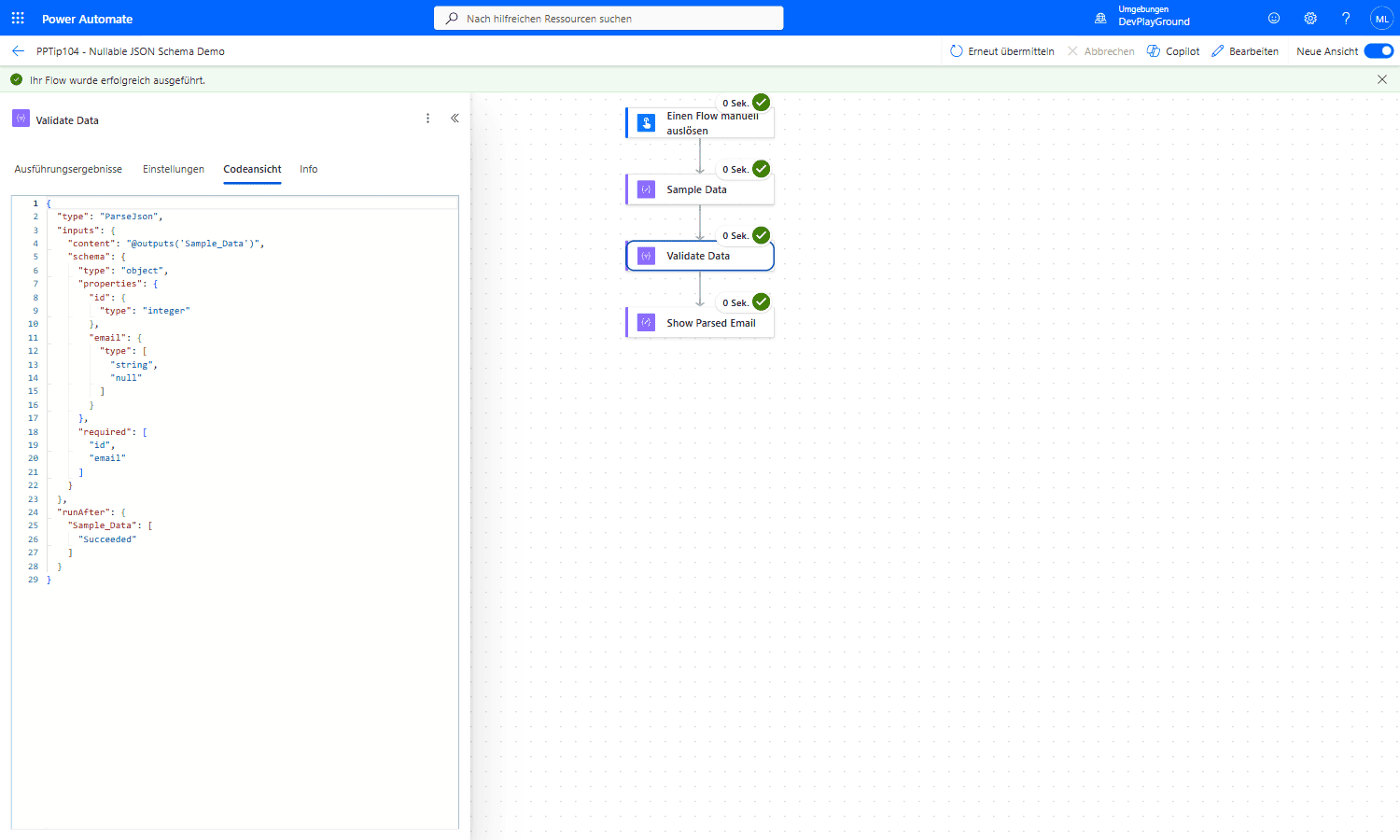 Real flow run: Code View confirms the exact schema behind that successful parse,
 "properties": {"id": {"type": "integer"}, "email": {"type": ["string", "null"]}}.
🔸 Two ways to loosen a strict field - use whichever matches the data:
- The field is always present but its value can be empty → widen the type:
["string", "null"]. - The field may be entirely absent → remove it from the
requiredarray (an omitted property doesn’t have to satisfy any type).
For fields that can be both missing and null, combine both: keep the type as an array and leave the property out of required.
🧪 What Parse JSON Actually Enforces
One flow run, one Parse JSON action per case. The run history only says The schema validation failed.; the exact reason sits in the action’s outputs as an errors array with message, path and errorType.
| Schema | Content | Result |
|---|---|---|
"email": {"type": "string"} | "email": null | Fails: Invalid type. Expected String but got Null. |
"email": {"type": ["string","null"]} | "email": null | Passes, email is null |
"email": {"type": "string", "format": "email"} | "not-an-email" | Fails: String 'not-an-email' does not validate against format 'email'. |
"d": {"type": "string", "format": "date"} | "yesterday" | Fails: does not validate against format 'date' |
"d": {"type": "string", "format": "date-time"} | "2026-13-45" | Fails: does not validate against format 'date-time' |
"required": ["id"] | {"name": "x"} | Fails: Required properties are missing from object: id. |
"n": {"type": "integer"} | 1.0 | Passes, body shows 1 |
"n": {"type": "integer"} | 1.5 | Fails: Invalid type. Expected Integer but got Number. |
"n": {"type": "integer"} | "1" | Fails: Invalid type. Expected Integer but got String. |
"n": {"type": "number"} | "12.5" | Fails: Expected Number but got String |
"b": {"type": "boolean"} | "true" | Fails: Invalid type. Expected Boolean but got String. |
"name": {"type": "string", "minLength": 2} | "a" | Fails: String 'a' is less than minimum length of 2. |
{} (empty schema) | anything | Passes, nested values stay reachable with body('Parse_JSON')?['anything']?[1]?['x'] |
schema with id only | {"id": 1, "extra": "yes"} | Passes, extra properties are not rejected |
email declared, not in required | {"id": 1} | Passes, body('Parse_JSON')?['email'] is null |
| any | content passed as a JSON string "{\"id\": 7}" | Passes, the string is parsed |
Three takeaways:
🔸 format is enforced, not just documented: email, date and date-time each failed the run on a bad value.
🔸 Types are strict: numbers in quotes, booleans in quotes and decimals in an integer field all fail. 1.0 is accepted as an integer.
🔸 The schema only limits what you declare: unknown extra properties pass, and an empty schema {} turns the action into a plain converter that never fails.
🎉 Result
By applying these structuring and validation techniques in your Power Automate flows, you improve data integrity, reduce errors, and make your automation more efficient - while null-tolerant types keep the flow running even when a data source is incomplete or inconsistent.
🌟 Key Advantages
🔸 Clear data structures improve readability and maintainability.
🔸 Strict type validation minimizes errors and keeps processing consistent.
🔸 Customizable rules allow flexible data checking and manipulation.
🔸 Null-tolerant schemas make flows resilient to unreliable APIs, so an empty field no longer fails the whole run.
Special thanks to Paul Murana for the great sneak peek.
⚠️ Watch out: Don’t list a nullable field in the
requiredarray.requiredonly checks that the property exists, not that it holds a non-null value - but mixing a single strict type ("string") withrequiredis exactly the combination that fails on the firstnull. If a value is genuinely optional, use["string", "null"](and/or drop it fromrequired) rather than forcing a default too early.
🎥 Video Tutorial
🛠️ FAQ
1. What is the difference between JSON objects and arrays? Objects use curly braces to define key-value pairs, while arrays use square brackets to store ordered lists of values.
2. How do type restrictions improve JSON validation in Power Automate? Type restrictions ensure each field matches an expected data type, reducing errors and improving flow reliability.
3. Can I include multiple formats like email and date validations in one schema? Yes, you can use the format attribute on different properties to enforce email, date, URI, and other standard validations.
4. My flow fails with “Expected String but got Null” - how do I fix it? Your schema declares that field as a single type, but the source sent null. Change the type to an array that also allows null, for example "type": ["string", "null"] (or ["number", "null"]), so the Parse JSON action validates instead of failing.
5. Should I use a nullable type or remove the field from required? Use a nullable type (["string", "null"]) when the property is always present but its value can be empty. Remove it from required when the property can be missing entirely. If it can be both, do both.
6. Does Parse JSON really check format: "email" or is it just documentation? It checks. "not-an-email" against {"type": "string", "format": "email"} fails the action with String 'not-an-email' does not validate against format 'email'. The same applies to date and date-time.
7. Where do I see why the schema validation failed? Open the failed Parse JSON action and look at its outputs: the errors array lists message, path and errorType for every violation. The run-level error only says “The schema validation failed.”
🔗 Related Tips
🔸 #PowerPlatformTip 128: ‘Dynamic Data Retrieval’ - handle missing keys gracefully with coalesce().
🔸 #PowerPlatformTip 33: ‘Coalesce’ - provide clean fallbacks for empty or null values.
🔸 #PowerPlatformTip 158: ‘Return Flow Data to Power Apps with ParseJSON’ - move typed JSON between a flow and a canvas app.
This tip is by Marcel Lehmann, Microsoft MVP (Business Applications) and founder of the Power Platform Academy – live Power Platform workshops, free or CHF 49. Join the workshop waitlist to get notified about new dates. For companies that want this implemented for them, see KMUpower – Power Platform consulting & automation for SMEs (DACH).