#PowerPlatformTip 89: 'Code View (Peek Code)'
TL;DR: Use Code View (formerly Peek code) in Power Automate to inspect an action’s underlying expressions in read-only form for faster debugging.
💡 Challenge
While working with Power Automate, you might come across situations where you want to understand or utilize expressions used in different actions more effectively. However, finding and understanding these expressions can sometimes be challenging.
✅ Solution
Use the Code View feature (formerly Peek code) in Power Automate to view the expressions used in actions in a read-only format, providing insight into the underlying logic of your flows.
🔧 How It’s Done
Here’s how to do it:
- In your flow, find the action you are interested in.
- Click the three dots (…) in the top-right corner of the action to open its menu.
- From the menu, select “Peek code” (also labeled “Code view”).
- A window opens displaying the expressions and JSON used in that action in a read-only format.
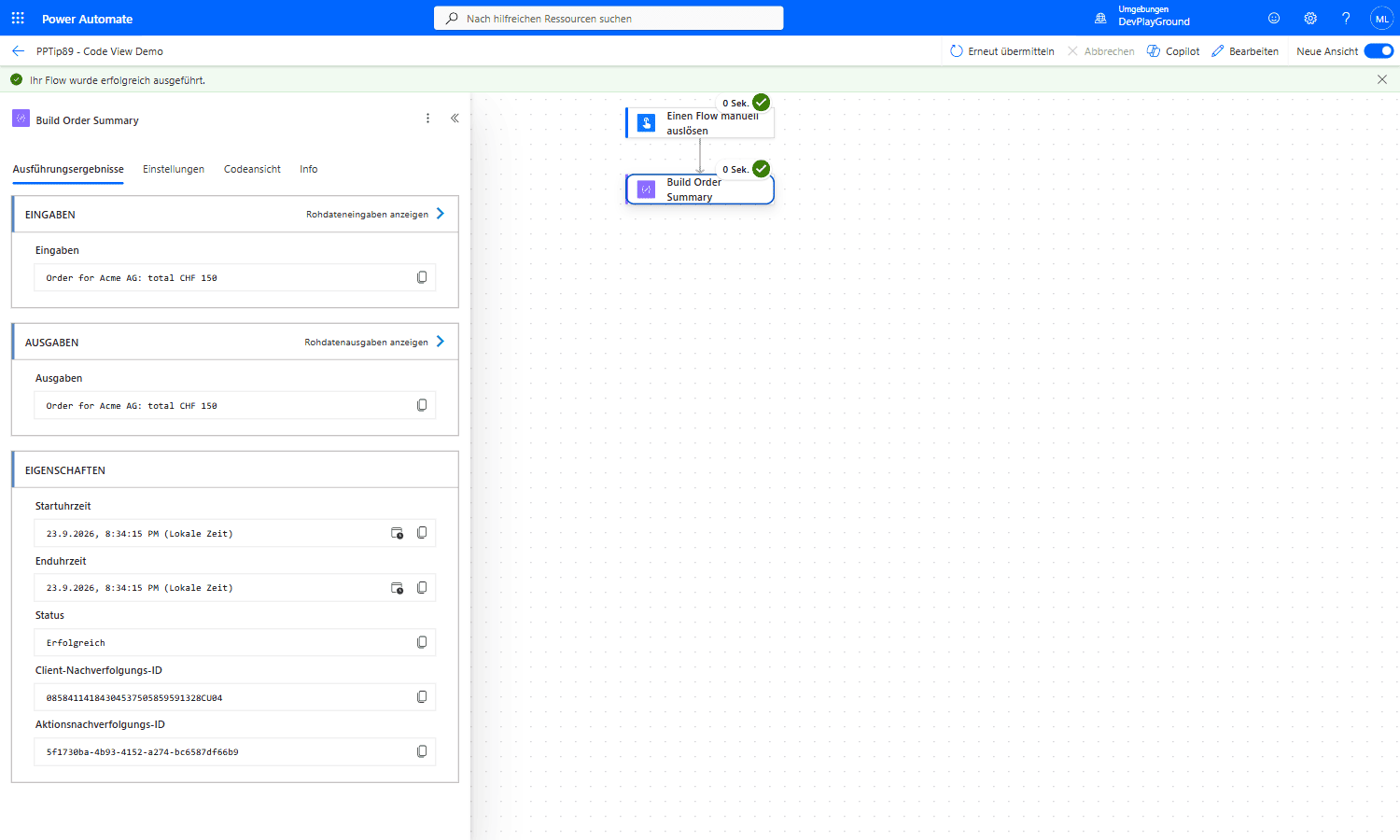 Real flow run: the “Build Order Summary” action’s normal run result, “Order for Acme AG: total CHF 150”.
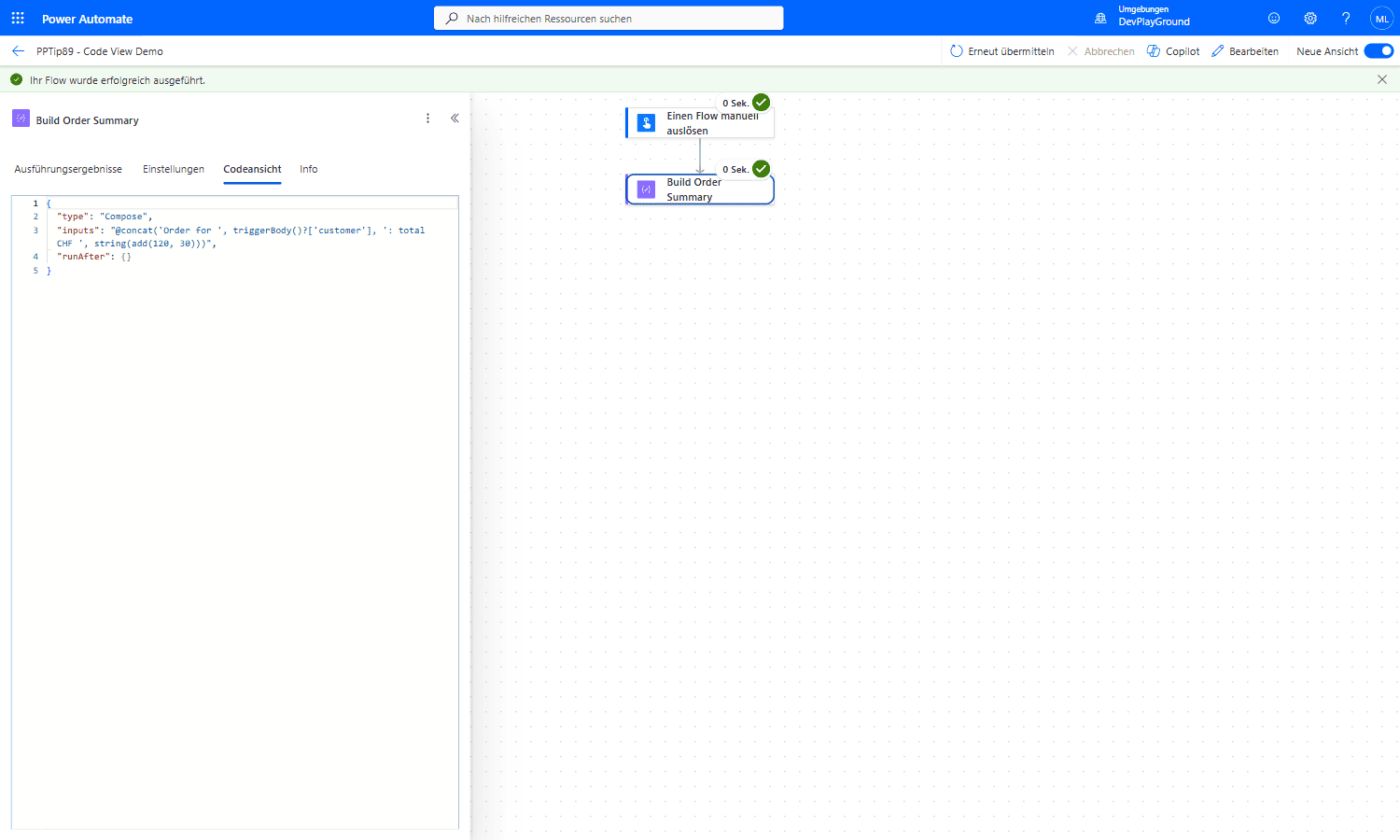 Real flow run: switching to Code View exposes the exact read-only JSON,
 "inputs": "@concat('Order for ', triggerBody()?['customer'], ': total CHF ', string(add(120, 30)))", behind the same action.
🎉 Result
You gain insight into the expressions used in different actions in Power Automate, which aids understanding of flow logic and supports more effective debugging.
🌟 Key Advantages
🔸 Insight into expressions: Get a deeper understanding of the expressions used in different actions.
🔸 Learning tool: Understand how actions work at the code level.
🔸 Debugging: View and analyze expressions to troubleshoot flow issues.
🎥 Video Tutorial
🛠️ FAQ
1. What is the Code View feature?
Code View (Peek code) shows the underlying JSON and expressions of a selected action in Power Automate in a read-only format.
2. Can I edit expressions directly in Code View?
No, Code View is strictly read-only. To modify expressions, use the action designer or the expression editor in the flow designer.
3. How does Code View help with debugging?
By exposing the exact expressions and property names, Code View allows you to troubleshoot and understand flow logic more effectively.
🔗 Related Tips
🔸 #PowerPlatformTip 119: ‘Web-Based Editing with VS Code’ - a roomier editor for when Code View’s read-only window isn’t enough.
🔸 #PowerPlatformTip 51: ‘Which Flow Calls Which Flow’ - trace dependencies across flows once you’ve inspected the expressions inside one.
This tip is by Marcel Lehmann, Microsoft MVP (Business Applications) and founder of the Power Platform Academy – live Power Platform workshops, free or CHF 49. Join the workshop waitlist to get notified about new dates. For companies that want this implemented for them, see KMUpower – Power Platform consulting & automation for SMEs (DACH).