#PowerPlatformTip 111: 'Adaptive Cards for Dynamic Approvals'
TL;DR: The standard Start and wait for an approval action needs all approvers up front. For a chain where each approver chooses the next one, send a Teams Adaptive Card with Post adaptive card and wait for a response, fill its
Input.ChoiceSetfrom Search for users (V2) via a Select action, and loop with Do until until someone rejects or leaves the next-approver field empty.
A request lands on a team lead’s desk, and only she knows who has to look at it next. Sometimes it’s the controller, sometimes legal, sometimes nobody. A fixed approver list can’t model that. A small loop around an Adaptive Card can.
💡 Challenge
Start and wait for an approval works with a fixed list of assigned approvers. It has no field where the current approver can name the next approver, so ad-hoc chains end up in email ping-pong outside the flow.
✅ Solution
Replace the approval action with an Adaptive Card in Teams. The card shows the request, an Approve and a Reject button, a comment field and a dropdown of people. The flow reads the selected person from the card response and sends the same card to them, round after round, while logging every decision.
🔧 How It’s Done
1. Initialize the variables.
🔸 varApprover (String): email of the first approver.
🔸 varDone (Boolean): false.
🔸 varHistory (Array): empty, collects one entry per round.
2. Build the list of possible approvers.
🔸 Office 365 Users Search for users (V2): set a Search term (for example a department name or a domain part) and a Top value such as 100. The result is in value, with the properties DisplayName and Mail.
🔸 Select, renamed to Select approver choices:
From: outputs('Search_for_users_(V2)')?['body/value']
Map (text mode):
1
2
3
4
{
  "title": "@{item()?['DisplayName']}",
  "value": "@{item()?['Mail']}"
}
This produces exactly the title/value pairs that Input.ChoiceSet expects.
3. Add a Do until loop.
🔸 Condition: @equals(variables('varDone'), true)
🔸 Open the loop’s Change limits and raise the defaults (count 60, timeout PT1H). With a timeout of one hour the loop stops while people are still deciding. P29D keeps it inside the 30-day run limit of a cloud flow.
4. Inside the loop: Post adaptive card and wait for a response.
🔸 Microsoft Teams action, Post as: Flow bot, Post in: Chat with Flow bot, Recipient: variables('varApprover').
🔸 Message (the card JSON, choices filled by the Select output):
1
2
3
4
5
6
7
8
9
10
11
12
13
14
15
16
17
18
19
20
21
22
{
  "type": "AdaptiveCard",
  "$schema": "http://adaptivecards.io/schemas/adaptive-card.json",
  "version": "1.4",
  "body": [
    { "type": "TextBlock", "text": "Approval request", "weight": "Bolder", "size": "Medium" },
    { "type": "TextBlock", "text": "@{triggerBody()?['text']}", "wrap": true },
    {
      "type": "Input.ChoiceSet",
      "id": "nextApprover",
      "label": "Next approver (leave empty to finish)",
      "style": "compact",
      "isRequired": false,
      "choices": @{body('Select_approver_choices')}
    },
    { "type": "Input.Text", "id": "comment", "label": "Comment", "isMultiline": true }
  ],
  "actions": [
    { "type": "Action.Submit", "title": "Approve", "data": { "decision": "Approve" } },
    { "type": "Action.Submit", "title": "Reject", "data": { "decision": "Reject" } }
  ]
}
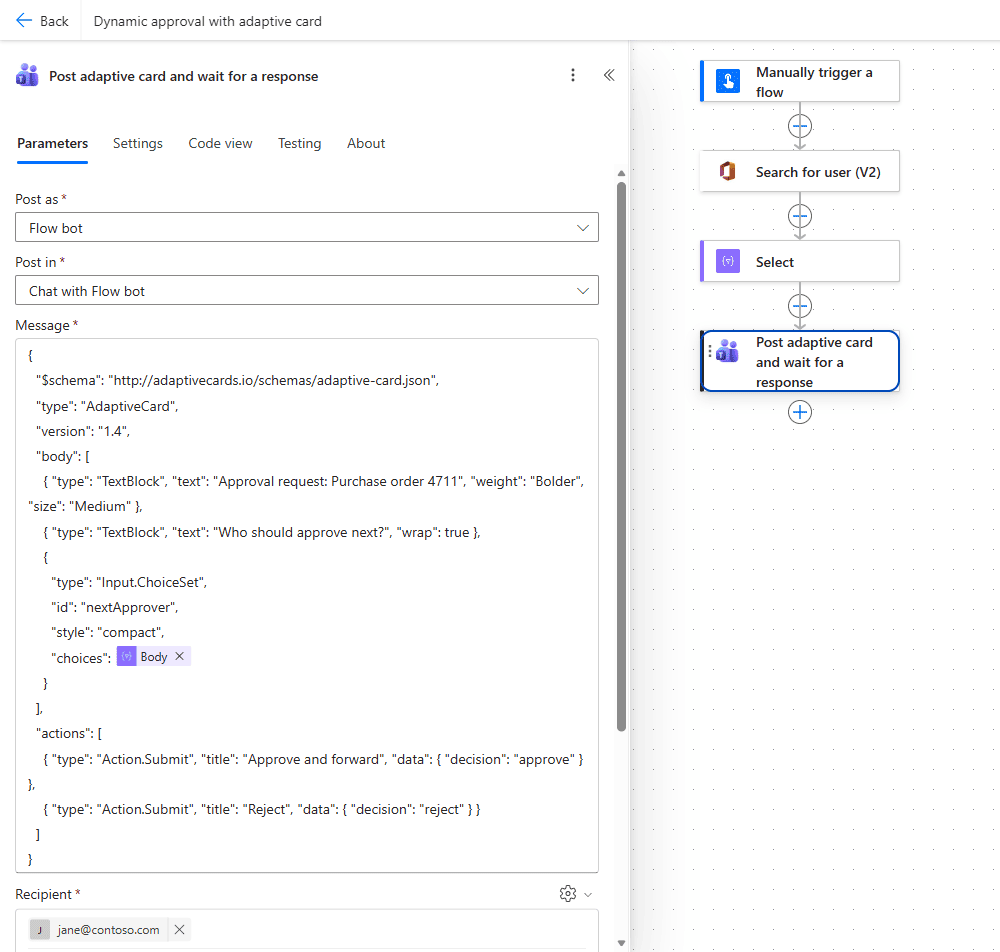 The three actions in order: Search for users (V2), Select (maps to
 title/value) and Post adaptive card and wait for a response. In the card JSON the choices of the Input.ChoiceSet are the Body output of the Select action, so the list of possible next approvers is built at run time.
5. Read the response and log the round.
🔸 The submitted inputs and the data of the pressed button arrive together in the data object of the response:
1
2
3
body('Post_adaptive_card_and_wait_for_a_response')?['data']?['decision']
body('Post_adaptive_card_and_wait_for_a_response')?['data']?['nextApprover']
body('Post_adaptive_card_and_wait_for_a_response')?['data']?['comment']
🔸 Append to array variable varHistory:
1
2
3
4
5
6
{
  "approver": "@{variables('varApprover')}",
  "decision": "@{body('Post_adaptive_card_and_wait_for_a_response')?['data']?['decision']}",
  "comment": "@{body('Post_adaptive_card_and_wait_for_a_response')?['data']?['comment']}",
  "timestamp": "@{utcNow()}"
}
6. Decide: next round or finish.
🔸 Condition: decision is Reject or empty(body('Post_adaptive_card_and_wait_for_a_response')?['data']?['nextApprover']) is true.
🔸 If yes: Set variable varDone to true.
🔸 If no: Set variable varApprover to the selected nextApprover. The loop sends the card to that person.
7. After the loop: the summary.
🔸 Create HTML table from varHistory and send it to the requester, or write it to a SharePoint list or Dataverse table as an audit trail.
🎉 Result
Every approver sees the request in Teams, decides, and picks who comes next. The flow ends on the first rejection or when someone leaves the dropdown empty, and the requester gets a table with each approver, decision, comment and timestamp.
🌟 Key Advantages
🔸 Chains that build themselves: no fixed approver list needed up front.
🔸 Standard connectors only: Teams, Office 365 Users and built-in actions.
🔸 Full history: every round is logged with decision, comment and time.
🔸 Clean stop rules: reject or empty selection ends the loop.
⚠️ Good to Know
🔸 Teams People Picker. Teams also documents a People Picker for Adaptive Cards (Input.ChoiceSet with choices.data and the dataset graph.microsoft.com/users). It returns the Microsoft Entra object ID, not an email address. The Select-based list in this tip returns the email directly, which is what the Recipient of the next card needs.
🔸 Guests. Search for users (V2) can fail with 403 Insufficient privileges when the connection belongs to a guest user. Use a member account for the connection.
🔸 30-day limit. A cloud flow run ends after 30 days. For chains that can take longer, see Tip 144.
🎥 Video Tutorial
🛠️ FAQ
1. How do I put a user search into an Adaptive Card?
Run Search for users (V2) before the card, map the result with Select to title (display name) and value (email), and insert the Select body as the choices of an Input.ChoiceSet. The selected email comes back in data.nextApprover of the card response.
2. What happens if an approver doesn’t respond?
Set a timeout on Post adaptive card and wait for a response under Settings, and add a branch with Configure run after set to has timed out that sends a reminder or moves the request to a fallback approver.
3. Can the same card handle approve and reject?
Yes. Each Action.Submit carries its own data object ("decision": "Approve" or "Reject"), and that value arrives in the same data object as the inputs.
4. Why does my loop stop after one hour?
Do until has a default timeout of PT1H. Raise it under Change limits, for example to P29D.
🔗 Related Tips
🔸 #PowerPlatformTip 114: ‘Send Approvals to External Recipients’ - extend a dynamic chain like this one to approvers outside your tenant.
🔸 #PowerPlatformTip 144: ‘Infinite Approvals’ - keep a long dynamic approval chain alive past Power Automate’s 30-day timeout.
This tip is by Marcel Lehmann, Microsoft MVP (Business Applications) and founder of the Power Platform Academy – live Power Platform workshops, free or CHF 49. Join the workshop waitlist to get notified about new dates. For companies that want this implemented for them, see KMUpower – Power Platform consulting & automation for SMEs (DACH).