#PowerPlatformTip 112: 'Consistent Data Formats'
TL;DR: Normalize data before comparing, use
Trim/Lowerin Power Apps andtrim/toLowerin Power Automate to avoid format-mismatch errors.
💡 Challenge
Data arrives in many shapes and sizes. When it’s time to compare or validate it, small format inconsistencies, stray spaces, mixed case, mismatched types, derail your workflow with errors that are tricky to debug.
✅ Solution
Normalize your data before comparing or validating: trim extra spaces, convert text to a uniform case, and make sure data types match on both sides.
🔧 How It’s Done
🔸 Identify the data you need to compare or validate in your app or flow.
🔸 Standardize the format with cleanup functions before comparing:
🔸 In Power Apps: Lower(Trim(TextInput.Text)), trims spaces and lowercases the text.
🔸 In Power Automate: toLower(trim(triggerOutputs()?['headers']['x-ms-file-last-modified'])), the same idea in an expression.
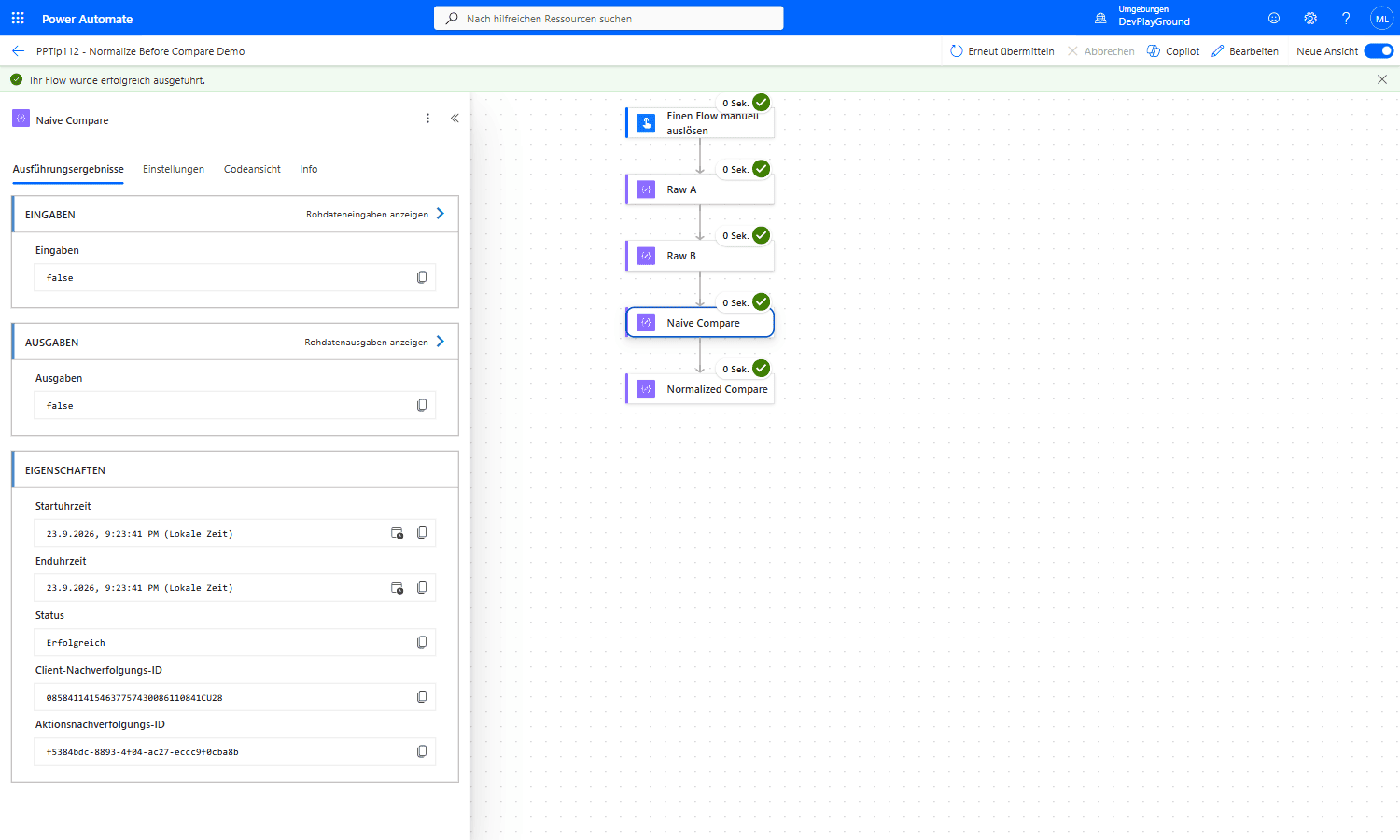 Real flow run:
 @equals(outputs('Raw_A'), outputs('Raw_B')) on " Alice " and "alice" returns false, the stray space and mismatched case make an otherwise identical value look different.
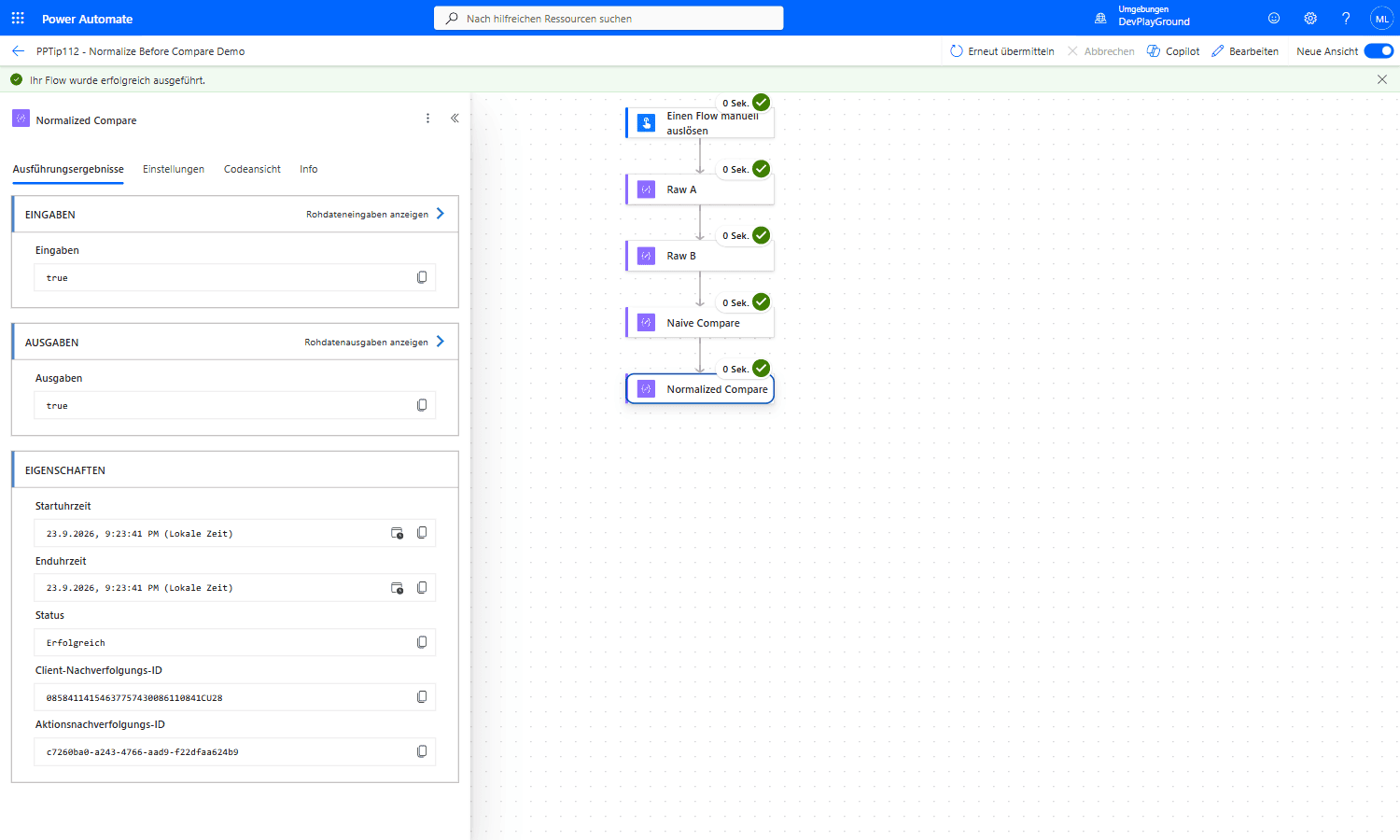 Real flow run, same two values:
 @equals(toLower(trim(outputs('Raw_A'))), toLower(trim(outputs('Raw_B')))) returns true, normalizing both sides before comparing is the entire fix.
📌 Tips:
🔸 Consistent formatting dramatically reduces hard-to-debug errors.
🔸 Lean on Trim/Lower in Power Apps and trim/toLower in Power Automate to keep values aligned.
🎉 Result
Consistent, normalized data makes comparisons and validation in Power Apps and Power Automate reliable, far fewer format-related surprises to debug.
🌟 Key Advantages
🔸 Reliability: eliminates errors caused by mismatched formats.
🔸 Efficiency: removes format-related hurdles from comparison and validation.
🔸 Best practice: enforces sound, uniform data management.
🎥 Video Tutorial
🛠️ FAQ
1. Why should I standardize data formats before comparison? Standardization ensures values match consistently, preventing false mismatches and reducing errors in your apps and flows.
2. Which Power Apps functions help normalize text data? Use Trim to remove extra spaces and Lower to convert text to lowercase, e.g. Lower(Trim(TextInput.Text)).
3. How can I apply the same formatting in Power Automate? Use the trim and toLower functions in expressions, e.g. toLower(trim(triggerOutputs()?['headers']['x-ms-file-last-modified'])).
🔗 Related Tips
🔸 #PowerPlatformTip 59: ‘Handle Dynamic Content’ - guard against missing properties with ? the same way you guard against format mismatches here.
🔸 #PowerPlatformTip 104: ‘Efficient JSON Handling’ - build a schema that tolerates the same kind of messy, inconsistent input data.
This tip is by Marcel Lehmann, Microsoft MVP (Business Applications) and founder of the Power Platform Academy – live Power Platform workshops, free or CHF 49. Join the workshop waitlist to get notified about new dates. For companies that want this implemented for them, see KMUpower – Power Platform consulting & automation for SMEs (DACH).