#PowerPlatformTip 97: 'Enhanced Pagination'
TL;DR: Excel’s List rows present in a table returns 256 rows by default, SharePoint’s Get items and Get files (properties only) return 100. Turn on Pagination in the action’s Settings and set a Threshold (up to 100,000, or 5,000 on the Low performance profile), or set Top Count when you know the upper bound.
💡 Challenge
In Power Automate, the list actions for Excel and SharePoint return only the first page of data by default. Excel’s List rows present in a table returns up to 256 rows, SharePoint’s Get items and Get files (properties only) return 100 items. Flows that loop over “all” rows silently miss the rest.
✅ Solution
Adjusting the pagination settings is crucial for Excel and SharePoint integrations. It ensures that you retrieve more than the default number of items, enhancing data handling capabilities.
🔧 How It’s Done
Here’s how to do it:
- In Power Automate, open your flow and select the list action: Get items or Get files (properties only) for SharePoint, List rows present in a table for Excel.
- Click the three dots (…) on the action and open Settings.
-
Turn on Pagination and set the Threshold to the number of items you need.
🔸 For Excel: increase the limit beyond the default 256.🔸 For SharePoint: raise it above the default 100.
🔸 The maximum threshold is 100,000 items, or 5,000 on the Low performance profile.
- Carefully balance performance and data retrieval needs.
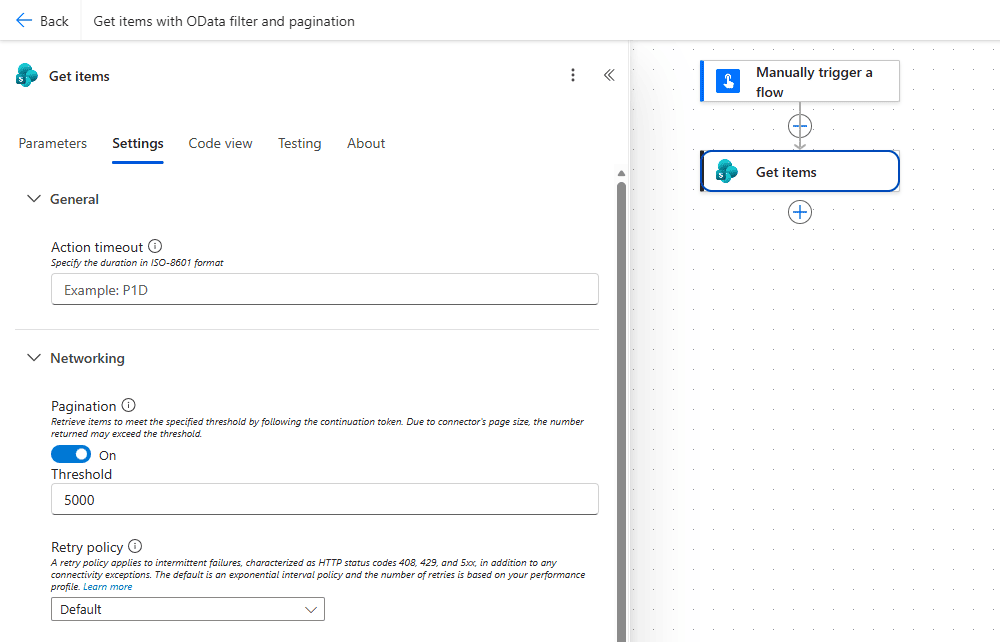 The Settings tab of Get items: under Networking, Pagination is On and the Threshold is set to 5000, so the action keeps following the continuation token until it has that many items.
🧪 Threshold vs. Top Count, Measured
‘Get files (properties only)’ on a SharePoint library with 204 items (210 in the last three runs), counted with length(body('Get_files')?['value']):
| Pagination | Threshold | Top Count | Rows returned |
|---|---|---|---|
| Off | – | – | 100 |
| Off | – | 150 | 150 |
| Off | – | 6000 | 204 (all) |
| On | 5000 | – | 204 (all) |
| On | 150 | – | 200 |
| On | 150 | 50 | 50 |
| On | 150 | 400 | 210 (all) |
🔸 Top Count alone already breaks the 100 limit. Without Pagination the action fetched 150 and 6000 as requested. Pagination is needed when you do not know the upper bound or want to go beyond what a single Top Count can hold.
🔸 The threshold is a minimum, not a maximum. With threshold 150 the action kept fetching 100-row pages until at least 150 rows were there and returned 200. It stops at the end of the page, not at the threshold.
🔸 Top Count is the hard cap. With both set, 50 won against the 150 threshold, and 400 returned everything.
🔸 Fetching all 204 rows with Pagination took about 4 seconds against about 0.9 seconds for the first 100, because the connector makes one call per 100 rows.
🎉 Result
Efficient and complete data retrieval from Excel and SharePoint, overcoming the default item limit constraints.
🌟 Key Advantages
🔸 Comprehensive data access for larger datasets.
🔸 Customizable settings to match specific project requirements.
🔸 Improved data handling and performance in complex workflows.
🎥 Video Tutorial
🛠️ FAQ
1. What are the default item limits for Excel and SharePoint?
Excel’s List rows present in a table returns up to 256 rows. SharePoint’s Get items and Get files (properties only) return up to 100 items.
2. How can I increase the pagination threshold in my flow?
Open the list action, go to Settings, turn on Pagination, and set the Threshold to the number of items you need, up to 100,000 (5,000 on the Low performance profile).
3. Will increasing the pagination limit slow down my flow?
Raising the item limit can impact performance and run time. Test different threshold values to find a balance between data retrieval needs and performance. Measured: 204 rows with Pagination took about 4 seconds, the first 100 about 0.9 seconds.
4. Do I need Pagination if I set a Top Count above 100?
No. Top Count 150 returned 150 rows and Top Count 6000 returned all 204 rows with Pagination off. Pagination matters when you cannot name an upper bound.
5. Why do I get more rows than the threshold?
The threshold is a minimum. The connector loads 100-row pages until the threshold is reached and returns the whole last page: threshold 150 returned 200 rows. Set a Top Count if you need an exact cap; Top Count 50 with threshold 150 returned 50.
6. How do I count the rows I got?
length(body('Get_items')?['value']). Without Pagination this counts at most 100.
🔗 Related Tips
🔸 #PowerPlatformTip 95: ‘Optimized SharePoint Queries’ - filter with OData first, so you need less pagination in the first place.
🔸 #PowerPlatformTip 47: ‘Batch-Method within SharePoint’ - the write-side counterpart, for bulk create/update/delete instead of bulk reads.
This tip is by Marcel Lehmann, Microsoft MVP (Business Applications) and founder of the Power Platform Academy – live Power Platform workshops, free or CHF 49. Join the workshop waitlist to get notified about new dates. For companies that want this implemented for them, see KMUpower – Power Platform consulting & automation for SMEs (DACH).