#PowerPlatformTip 11: 'Trigger Condition'
TL;DR: Use a Filter array action in advanced mode as a syntax helper for your trigger condition, then replace
item()with a reference to the trigger output (triggerOutputs()ortriggerBody()) before you paste it into the trigger’s Trigger Conditions setting.
🧰 Free tool: Build valid trigger conditions without hand-writing the expression: Trigger condition builder.
Trigger conditions stop a flow from running unless specific criteria are met, saving run quota and keeping your logic clean. Writing the raw expression by hand is error-prone. Build the structure visually with a Filter array action, then adapt the generated expression and paste it into the trigger.
💡 Challenge
Setting up a trigger condition by hand means writing a raw expression with exact syntax. It’s easy to get wrong, and hard to debug, when the syntax is off, the flow silently never fires.
✅ Solution
Use a Filter array action to build the condition in the visual editor. Switch it to advanced mode and Power Automate generates the expression syntax for you. One thing has to change before you can use it: Filter array evaluates each element with item(), which does not exist in a trigger. In the trigger condition you reference the trigger’s output instead.
🔧 How It’s Done
1. Plan the condition
🔸 Decide under which circumstances the flow should start before you build anything.
2. Build it in Filter array
🔸 Add a Filter array action and define your conditions in the basic editor, combine multiple rules as needed.
3. Switch to advanced mode
🔸 Toggle to advanced mode to reveal the generated expression with the correct syntax.
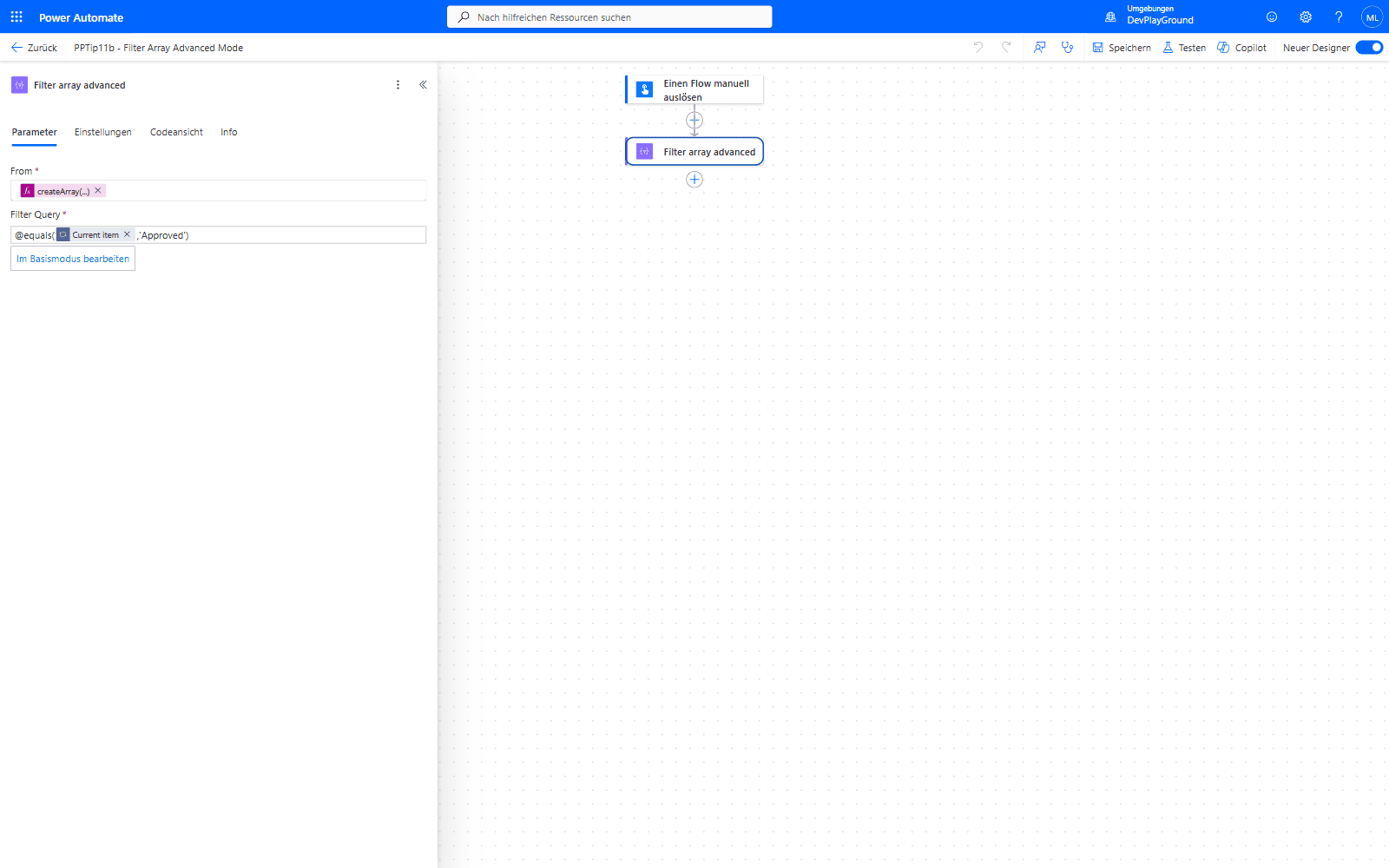 Filter array in advanced mode: the exact same condition, now as copy-pasteable syntax ready for the trigger’s Trigger Conditions field.
4. Apply it to the trigger
🔸 Copy the expression, then replace item() (shown as Current item in the editor) with the matching trigger output, for example triggerOutputs()?['body/status'] or triggerBody()?['status']. Paste the result into your trigger’s Trigger Conditions setting and remove the helper Filter array action.
🔸 Example: the Filter array expression @equals(item(), 'Approved') becomes @equals(triggerOutputs()?['body/status'], 'Approved') in the trigger condition. The column name status is only an example; use the name of your own trigger output.
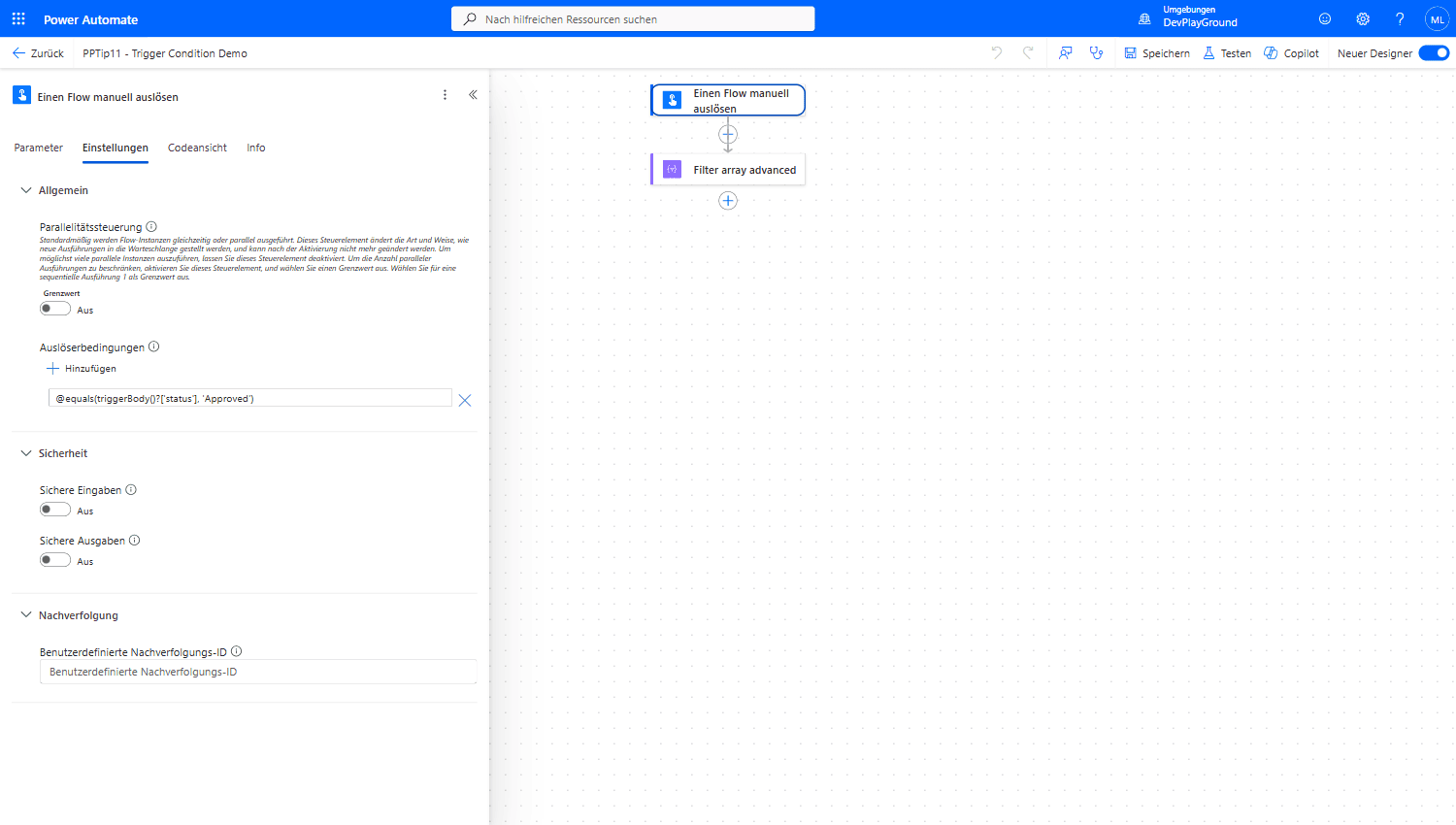 The trigger’s Settings pane, Trigger Conditions (shown here as “Auslöserbedingungen” in a German tenant) holding the generated expression
 @equals(triggerBody()?['status'], 'Approved').
📚 Trigger Condition Examples
Each condition below was placed on a Request trigger and fired with the sample bodies shown. A body that passes creates a run, a body that fails creates no run at all, the run history stays empty and the caller still gets HTTP 202.
1. Field is not empty
1
@not(empty(triggerBody()?['title']))
🔸 Runs: {"title": "x"}. No run: {"title": ""} and a body without title.
2. Field contains a word, case-insensitive
1
@contains(toLower(coalesce(triggerBody()?['title'], '')), 'urgent')
🔸 Runs: {"title": "URGENT: server down"}. No run: {"title": "normal ticket"} and a body without title. The coalesce() keeps toLower() from failing on a missing field.
3. Boolean (Yes/No) column is true
1
@equals(triggerBody()?['isActive'], true)
🔸 Runs: {"isActive": true}. No run: {"isActive": false} and {"isActive": "true"}, the string is not equal to the boolean, so compare against the type the trigger delivers.
4. Two conditions = AND
Add each expression as its own entry in the Trigger Conditions list:
1
2
@equals(triggerBody()?['status'], 'Approved')
@not(empty(triggerBody()?['title']))
🔸 Runs: {"status": "Approved", "title": "x"}. No run: {"status": "Approved", "title": ""}. All entries must be true.
5. Only new items, not modified ones (Created = Modified)
1
@equals(triggerOutputs()?['body/Created'], triggerOutputs()?['body/Modified'])
🔸 Runs: Created and Modified both 2026-10-15T07:00:00Z. No run: Modified 2026-10-15T07:30:00Z. On a SharePoint “When an item is created or modified” trigger these are the Created and Modified columns of the item; a freshly created item has identical values, every later edit moves Modified.
🔸 Invert it with @not(equals(...)) to react to edits only.
🎉 Result
Your flow starts only when the defined conditions are true: fewer unnecessary runs and cleaner logic, with the syntax generated for you and only the trigger reference adapted by hand.
🌟 Key Advantages
🔸 Precision: the flow triggers only under the right circumstances, no false starts.
🔸 Efficiency: fewer unnecessary executions means less consumed run quota.
🔸 Less hand-coding: the operators and structure are generated for you, you only swap item() for the trigger output.
🎥 Video Tutorial
🛠️ FAQ
1. What is a trigger condition in Power Automate?
A trigger condition is an expression evaluated before the flow runs. The flow only executes if it returns true, everything else is ignored, preventing unwanted runs.
2. Why use Filter Array instead of writing the trigger condition directly?
With Filter Array you build the rules in a clear visual interface. In advanced mode, Power Automate shows the generated expression. It uses item() for the current element, so you cannot paste it into a trigger unchanged: replace item() with the matching triggerOutputs() or triggerBody() reference first.
3. How can I test that my trigger condition works?
Save the flow with the condition in place, then create or change test items: one that meets the condition and one that does not. Only the matching item starts a run. The other one creates no run at all, so an empty run history is the expected result, not an error.
4. Are several trigger conditions combined with AND or OR?
AND. With two entries, @equals(triggerBody()?['status'], 'Approved') and @not(empty(triggerBody()?['title'])), a body with status Approved and an empty title created no run.
5. How do I trigger only on new items, not on every edit?
Compare the timestamps: @equals(triggerOutputs()?['body/Created'], triggerOutputs()?['body/Modified']). Identical values started a run, a later Modified value did not.
🔗 Related Tips
🔸 Power Automate Flows vs Automate Rules - compares this pre-filtering approach with SharePoint’s own rule-based alternative.
🔸 #PowerPlatformTip 3: ‘Advanced Filtering Array’ - the Filter array advanced mode used here as a syntax helper, explained in depth.
🔸 #PowerPlatformTip 95: ‘Optimized SharePoint Queries’ - cut processing further with OData filters once the trigger condition lets the flow run.
This tip is by Marcel Lehmann, Microsoft MVP (Business Applications) and founder of the Power Platform Academy – live Power Platform workshops, free or CHF 49. Join the workshop waitlist to get notified about new dates. For companies that want this implemented for them, see KMUpower – Power Platform consulting & automation for SMEs (DACH).