#PowerPlatformTip 163: 'Create an ICS Calendar File in Power Automate'
TL;DR: Compose the iCalendar text (
BEGIN:VCALENDAR … VEVENT … END:VCALENDAR), Base64-encode it, and attach it asinvite.ics(text/calendar) to Send an email (V2). The recipient adds the event to any calendar - Outlook, Google, Apple - with one click. Standard actions only, no premium.
Not every “put this in my calendar” needs a full Graph API event on someone else’s mailbox. Often you just want to hand the recipient a portable calendar entry they can accept themselves - a webinar, a deadline, a pickup slot. The open iCalendar format (RFC 5545) does exactly that, and you can generate a valid .ics file in a flow with nothing more than a Compose action.
💡 Challenge
You want to send someone a calendar event they can add to their calendar - regardless of whether they use Outlook, Google, or Apple - without write access to their mailbox and without a premium connector. Creating the event directly via Graph or the Outlook connector writes to your calendar or needs delegated permissions; it doesn’t produce a portable file you can simply email out.
✅ Solution
Generate a standards-compliant iCalendar (.ics) file yourself. An .ics is just plain text following RFC 5545: a VCALENDAR wrapper containing at least one VEVENT. Build that string in a Compose action, Base64-encode it, and attach it to Send an email (V2) with the text/calendar extension. Any mail client recognises it and offers a one-click “Add to calendar”.
🔧 How It’s Done
1. Compose the iCalendar text.
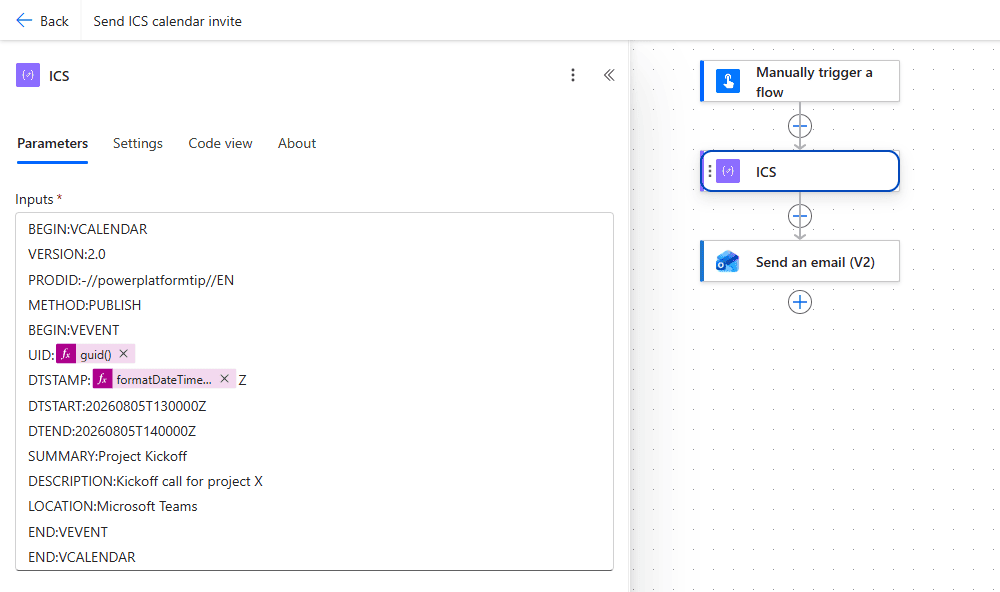
🔸 Add a Compose action (call it ICS) with a body like this. \n marks line breaks - each property is its own line:
1
2
3
4
5
6
7
8
9
10
11
12
13
14
BEGIN:VCALENDAR
VERSION:2.0
PRODID:-//powerplatformtip//EN
METHOD:PUBLISH
BEGIN:VEVENT
UID:@{guid()}
DTSTAMP:@{formatDateTime(utcNow(),'yyyyMMddTHHmmss')}Z
DTSTART:20260805T130000Z
DTEND:20260805T140000Z
SUMMARY:Project Kickoff
DESCRIPTION:Kickoff call for project X
LOCATION:Microsoft Teams
END:VEVENT
END:VCALENDAR
🔸 Mandatory bits: the file needs at least one VEVENT (without it, Outlook treats the file as a calendar folder, not an appointment), plus UID, DTSTAMP, and DTSTART. Times ending in Z are UTC in the yyyyMMddTHHmmssZ pattern.
 The
The ICS Compose action with the complete iCalendar text. UID and DTSTAMP are expressions (guid() and formatDateTime(utcNow(), ...)), every other property is a plain line.
2. Make the timestamps dynamic (optional).
🔸 For a data-driven event, build DTSTART/DTEND from your own values: @{formatDateTime(variables('StartUtc'),'yyyyMMddTHHmmss')}Z. Convert local times to UTC first (e.g. convertTimeZone(...,'UTC')) so the Z suffix is truthful.
3. Base64-encode the content.
🔸 The Outlook attachment expects Base64. Use the expression base64(outputs('ICS')) in the next step - no separate action needed.
4. Attach it to the email.
🔸 Send an email (V2) → Add new parameter → Attachments. Set Attachments Name to invite.ics (the .ics extension is what triggers calendar handling) and Attachments Content to @{base64(outputs('ICS'))}. Fill in To / Subject / Body as usual.
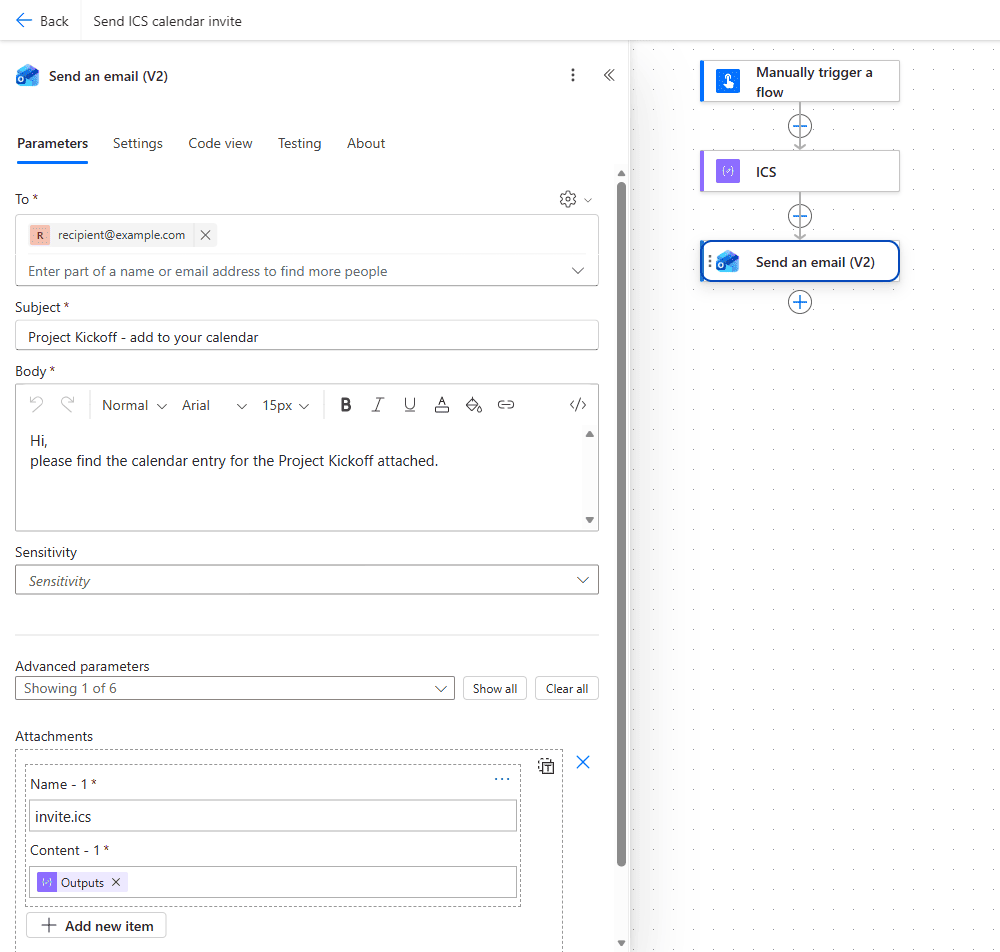 ‘Send an email (V2)’ with the Attachments parameter added: Name
 invite.ics and Content the base64(outputs('ICS')) expression. To, Subject and Body are filled in as for any other email.
🎉 Result
The recipient gets an email with an invite.ics attachment. One click adds “Project Kickoff” to their calendar - in Outlook, Google Calendar, or Apple Calendar alike - correctly timed, titled, and located. No premium connector, no mailbox permissions, and it works cross-platform because it’s the open iCalendar standard.
🌟 Key Advantages
🔸 Cross-platform: RFC 5545 is understood by every major calendar client, not just Outlook.
🔸 No premium, no permissions: just Compose + Send an email (V2) - nothing written to anyone’s mailbox.
🔸 Fully dynamic: title, times, location and description all come from flow data, so one flow serves every event.
🔸 Portable artifact: the .ics is a self-contained file you can also save to SharePoint/OneDrive or return from the flow.
🛠️ FAQ
1. PUBLISH vs REQUEST - which METHOD should I use?
Use METHOD:PUBLISH for a simple “add this to your calendar” (no RSVP). Use METHOD:REQUEST when you want a real meeting invitation with Accept/Decline - that additionally requires an ORGANIZER line and one ATTENDEE line per invitee, and responses flow back to the organizer.
2. The event imports at the wrong time - what’s wrong?
Almost always a time-zone mismatch. The Z suffix means the value is UTC. Either provide true UTC times (convert with convertTimeZone(...,'UTC')), or drop the Z and add a TZID (e.g. DTSTART;TZID=Europe/Zurich:20260805T150000) together with a matching VTIMEZONE block.
3. Do I need CRLF line endings?
The spec calls for CRLF (\r\n). Most clients (including Outlook) also accept plain LF, but to be strictly compliant build the line breaks with decodeUriComponent('%0D%0A') instead of relying on the editor’s newline.
4. My SUMMARY or DESCRIPTION breaks the file.
In iCalendar TEXT values, commas, semicolons and backslashes must be escaped (\, \; \\) and literal line breaks written as \n. Run a replace() over user-supplied text before dropping it into the Compose.
🔗 Related Tips
- #PowerPlatformTip 102: Event Coordination, manage attendees on real calendar events via the Graph API.
- #PowerPlatformTip 142: Automate Outlook Categories, another no-premium calendar automation with the Outlook connector.
- #PowerPlatformTip 146: Encode & Decode Functions, the Base64 and encoding helpers used to build the attachment.
This tip is by Marcel Lehmann, Microsoft MVP (Business Applications) and founder of the Power Platform Academy – live Power Platform workshops, free or CHF 49. Join the workshop waitlist to get notified about new dates. For companies that want this implemented for them, see KMUpower – Power Platform consulting & automation for SMEs (DACH).