#PowerPlatformTip 156: 'Handle Files up to 1 GB with Chunking in Power Automate'
TL;DR: A single Power Automate message is limited to 100 MB. Enable Allow chunking under an action’s Settings → Content transfer and supported actions handle files up to 1 GB — but only when the file flows directly from one file action to the next. The moment a variable, expression or a Compose sits in between, you are back to the 100 MB ceiling. Beyond 1 GB, copy server-side (e.g. a SharePoint copy job).
Uploading or copying a large document in a flow suddenly fails with a size or timeout error? You have hit the 100 MB message size limit that applies to a single HTTP call in Power Automate. For actions that support it, switching on Allow chunking raises the ceiling to 1 GB by splitting the payload into smaller pieces automatically.
💡 Challenge
Your flow moves, uploads or downloads a file — a big PDF, video or backup — and the run fails or times out once the file grows past roughly 100 MB. That is expected: the limit on a single message in an automated, scheduled or instant flow is 100 MB, and when you send a file through a connector the whole payload (headers, metadata and file) must stay under that limit — not just the file itself.
✅ Solution
Many file actions can transfer larger content in pieces instead of one block. Turning on Allow chunking in the action’s Content transfer settings lets supported actions process files up to 1 GB. The chunking protocol is handled for you — you do not split anything manually. The catch: a file bigger than 100 MB can only pass straight from one chunk-enabled file action to the next. The moment an in-between step (a variable, an expression, or a Compose) touches it, the run hits the 100 MB message limit.
🔧 How it’s done
1. Open the action’s settings.
🔸 On the file action (e.g. Create file, Get file content, HTTP), open the … menu → Settings.
2. Enable Allow chunking.
🔸 Scroll to Content transfer and set Allow chunking to On. Save the action.
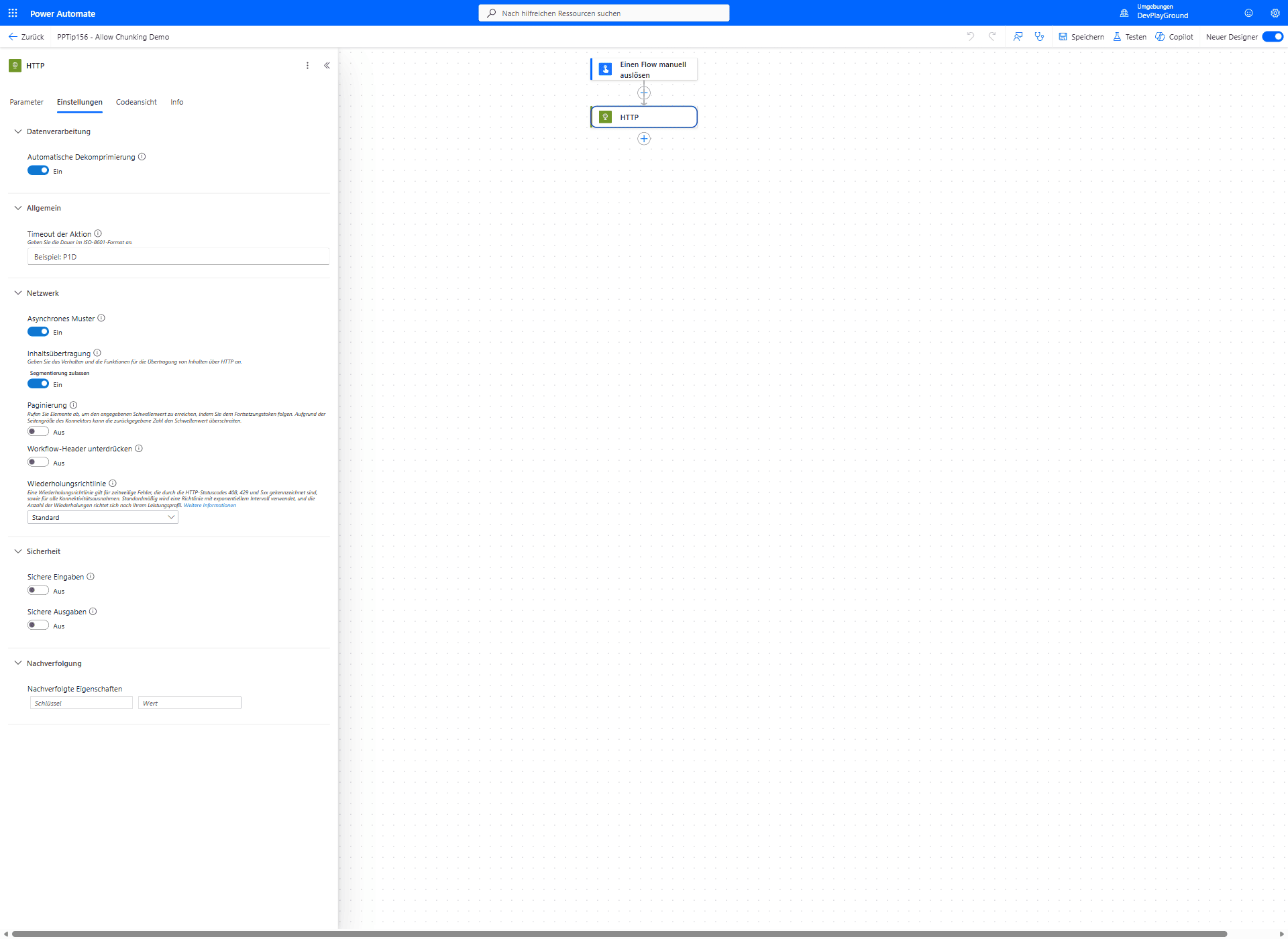 The action’s Settings pane, Allow chunking (shown here as “Segmentierung zulassen” in a German tenant) switched On under Content transfer.
🔸 With chunking on, supported actions handle payloads up to 1 GB instead of 100 MB.
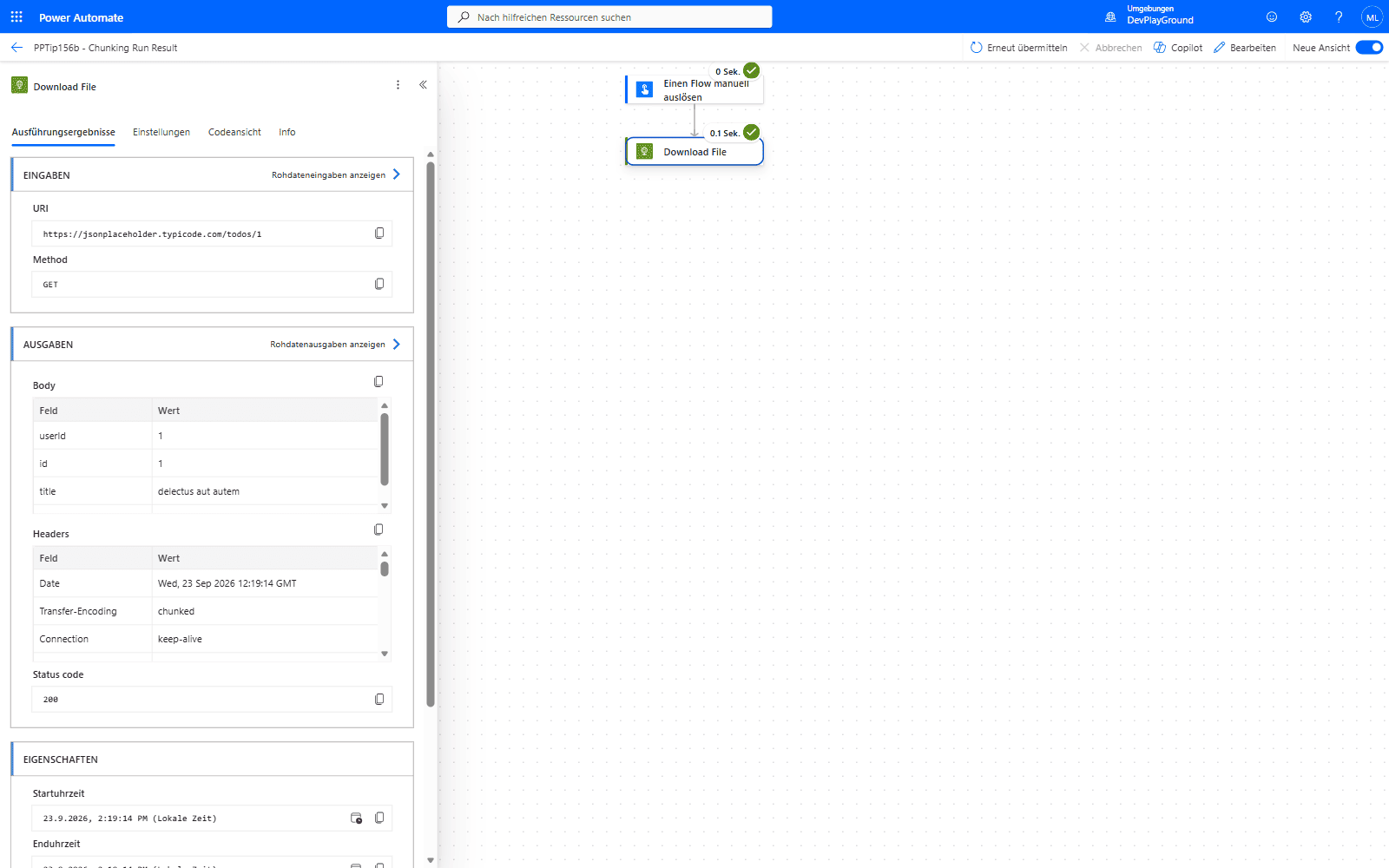 Real flow run: with chunking enabled, the response headers confirm
 Transfer-Encoding: chunked was actually used - status 200, real data.
3. For real >100 MB, connect the two file actions directly.
🔸 Chunking is not supported on triggers.
🔸 In the second action, pick the file content straight from the first action’s output — for example set the Create file File Content to the File Content of Get file content. Nothing should sit between them.
🔸 Don’t park the file in a variable or a Compose in between. Those are ordinary steps that are still capped at 100 MB — a bigger file makes the run fail. In short: a Compose does not lift the limit to 1 GB.
4. When Compose does help (≤100 MB only).
🔸 If your file is ≤100 MB but you built the content from a trigger, a variable or an expression, those inputs quietly switch chunking off. Drop the content into a Compose first and point the file action at that Compose — now chunking can kick in. This matters when the target connector’s own limit is below 100 MB (some already treat 30 MB as “large”). Compose only makes chunking possible again; it never raises the 100 MB cap.
5. Confirm the connector actually supports chunking.
🔸 Not every connector or API supports chunking — some don’t even honor the default 100 MB. If an action doesn’t expose the toggle or still fails, the underlying connector doesn’t support it.
🔸 For HTTP actions specifically, the external endpoint must implement the Logic Apps chunking protocol (206 Partial Content for downloads, x-ms-transfer-mode: chunked + PATCH for uploads). A generic web server that only speaks standard HTTP chunking will not work.
6. For files well beyond 1 GB, copy server-side (never move the bytes through the flow).
🔸 Azure Blob: Copy Blob From URL with a Microsoft Graph @microsoft.graph.downloadUrl.
🔸 SharePoint → SharePoint: the Copy file action copies within the same tenant server-side. For large or bulk moves, call the CreateCopyJobs REST API via Send an HTTP request to SharePoint (POST /_api/site/CreateCopyJobs) — it copies/moves files server-side up to SharePoint’s own file-size limit (250 GB), and the payload never enters Power Automate.
💡 Extra tip — beyond 1 GB in SharePoint: Don’t try to force a multi-GB file through chunking. Use a SharePoint copy job. The simplest option is the standard Copy file action (same tenant). For heavier scenarios — very large files, whole folders, or many files at once — POST to
/_api/site/CreateCopyJobswith a Send an HTTP request to SharePoint action. SharePoint performs the copy/move entirely on the server, so neither the 100 MB nor the 1 GB flow limit applies. You only pass the source and destination URLs, not the bytes.
🔁 The one rule that trips everyone up
A large file has to travel directly from one file action to the next. Put anything in between and it stops at 100 MB. Compare the two flows:
❌ Fails above 100 MB
Get file content → Set variable / Compose → Create file
🔸 The middle step “unpacks” the whole file into memory → the 100 MB limit kicks in → the run fails.
✅ Works up to 1 GB
Get file content → Create file
🔸 Turn Allow chunking on for both actions.
🔸 In Create file, pick the File Content straight from Get file content — no variable, no Compose, no expression in between.
Think of it like a relay baton: as long as one file action hands the file directly to the next, it can be huge. The instant a variable or Compose grabs the baton, everything over 100 MB drops.
flowchart LR
    subgraph Fails["❌ Fails above 100 MB"]
        A1["Get file content"] --> A2["Set variable / Compose"] --> A3["Create file"]
    end
    subgraph Works["✅ Works up to 1 GB"]
        B1["Get file content"] -->|"Allow chunking on both"| B2["Create file"]
    end
🎉 Result
Large-file actions that used to fail at ~100 MB now transfer content up to 1 GB — as long as the file goes straight from one file action to the next. Above 1 GB, a server-side copy (Azure Blob or a SharePoint copy job) moves the file without ever touching Power Automate’s size limits. No premium connector, no restructuring, and no manual splitting.
🌟 Key Advantages
🔸 One toggle: Allow chunking is a per-action setting, not a redesign.
🔸 10x headroom: 100 MB → 1 GB on supported actions.
🔸 Built-in: works with standard HTTP (endpoint must implement the Logic Apps chunking protocol) and many standard file actions — no premium licence required.
🛠️ FAQ
Q1: What exactly is the limit — 100 MB or 1 GB?
A single message is 100 MB by default. With Allow chunking enabled and the file passed straight from one file action to the next, the limit rises to 1 GB.
Q2: Why does my flow still fail after enabling chunking?
Usually one of these: the connector doesn’t support chunking, the HTTP endpoint doesn’t speak the Logic Apps chunking protocol, or a step in the middle (a variable, expression or Compose) grabs the file and hits the 100 MB limit. Connect the two file actions directly instead.
Q3: Can I route the >100 MB file through a Compose to reach 1 GB?
No — that is the classic trap. Compose is still capped at 100 MB and can’t handle a bigger file (the run fails). Compose only helps for ≤100 MB content that needs to switch chunking back on toward a connector with a smaller-than-100 MB limit. For genuine >100 MB, connect the two file actions directly — no Compose, no variable.
Q4: Does chunking work on triggers?
No. Chunking applies to actions only. A trigger can’t deliver more than the default limit, so pull large content with a separate action after the trigger.
Q5: The file is 3 GB — what now?
Chunking tops out at 1 GB, so copy server-side. Within SharePoint, use the Copy file action or the CreateCopyJobs REST API (POST /_api/site/CreateCopyJobs via Send an HTTP request to SharePoint) — SharePoint copies/moves the file on the server up to its 250 GB file limit, bytes never entering the flow. For blob storage, use Azure Blob Copy Blob From URL with a direct download URL.
Q6: Enabling chunking removed my Overwrite option — is that related?
Yes. Some SharePoint actions hide Overwrite when chunking is on. See #PowerPlatformTip 27 for the reverse trade-off.
🔗 Related Tips
- #PowerPlatformTip 27: Overwrite Existing Files in Power Automate — the reverse trade-off: turn Allow Chunking off to unlock the Overwrite toggle.
- #PowerPlatformTip 58: HTTP Actions — HTTP actions are the main chunking candidates for custom API calls.
- #PowerPlatformTip 18: Download & Save Files — choosing the right action for public vs. authenticated file handling.
This tip is by Marcel Lehmann, Microsoft MVP (Business Applications) and founder of the Power Platform Academy – live Power Platform workshops, free or CHF 49. Join the workshop waitlist to get notified about new dates. For companies that want this implemented for them, see KMUpower – Power Platform consulting & automation for SMEs (DACH).