#PowerPlatformTip 29: 'ParseJSON Description'
TL;DR: Add a ‘Description’ property inside your Parse JSON schema so the label shows under the matching Dynamic Content entry and you can tell duplicates apart.
💡 Challenge
When using the Parse JSON action in Power Automate, distinguishing between multiple occurrences of the same name in Dynamic Content can be difficult, leading to confusion about which value corresponds to which name.
✅ Solution
Add a custom Description inside the Parse JSON schema. This description appears under the Dynamic Content entry, letting you tell similar entries apart.
🔧 How It’s Done
-
In your Parse JSON action, add a
"Description"property to an element in the schema, after itstype:1 2 3 4 5 6 7 8
{ "properties": { "FieldName": { "type": "string", "Description": "This is the description for FieldName" } } }
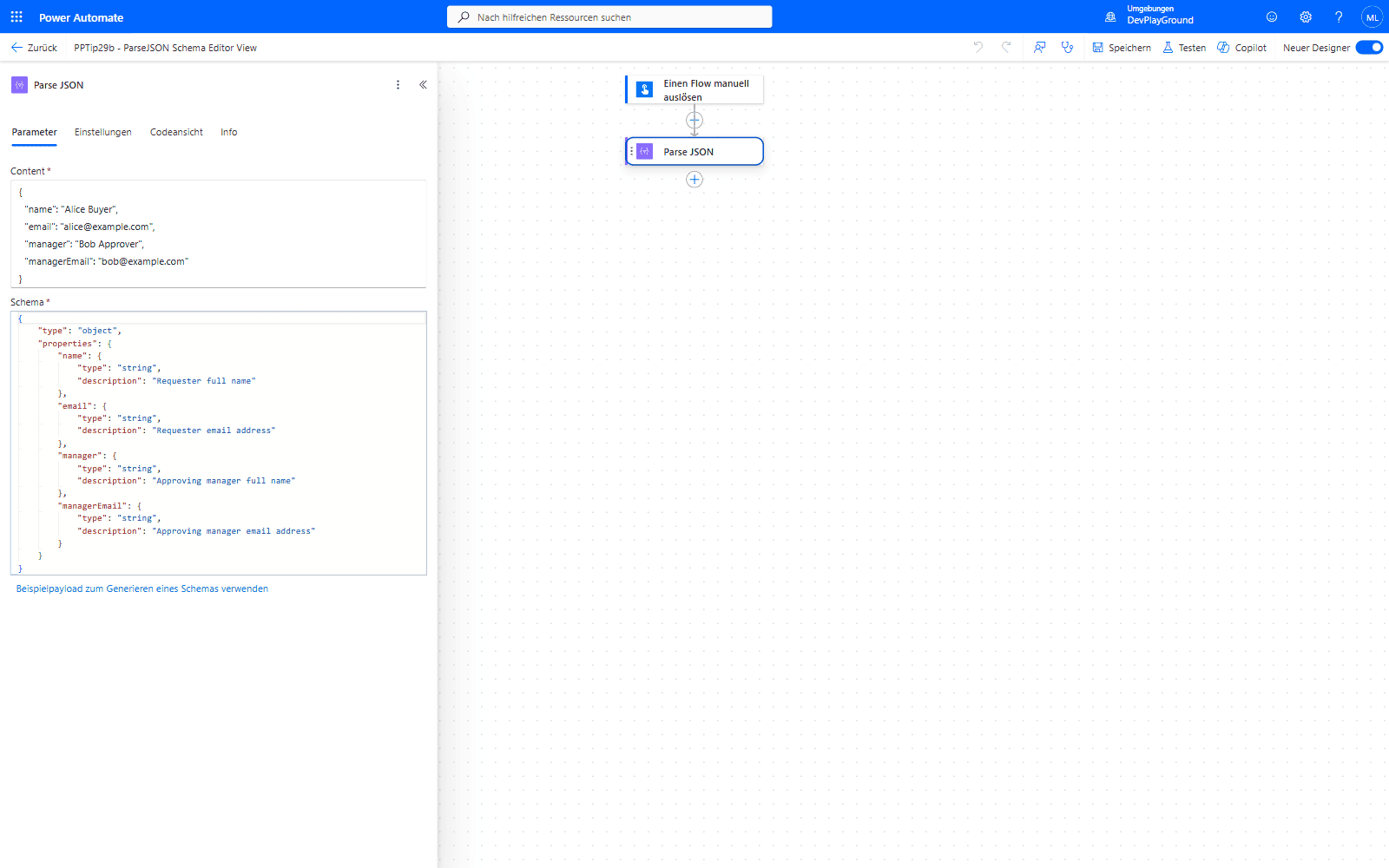 The Parse JSON action’s own Schema editor: each property carries its own
 description, typed directly into the same field where you’d normally just paste a sample payload.
- The description you added now appears beneath the corresponding Dynamic Content in Power Automate, guiding you to the right value.
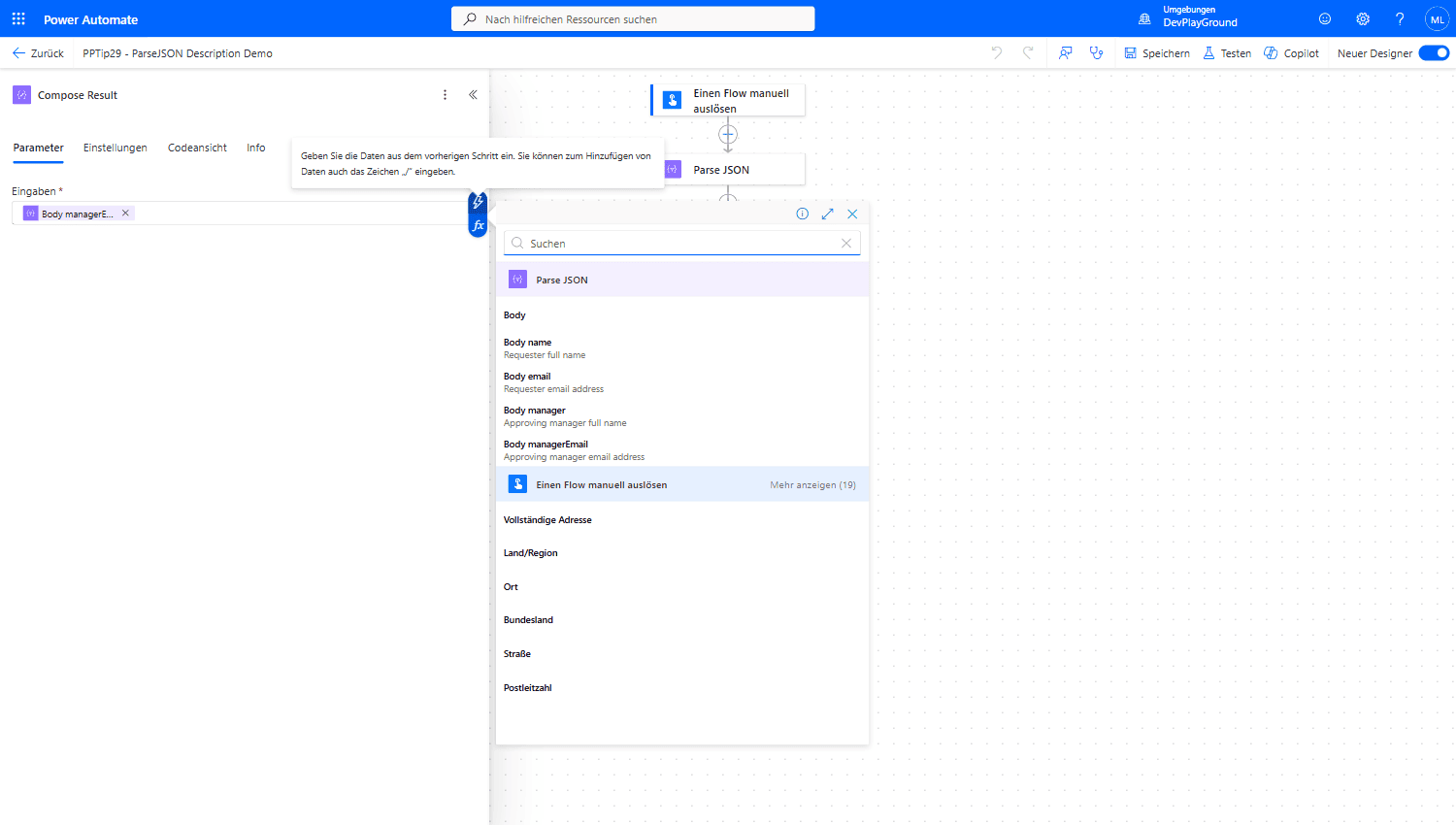 Real flow: the Dynamic Content picker shows “Body manager” and “Body managerEmail” each with their own description line underneath, no more guessing which is which.
⚠️ Pitfall: The JSON Schema specification only knows the lowercase keyword
description, notDescription. In practice Power Automate also picks up the lowercase variant reliably for the Dynamic Content display, the example above works unchanged.
🧩 What the Schema Does at Run Time
description (and title) are documentation only. In a flow run, a Parse JSON action with the schema
1
2
3
4
5
6
7
8
{
  "type": "object",
  "properties": {
    "id": { "type": "integer" },
    "email": { "type": ["string", "null"], "title": "E-Mail", "description": "mail desc" }
  },
  "required": ["id", "email"]
}
parsed {"id": 1, "email": null} successfully and returned the body unchanged, {"id": 1, "email": null}; body('Parse_JSON')?['email'] is null. The same content against "email": { "type": "string" } failed with Invalid type. Expected String but got Null. The label metadata never changes what passes or fails, the type does. The full list of what the schema enforces (format, required, integer, empty schema) is in Tip 104.
🎉 Result
A more intuitive way to work with Dynamic Content in Power Automate, reducing the risk of errors when dealing with multiple occurrences of the same name.
🌟 Key Advantages
🔸 Improved Clarity: Custom descriptions explain the context and purpose of each Dynamic Content entry.
🔸 Enhanced Organization: Keeps your flow design tidy and well-documented.
🔸 Increased Accuracy: Minimizes confusion by clearly identifying each data element.
🎥 Video Tutorial
🛠️ FAQ
1. Can I add descriptions to all field types in Parse JSON schema?
Yes, descriptions can be added to any field type (string, number, boolean, array, object) in your JSON schema.
2. Do these descriptions affect the actual JSON parsing process?
No, descriptions are metadata that only affect the Power Automate interface and don’t impact the parsing functionality.
3. Is there a character limit for field descriptions?
While there’s no strict limit, keep descriptions concise for better readability in the Dynamic Content pane.
4. Why does Parse JSON fail with “Expected String but got Null” even though my description is correct?
Because description and title are ignored at run time, only type is validated. Declare the field as "type": ["string", "null"] and the action parses a null value successfully.
🔗 Related Tips
🔸 #PowerPlatformTip 4: ‘JSON Viewer’ - format the raw JSON first so you know exactly which fields need a description.
🔸 #PowerPlatformTip 104: ‘Efficient JSON Handling’ - build the null-tolerant schema this description gets added to.
This tip is by Marcel Lehmann, Microsoft MVP (Business Applications) and founder of the Power Platform Academy – live Power Platform workshops, free or CHF 49. Join the workshop waitlist to get notified about new dates. For companies that want this implemented for them, see KMUpower – Power Platform consulting & automation for SMEs (DACH).